This feature is currently available only to customers participating in a Public Preview. For details, see Preview Program.
Report Library
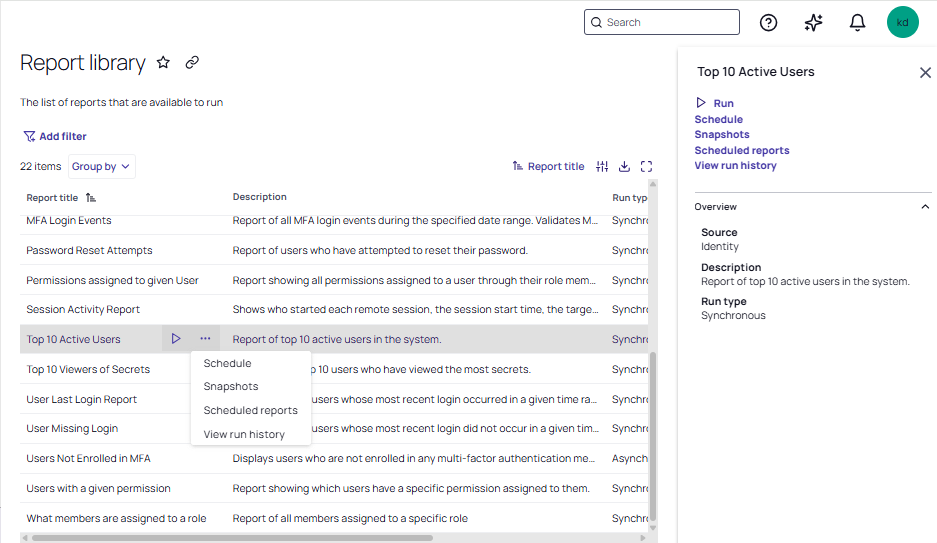
Select Insights from the left navigation, then in the Reporting section, click Report library. Reports are conveniently grouped into areas of security and auditing interests. Refer to Platform Interface .
Permissions required: Manage Reports (least) or Administer Reports (see Platform Permissions)
Select a report in the Report library to access the report's Preview panel.
Running a Report
Select any report in the library and click (Run) or Run in the Preview panel.
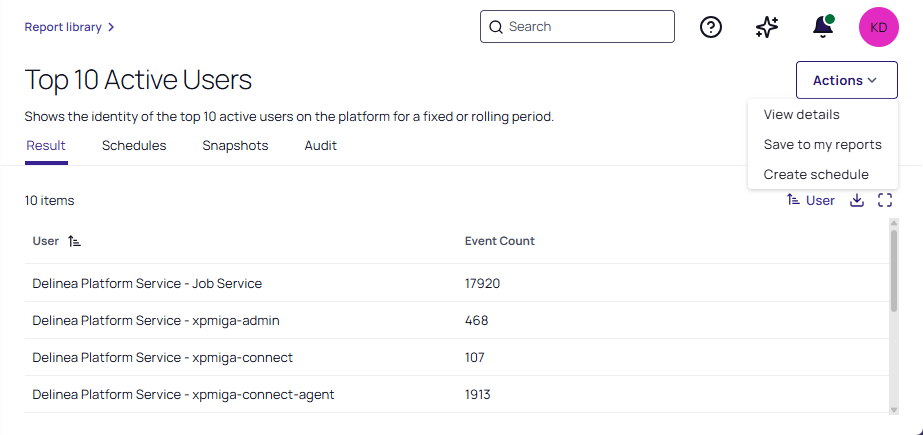
The immediate output of running a report is shown in the Result tab on the Report details page. This is the live, in-session view of the report data. Additionally, past report runs (run history) are tracked in the Audit tab of the Report details page.
Report Results
Select a report in the Report Library to access the Preview panel for Report details. Select Audit to view the run history of the report.
Viewing, Saving, and Scheduling a Report
Select Result to view the run results. The Actions pull-down, allows for the following selections:
-
Select View details. The report Details pane displays. You can Schedule a report, or Save that report as a Dynamic report or Data snapshot in your My Reports.
-
Select Save to my reports. Options are presented that allow you to save the report as a Dynamic report or Data snapshot in your My Reports.
-
Select Schedule. The same actions as those provided when scheduling a report are presented. Refer Scheduling Reports.to open the dialog for Scheduling Reports.
Initiating Library Actions
The following additional actions are available in the Preview panel, as well as the report's drop-down.
-
Snapshots - Any time a report is scheduled and data snapshots are saved, they will be displayed on the Snapshots tab of the Report details page. Any snapshots that were shared with you will also appear.
Snapshots can also be manually saved from your My reports. These snapshots will also appear in the Snapshots tab. See My Reports.
-
Schedule - Select Schedule to access the scheduler dialog, where you can create and share a scheduled report.
See Scheduling Reports.
-
Schedules - Select Schedules to view the Schedules tab on the Report details page. Both scheduled reports that you created and scheduled reports that have been shared with you are displayed.
-
Audit - When selected, all runs associated with the selected report are displayed on the Audit tab of the Report details page.


