This feature is currently available only to customers participating in a Public Preview. For details, see Preview Program.
Scheduling Reports
The reports in the Report Library come with predefined parameters. However, the Details pane allows you to configure a report with your desired filters. You can save that configuration as a Dynamic report in My reports. You can also save a snapshot of the report results in your My reports.
Dynamic reports gives you a reusable shortcut to re-run the same report with the same filters anytime, without having to reconfigure it each time. You can schedule any report to run on a recurring basis (e.g., daily at midnight), name it, and set it to run in perpetuity or for a defined period.
Permissions required: Manage Platform Reports (least), Administer Platform Reports (see Required Permissions)
Sharing access is governed by whether you own the schedule or whether the owner granted reshare permission to you when they created the schedule.
There are three places in Reporting where you can trigger the Schedule dialog to create a new schedule.
-
Report Library page
Select any predefined report to access the Schedule link.
-
Report details page (View report parameters)
After running a report and viewing the results on the Results tab, use View report parameters to access the Preview panel and Schedule link.
-
My Reports (Dynamic reports)
In My Reports, under Dynamic reports, select a report to access the Preview panel and Schedule link.
If the Manage Platform Reports permission is assigned, you will only see reports relevant to your role.
Creating a Scheduled Report
-
Select a report in the Report Library. In the Preview panel, select Schedule.
-
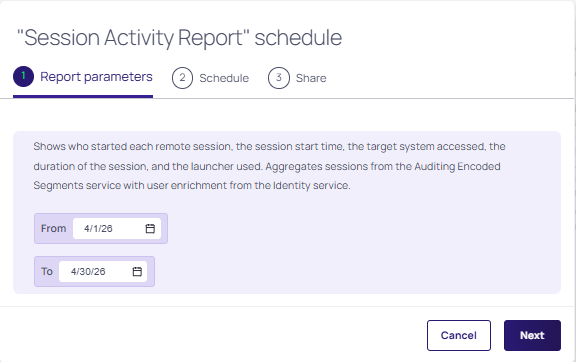
The Schedule dialog is presented. For step 1, specify Date Range values for the new filter parameters presented and click Next.
-
In Step 2, specify a name, type, start and end parameters, and run start. You can also receive an email notification when the report is ready. Click Next.
-
Step 3 sets sharing parameters that include email selection for platform users, and whether they can view and share the report. (When in edit mode, you can update share permissions, noting that permission changes only apply to future snapshots.) Click Save.
The report will run according to the parameters defined. A Dynamic report and a snapshot is automatically created for each run and can be viewed in My Reports.
Viewing Scheduled Reports
After running a scheduled report, you receive an email notification with a link to view the report results directly in the platform, specifically to the snapshot that was generated by the scheduled run. Refer to Report Results.
What a user can see and do with a scheduled report depends on what the report owner granted.
Running a report enforces your permissions, and scheduled runs use the scheduling user's permissions. This means a shared snapshot reflects the data the owner was entitled to see, not necessarily what you would see if you ran the report.
Managing a Report
From the Schedule link, you can select a scheduled report and:
-
Edit the schedule — provides for editing the existing scheduled configuration
-
Edit sharing - allows you to add and remove recipients, as well as modify their permissions
-
Enable/disable the schedule — toggles on/off without deleting it
-
Delete the schedule permanently — triggers a delete action, with confirmation dialog first
If you are a shared recipient, you can reshare (if your permissions permit) and remove yourself from the schedule.


