Snowflake Key Pair Auth Secret Template for RPC
Overview
This document briefly discusses using Secret Server Remote Password Changing (RPC) for Snowflake service accounts that authenticate with PKCS#8 RSA key pairs. With RPC, secrets can automatically rotate the stored key pair on a schedule or on demand, and Secret Server registers the new public key in Snowflake automatically using ALTER USER ... SET RSA_PUBLIC_KEY. See the Password Changer List for a complete list of available password changers.
The Snowflake Key Pair Auth template is the recommended option for new Snowflake service-account configurations. Snowflake is phasing out single-factor password authentication for LEGACY_SERVICE users in 2026; key pair authentication is the required replacement for affected accounts.
Version Availability
-
Secret Server Cloud — May 6, 2026 release (
v12.0.1777258957_5_6_2026) -
Secret Server on-premises — 12.1.x
Locating the Template
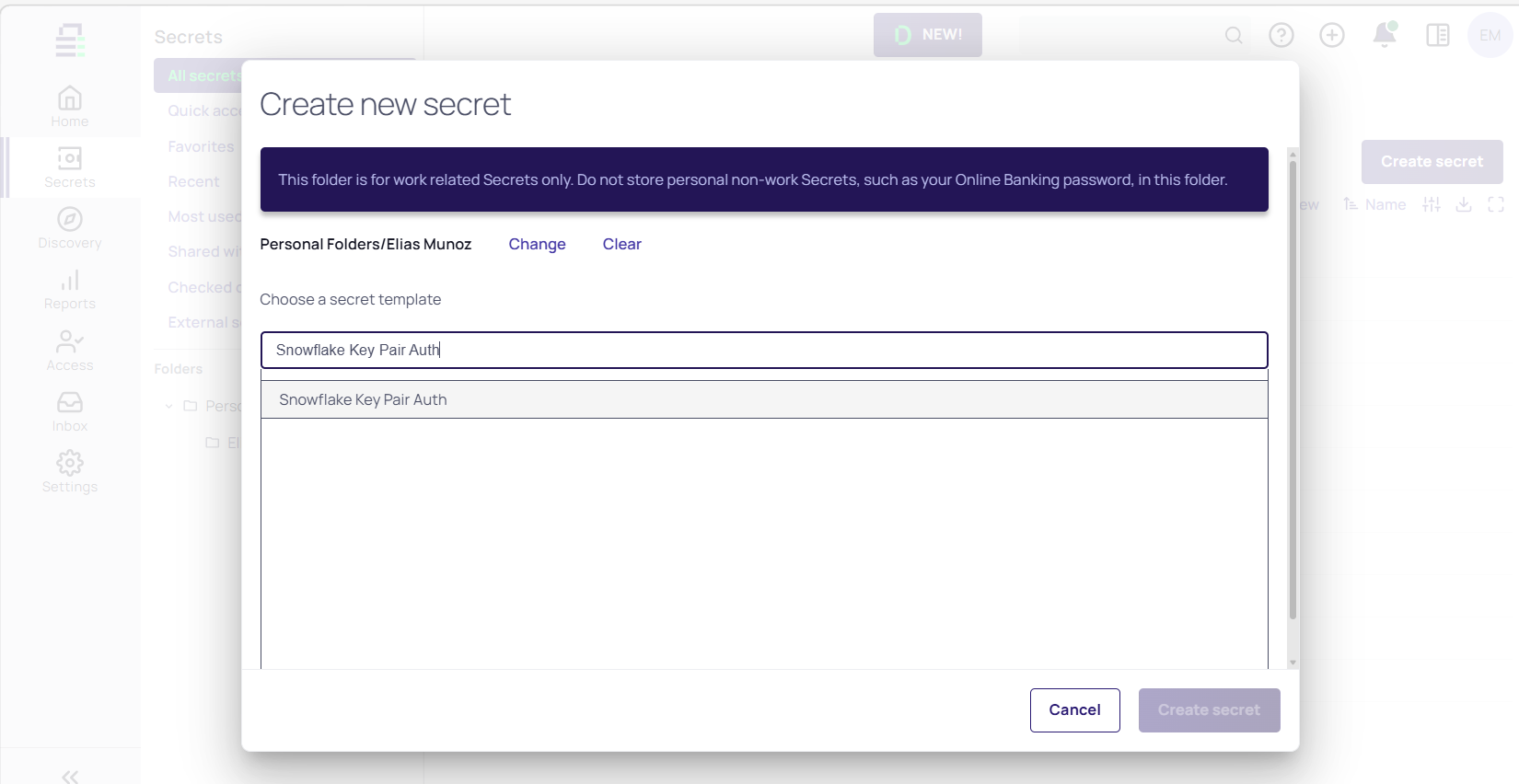
From Secrets > All Secrets, click Create secret. In the Create new secret dialog, search for Snowflake Key Pair Auth and select the template.
Template Fields
| Field | Description |
|---|---|
| Secret Name | A descriptive name for the secret. |
| Account URL | The Snowflake account URL (for example, https://<account>.snowflakecomputing.com). |
| Username | The username of the Snowflake service account. |
| Private Key | The RSA private key in PKCS#8 PEM format. Auto-populated when Generate New Key is selected. To use an existing key, paste a PKCS#8 PEM block (BEGIN PRIVATE KEY for unencrypted, BEGIN ENCRYPTED PRIVATE KEY for passphrase-encrypted). |
| Public Key | The RSA public key in Base64 text format (no PEM headers). Auto-populated when Generate New Key is selected. This is the value registered in Snowflake via ALTER USER ... SET RSA_PUBLIC_KEY. |
| Private Key Passphrase | (Optional) A passphrase used to encrypt the private key. Required only for passphrase-encrypted keys; leave blank for unencrypted keys. Click Generate to auto-generate a passphrase. |
| Site | The site whose distributed engine has outbound HTTPS access to Snowflake. |
Key Generation
The template supports both Secret Server-generated and externally-generated key pairs:
-
Generate a new key pair: Select the Generate New Key checkbox. Secret Server generates a PKCS#8 RSA key pair and auto-populates the Private Key and Public Key fields when the secret is created.
-
Use an existing key pair: Leave Generate New Key unchecked and paste the key material directly into the Private Key and Public Key fields.
-
Passphrase-encrypted private keys: Enter a value in Private Key Passphrase (or click Generate to auto-generate one). When a passphrase is provided, the private key is stored in encrypted PKCS#8 format (
BEGIN ENCRYPTED PRIVATE KEY). Without a passphrase, the key is stored unencrypted (BEGIN PRIVATE KEY).
Password Changer Behavior
The Snowflake Key Pair Rotation password changer is preconfigured for this template.
-
Privileged account: A separate Snowflake secret with the SECURITYADMIN role (or equivalent) is required as the privileged account. This account executes
ALTER USER ... SET RSA_PUBLIC_KEYto register the new public key in Snowflake during rotation. -
Rotation steps: On a triggered rotation, Secret Server generates a new PKCS#8 RSA key pair, connects to Snowflake using the privileged account, and updates the public key via
ALTER USER ... SET RSA_PUBLIC_KEY. On success, the secret's Private Key and Public Key fields update to the new values. -
Rollback on failure: If the rotation fails, Secret Server rolls back — the old key remains valid in Snowflake and the secret fields are unchanged.
Heartbeat
After secret creation, the Heartbeat operation runs automatically to verify the stored private key can authenticate to Snowflake. The status changes from Pending to Success if the key is valid, or to Failed otherwise.
Assigning a Password Changer to a Secret Template
After completing the RPC setup, you can manage the built-in secret templates. Each secret template is preconfigured with the password changer best suited to it — for the Snowflake Key Pair Auth template, the Snowflake Key Pair Rotation password changer.
You can view and modify secret templates in the Secret Server administration panel. See Creating or Editing Secret Templates for the available options. Ensure that the secret template is in active status; see Activating and Deactivating Templates for details.
To navigate to the Snowflake Key Pair Auth secret template:
-
Search for Secret Templates. The Secrets Administration page is displayed.
-
In the Core Actions section, click Secret Templates. The list of available templates is displayed.
-
Select the Snowflake Key Pair Auth secret template and then click the Mapping tab.
It is possible to assign several password changers to one secret template. For more information, see Assigning a Password Changer to a Secret Template.
Full Configuration
For complete step-by-step configuration — creating a Snowflake Key Pair Auth secret, configuring the privileged account used for rotation, and triggering a key rotation — see the Key Pair Authentication Configuration section of RPC for Snowflake in Secret Server.


