Configuring Event-Driven Refresh in the Delinea Platform
This topic describes how to configure the Delinea Platform so that an Event Pipeline notifies Delinea Credentials Cache whenever a secret password changes. For the concept and the end-to-end flow, see Event-Driven Secret Refresh. Before you begin, complete the event-driven refresh requirements in Prerequisites.
Complete the following steps:
The pipeline task calls the POST /api/secretchanged endpoint of the Credentials Cache API. For the request format and expected response, see API Reference.
Step 1: Create a Service User in the Delinea Platform
The Delinea Credentials Cache integration requires a service user to authenticate with the Delinea Platform. If you do not have a service user, create one. For more information, see Service Users in the Delinea Platform documentation.
The service user's role must have the following permissions:
-
Administer Secret Server Pipelines - Required to create and manage Event Pipeline policies.
-
Administer Secret Server Scripts - Required to create and manage PowerShell scripts.
-
View Secret - Required for the Credentials Cache application to retrieve secrets.
To create a role with these permissions and assign it to the service user:
-
In the Delinea Platform, navigate to Access > Roles.
-
Select Add Role.
-
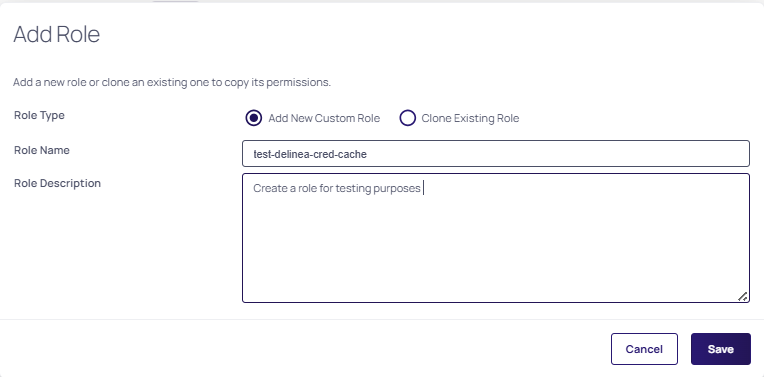
In the Add Role dialog, select the Add New Custom Role checkbox, provide a name and an optional description for the new role, and select Save.
-
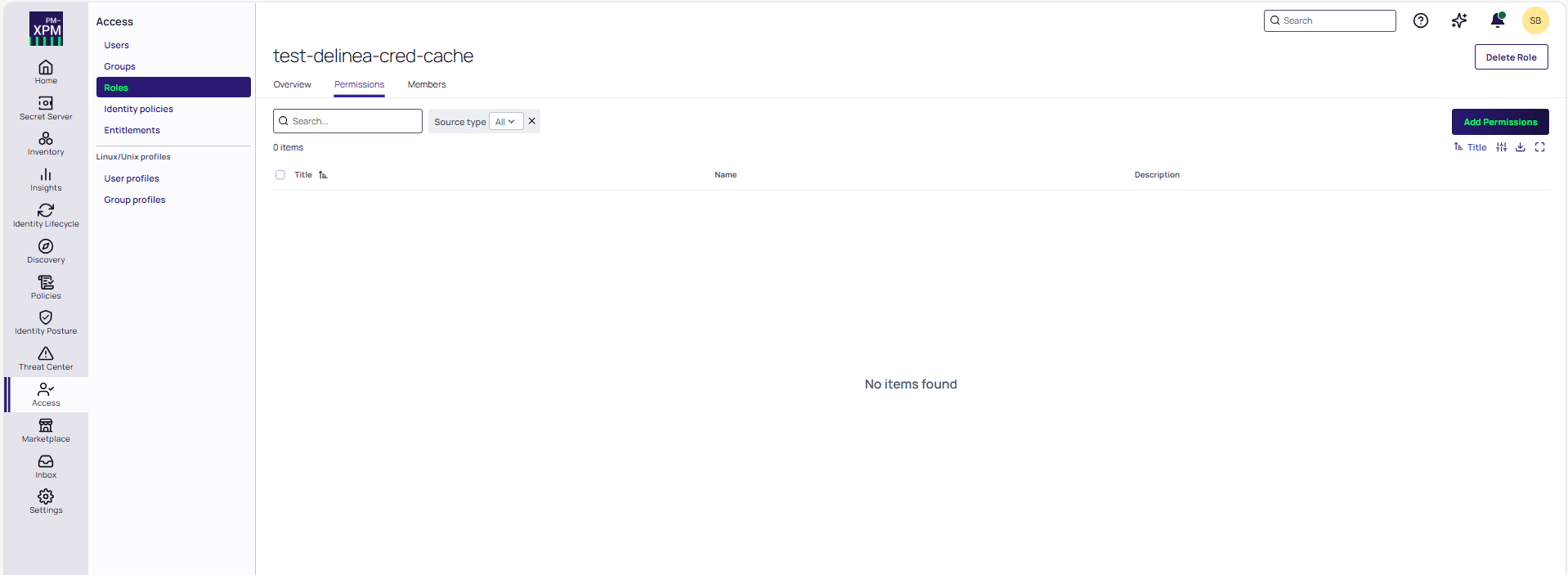
Go to the Permissions tab for the role.
-
Select Add Permissions and in the Add Permissions window, search for and select the three permissions listed above. You can search for the permissions by using the search box at the top.
-
Select Assign.
-
Assign the role to the service user:
-
Navigate to Access > Users.
-
On the Users page, search for and select the service user.
-
On the user page, go to the Roles tab and select Assign Roles.
-
In the Assign Roles window, search for and select the role that you created and select Assign.
-
Step 2: Create a Secret in the Delinea Platform
Create a secret in Secret Server on the Delinea Platform that holds the values the pipeline script needs: the tenant URL, the OAuth client credentials, and the Credentials Cache URL. You must also share the secret with the service user so that the integration can read it.
To create the secret and share it with the service user:
-
In the Delinea Platform, select Secret Server > All secrets.
-
Select Create secret.
-
In the Create new secret dialog, do the following:
-
(Optional) Change the default folder.
Make sure that the service user has the View permission for the folder and for every parent folder above it.
-
Under Choose a secret template, select the template from which to create the secret.
Create a custom template with the following fields, which the Script Args in Step 5 reference: TENANTURL, CLIENTID, CLIENTSECRET, CREDCACHEURL, and DOMAIN.
-
Enter a name for the secret and the values for each template field (tenant URL, OAuth client ID and client secret, Credentials Cache base URL, and optionally the domain).
-
-
Share the secret with the service user:
-
Go to the Sharing tab of the secret's page.
-
Select Edit in the upper-right corner.
-
Clear Inherit permissions.
-
Search for the service user by using the search box at the top.
-
Select the checkbox to the left of the service user name and then select View in the dropdown list under Secret Permissions.
-
Select Save.
-
Step 3: Create a PowerShell Script in the Delinea Platform
The script accepts the Secret ID as its first argument, obtains a Bearer token from the Delinea Credentials Cache /api/token endpoint, calls the /api/secretchanged endpoint, and logs the request and response for monitoring.
-
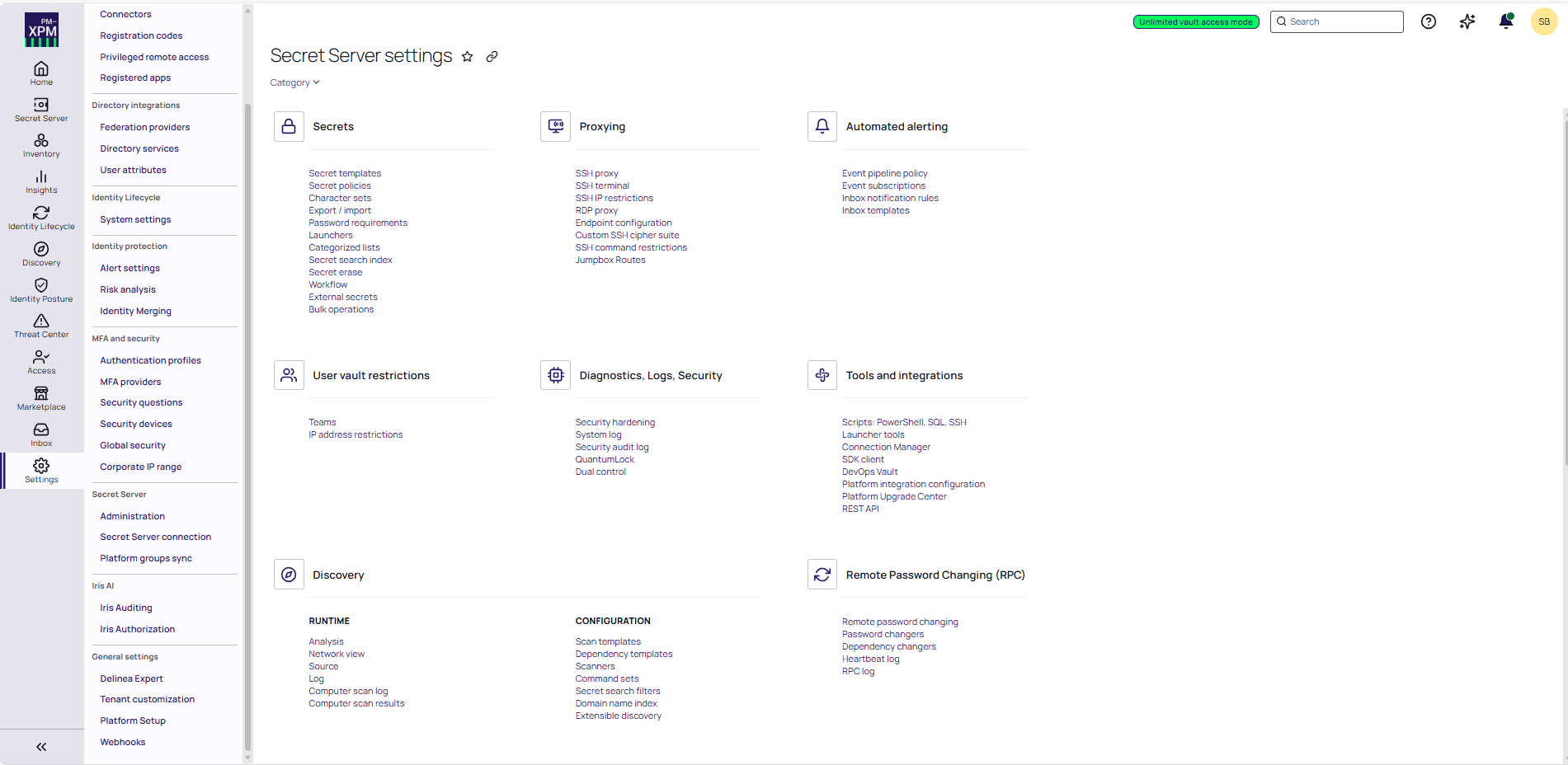
In the Delinea Platform, navigate to Settings.
-
Go to Administration.
-
Select Scripts: PowerShell, SQL, SSH.
-
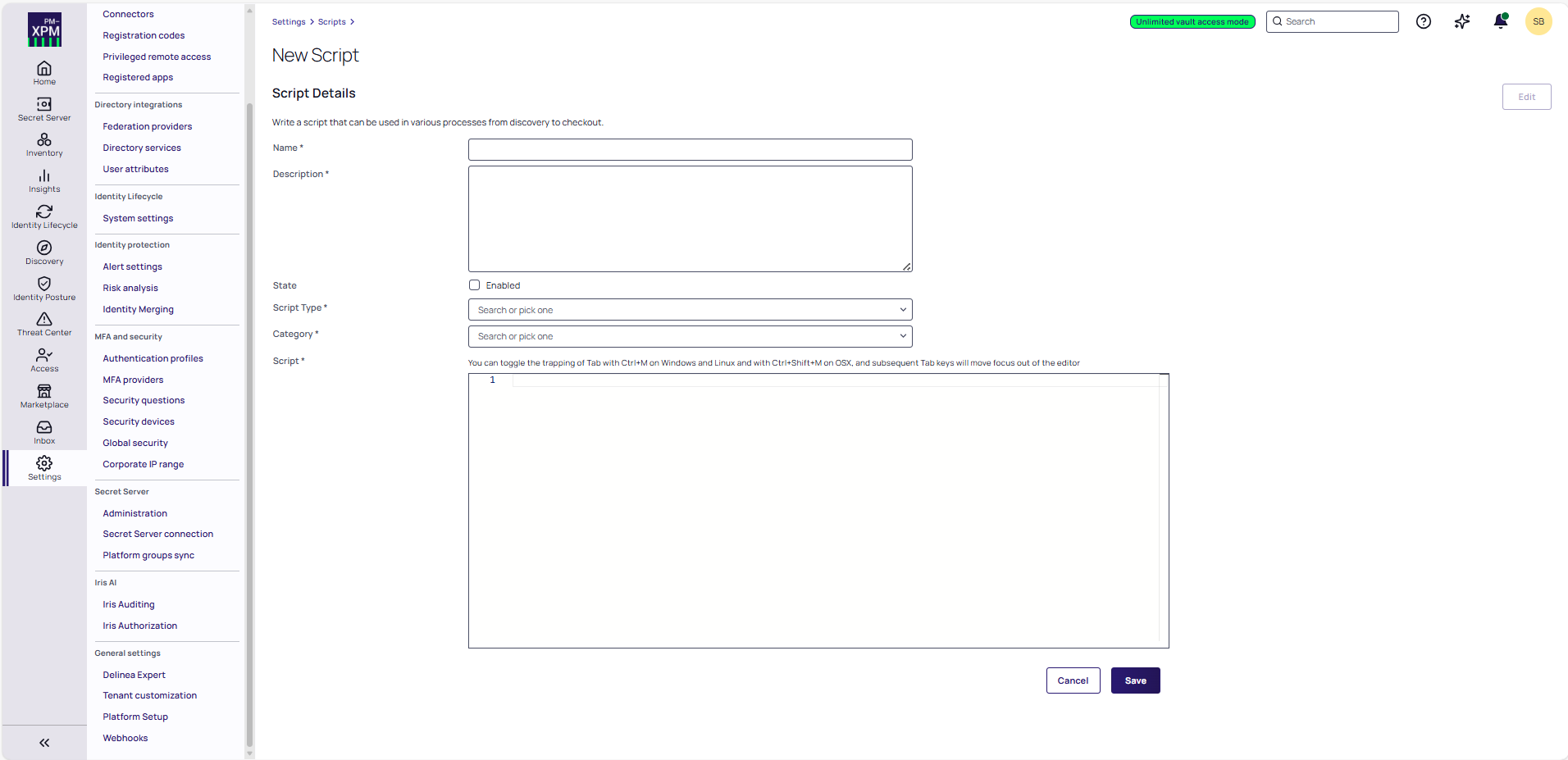
Select Create script. The New Script page opens.
-
Complete the script details:
-
Name: Name of the script.
-
Description: Optional description of the script.
-
Script Type: PowerShell
-
Category: Password Changing
-
Use PowerShell Core: Clear this checkbox.
-
Script: Paste the following PowerShell script into the script editor. Do not modify the script other than as described in the warning below.
The script contains the line
[System.Net.ServicePointManager]::ServerCertificateValidationCallback = { $true }, which disables TLS certificate validation for every HTTPS call the script makes. This is acceptable only in a development or test environment with self-signed certificates. In production, remove that line (and, if not required, theSecurityProtocolline) and make sure that the Distributed Engine host trusts the certificate presented by the Credentials Cache.Copy$ItemId = $Args[0]
# ===============================
# CONFIGURATION
# ===============================
$BaseUrl = $Args[1]
$Username = $Args[2]
$Password = $Args[3]
$ApiBaseURI = $Args[4]
$Domain = $Args[5]
# ===============================
# TLS + CERT FIX (DEV ONLY)
# ===============================
[Net.ServicePointManager]::SecurityProtocol = [Net.SecurityProtocolType]::Tls12
[System.Net.ServicePointManager]::ServerCertificateValidationCallback = { $true }
# ===============================
# STEP 1: GET JWT TOKEN
# ===============================
$TokenUrl = "$ApiBaseURI/api/token"
$TokenBody = @{
Username = $Username
Password = $Password
BaseUrl = $BaseUrl
Domain = $Domain
}
try {
Write-Host "Requesting JWT token..."
$TokenResponse = Invoke-RestMethod `
-Method Post `
-Uri $TokenUrl `
-ContentType "application/x-www-form-urlencoded" `
-Body $TokenBody `
-ErrorAction Stop
$AccessToken = $TokenResponse.token
if ([string]::IsNullOrWhiteSpace($AccessToken)) {
throw "JWT token missing in response."
}
Write-Host "JWT token retrieved successfully."
}
catch {
Write-Error "❌ Token request failed: $($_.Exception.Message)"
exit 1
}
# ===============================
# STEP 2: CALL SECRET CHANGED API
# ===============================
$SecretChangedUrl = "$ApiBaseURI/api/secretchanged"
$Headers = @{
Authorization = "Bearer $AccessToken"
"Content-Type" = "application/json"
}
$Body = @{
secretId = "$ItemId"
} | ConvertTo-Json
try {
Write-Host "Calling SecretChanged API..."
Invoke-RestMethod `
-Method Post `
-Uri $SecretChangedUrl `
-Headers $Headers `
-Body $Body `
-ErrorAction Stop
Write-Host "✅ Secret cached successfully."
}
catch {
Write-Error "❌ SecretChanged API failed."
Write-Error $_.Exception.Message
} -
-
Select Save to store the PowerShell script.
Step 4: Create an Event Pipeline Policy
-
In the Delinea Platform, navigate to Settings.
-
Go to Administration.
-
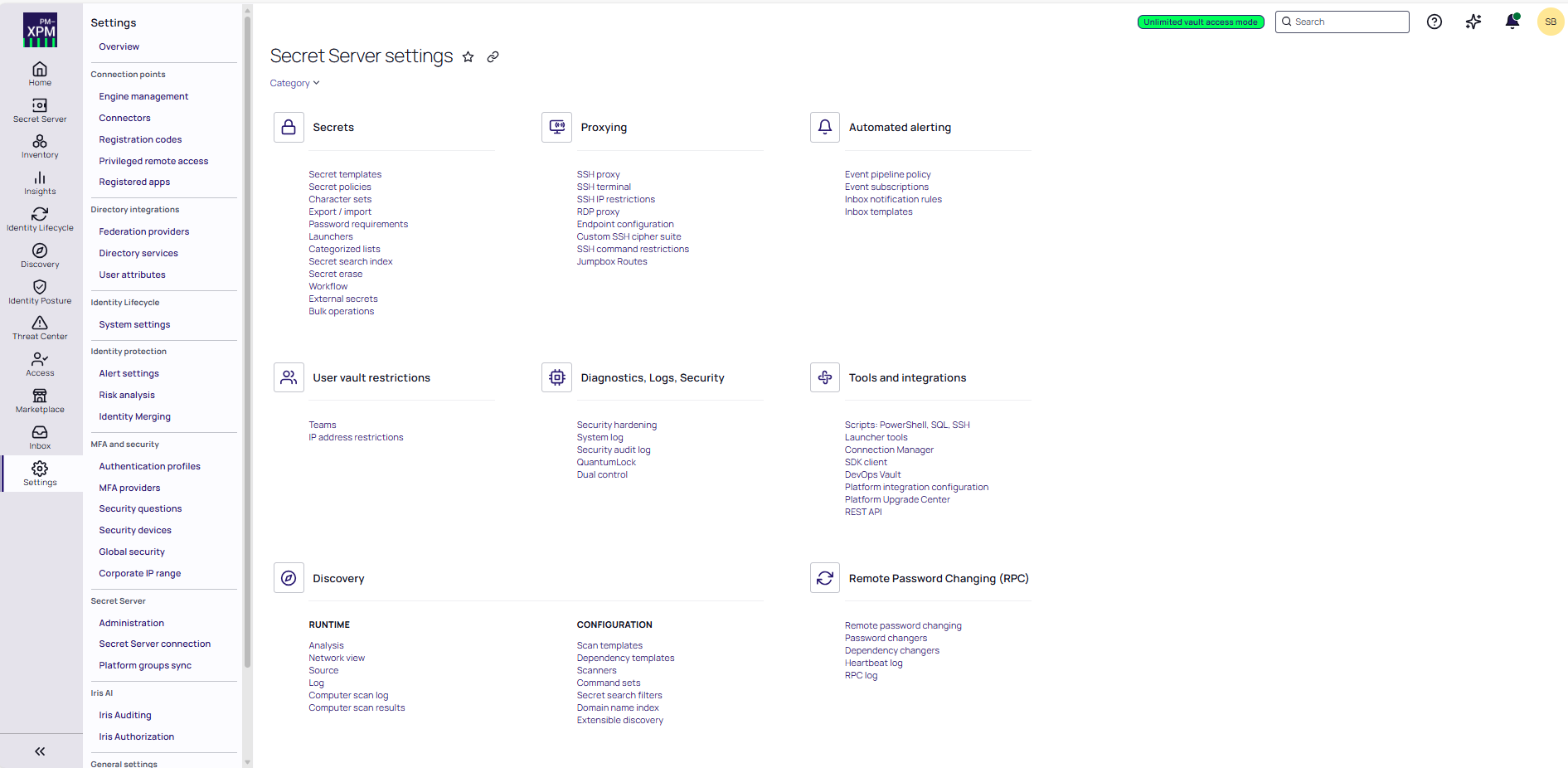
Under the Automated alerting section, select Event pipeline policy.
-
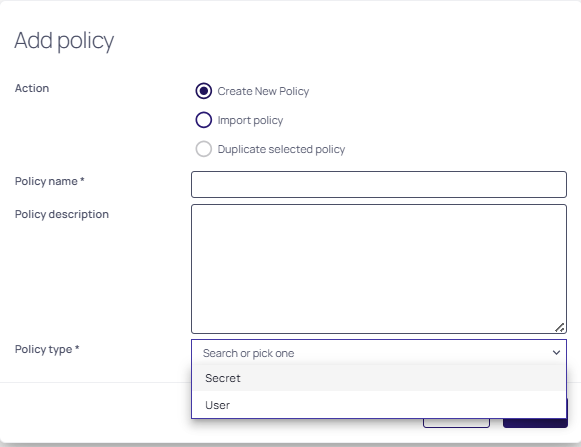
Select Add policy.
-
In the Add policy window, type the name of your policy and select Secret as the policy type.
-
Select Create to create the event policy.
For more information about event pipelines, see the Secret Server documentation.
Step 5: Configure a Pipeline Task
To configure the pipeline task:
-
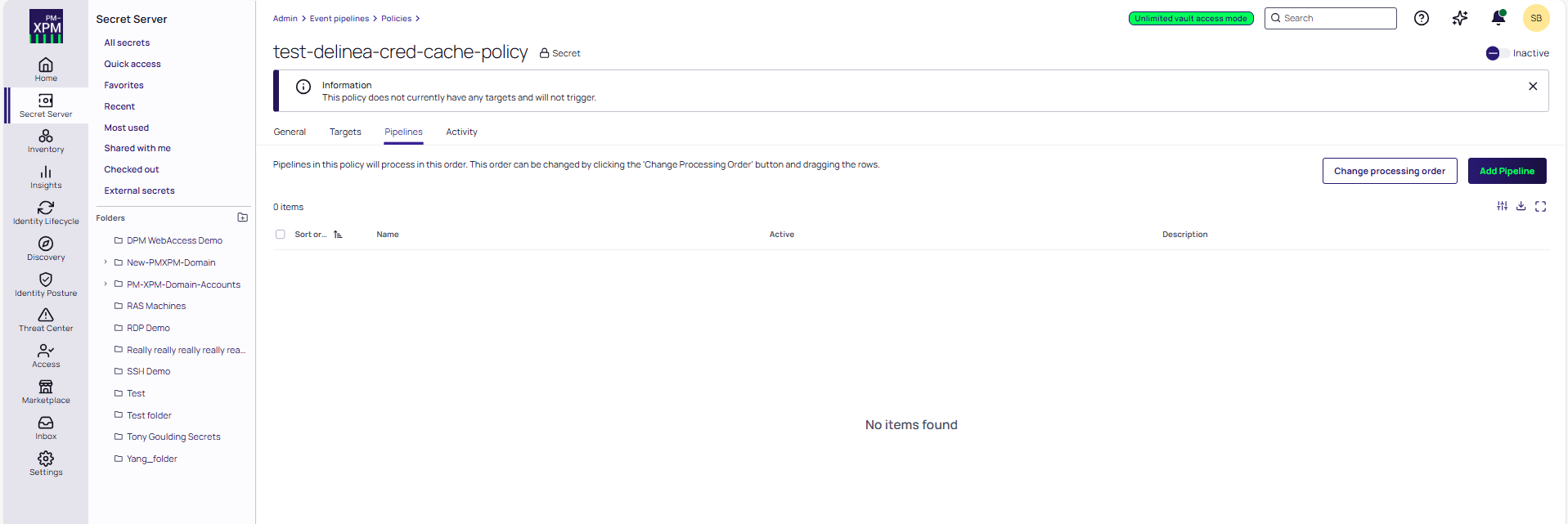
In the Delinea Platform, select the pipeline policy you created.
-
On the Pipelines tab, select Add Pipeline.
-
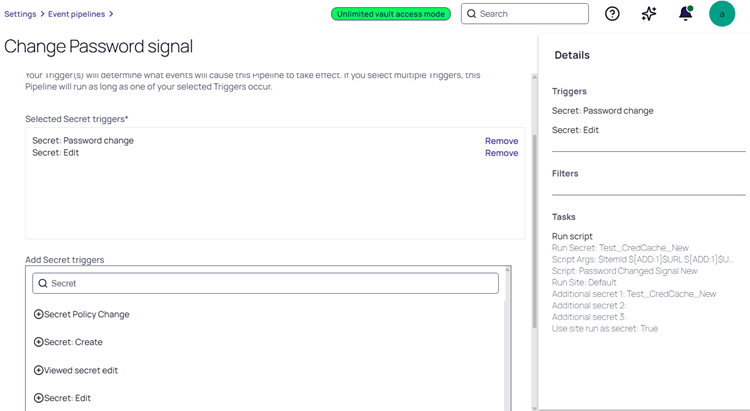
From the Add Secret triggers drop-down menu, select Secret: Password Change and Secret: Edit.
-
Select Next.
-
(Optional) Add secret filters if you want to trigger the pipeline only for specific secrets. Only secrets that match the policy are refreshed in the cache.
-
Select Next.
-
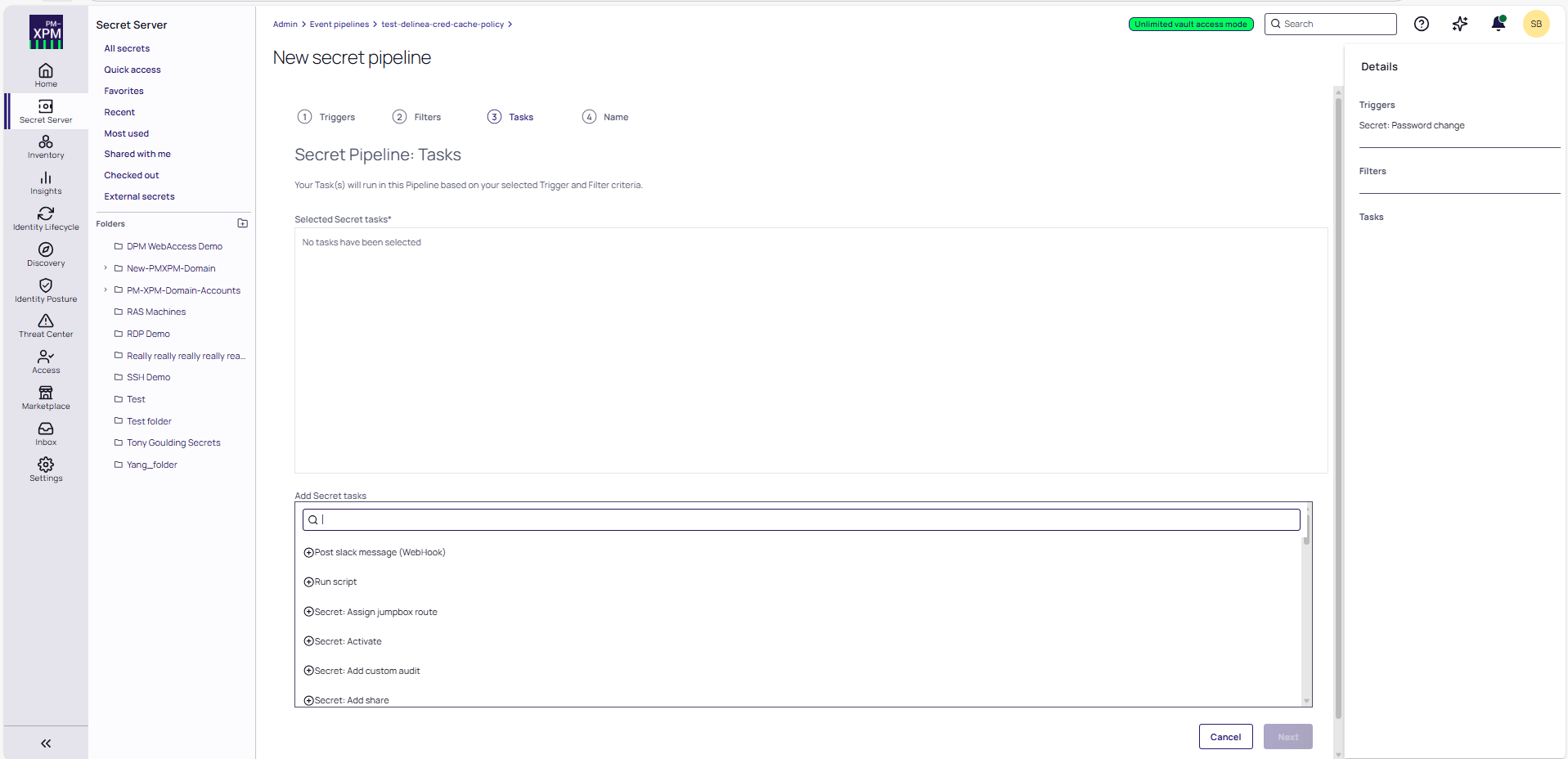
From the Add Secret tasks drop-down menu, select Run script.
-
Select Next.
-
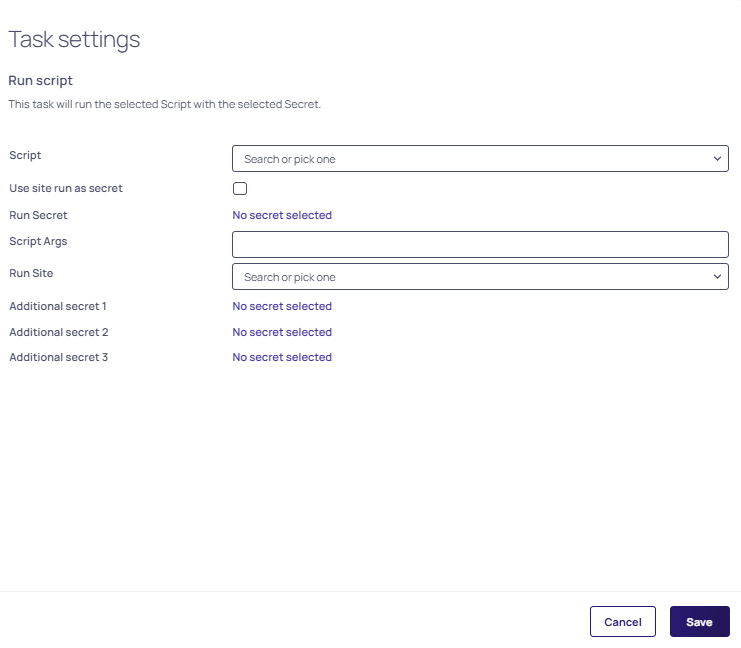
In the Task settings dialog, provide the following information:
-
Script: Select the name of the PowerShell script you created in Step 3.
-
Use site run as secret: Select this checkbox.
-
Script Args: Enter $ItemId $[ADD:1]$TENANTURL $[ADD:1]$CLIENTID $[ADD:1]$CLIENTSECRET $[ADD:1]$CREDCACHEURL $[ADD:1]$DOMAIN.
$ItemIdcontains the Secret ID passed to the script when the pipeline runs. The$[ADD:1]tokens read fields from Additional secret 1, the secret you created in Step 2.The arguments map to the script's input parameters as follows:
-
$ItemId— Secret ID (automatically passed by the Delinea Platform) -
$TENANTURL— Delinea Platform tenant URL -
$CLIENTID— OAuth client ID -
$CLIENTSECRET— OAuth client secret -
$CREDCACHEURL— Credentials Cache base URL -
$DOMAIN— (Optional) Provide this only if the client ID and client secret belong to a domain user.
-
-
Run Site: Select the Site whose Distributed Engine can reach the Credentials Cache.
-
Additional secret 1: Select the secret containing the OAuth credentials (created in Step 2).
-
-
Select Save.
The Delinea Platform automatically passes the Secret ID to the script during execution. If a pipeline task fails, subsequent tasks in the same pipeline do not run.
If Delinea Credentials Cache is deployed as several instances, add one Run script task per instance (each with an Additional secret whose CREDCACHEURL points at that instance), so that every instance receives the update trigger and refreshes its local cache.
Next Steps
Change a password on a secret covered by the policy and confirm that the pipeline succeeded and the cache was updated: Verifying the Deployment. If the pipeline fails or the cache is not refreshed, see Troubleshooting.


