Verifying the Deployment
There is no direct way to view or inspect cached secrets in Delinea Credentials Cache. Verification therefore has three parts: confirm that the service itself is running on your hosting platform, confirm that each integration is actually using the cache, and, if configured, confirm that event-driven refresh updates the cache. For the log-based checks, EnableLogging must be set to true (see Configuring Delinea Credentials Cache).
Verifying the Service
Verifying an IIS Deployment (Windows)
-
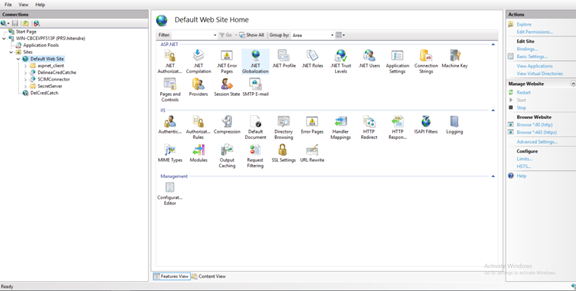
Open IIS Manager.
-
Confirm that the Default Web Site status is Started.
-
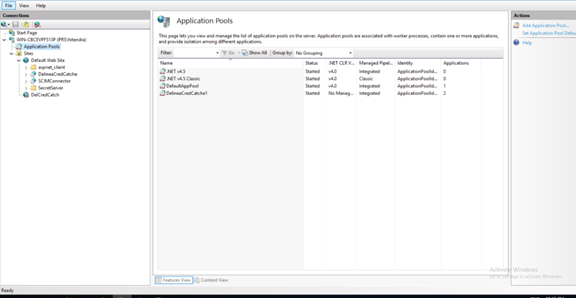
Select Application Pools, locate the pool used by the Credentials Cache application, and confirm that its Status is Started.
-
Under Sites > Default Web Site, select the Credentials Cache application (for example DelineaCredCache).
-
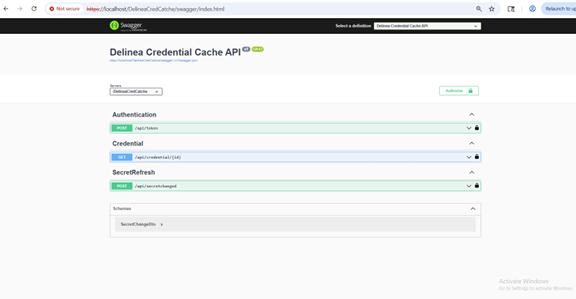
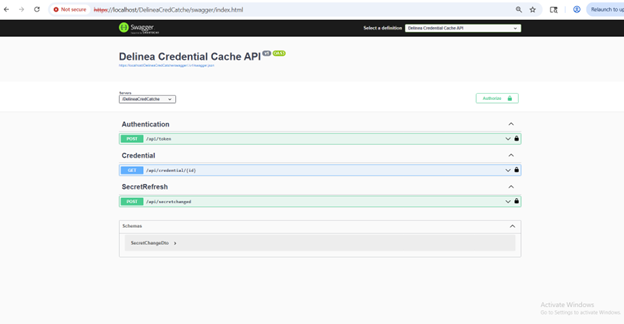
In the Actions pane, select Browse. The Swagger UI should load without errors.
-
Confirm on the Swagger page that API endpoints are visible and that an Authorize button is present.
If the page does not load, review Event Viewer > Windows Logs > Application for IIS or ASP.NET Core hosting errors. See Troubleshooting.
Verifying an Apache HTTP Server Deployment (Linux)
-
Check the service status:
sudo systemctl status credcache.serviceThe service should be active (running). To see the application's own console output, run
sudo journalctl -u credcache.service -f. -
Check that Apache HTTP Server is running:
Ubuntu:
sudo systemctl status apache2RHEL:
sudo systemctl status httpd -
Open the Swagger UI in a browser through the proxy to confirm that the API is accessible, for example:
http://your-server/swagger/index.html(orhttps://if you configured HTTPS) -
If the page does not load, check the Apache HTTP Server error log:
Ubuntu:
sudo tail -f /var/log/apache2/error.logRHEL:
sudo tail -f /var/log/httpd/error_log
Verifying a Docker Deployment
-
Confirm that the container is running:
docker ps -a --filter "name=delinea-credential-cache"The STATUS column should show Up.
-
Review the container logs for startup errors:
docker logs delinea-credential-cache -
Open the Swagger UI on the mapped host port, for example
http://<hostname>:8083/swaggerorhttps://<hostname>:8443/swagger.
Verifying the API End to End
On any platform, use Swagger UI to call POST /api/token with your vault credentials and confirm a 200 OK response that contains a token, then authorize with that token and call GET /api/credential/{id} for a secret the account can view. A 200 OK response confirms that the cache can authenticate to the vault and retrieve secrets. See API Reference.
Verifying the Integrations
Verifying WebSphere Application Server
-
Confirm that the application's data source uses the Delinea JDBC Proxy Driver, as described in Integrating WebSphere Application Server with Delinea Using the JDBC Proxy Driver.
-
Open the
DelineaDriver.propertiesfile and check thatuseDelineaCache=yis set. -
Exercise the application so that it opens a database connection.
-
Check the WebSphere logs to confirm that the connection is made through Delinea Credentials Cache, and check the Credentials Cache log (the
LogPathdirectory) for the corresponding credential retrieval.
Verifying Tomcat
-
Run the Delinea JDBC Proxy Driver setup utility for the application and answer y when asked whether to use Delinea Credentials Cache, as described in Integrating Tomcat Server with Delinea Using the JDBC Proxy Driver.

-
In the Tomcat configuration folder, open the
DelineaDriver.propertiesfile and check thatuseDelineaCache=yis set. -
Exercise the application so that it opens a database connection.
-
Check the Tomcat logs to confirm that the connection is made through Delinea Credentials Cache, and check the Credentials Cache log for the corresponding credential retrieval.
Verifying a ServiceNow MID Server Integration
When a ServiceNow MID Server uses the Delinea credential resolver with Secret Server or the Delinea Platform, credentials can be retrieved through Delinea Credentials Cache.
-
Confirm that the MID Server is configured with a Delinea credential resolver (for either Secret Server or the Delinea Platform).
-
Confirm that the resolver is configured to use Delinea Credentials Cache. See Enabling Delinea Credential Cache in the MID Server documentation.
-
In ServiceNow, run a test credential retrieval or connection test. If the connection succeeds and no direct credential prompt occurs, the MID Server is retrieving credentials through the resolver.
-
On the MID Server host, review the wrapper.log file (in the MID Server's
logsdirectory) to confirm that the credential was requested through the cache. -
If the credential request does not appear in wrapper.log, review the MID Server configuration to ensure that caching is enabled.
Verifying Event-Driven Refresh
After configuring event-driven refresh, change the password of a secret covered by the pipeline policy and confirm the update in two places.
Checking Event Pipeline Activity
-
Log in to Secret Server or the Delinea Platform.
-
Navigate to Admin > Settings > Event Pipelines.
-
Select the Activity tab.
-
Locate the pipeline execution and verify the following details:
-
Run ID: Unique identifier for the pipeline execution
-
Status: Should display Success
-
Triggered by: Shows which user or event triggered the pipeline
-
Timestamp: Confirms that the execution time matches your password change
-
If the status shows Success and the timestamp is recent, the Event Pipeline is functioning correctly.
Checking the Credentials Cache Logs
-
On the host that runs Delinea Credentials Cache, go to the directory configured in
LogPath(on Docker, the host directory mounted to/app/logs). -
Open the most recent log file.
-
Look for the following success indicators for the changed Secret ID:
-
"Successfully retrieved the credential for [SecretID]" -
"Updating cache" -
"Saving credential cache to file"
-
These log entries confirm that the Credentials Cache received and processed the secret update from the Event Pipeline.
If no log entries appear after a password change, verify that EnableLogging is set to true. If the pipeline shows Success but no log entry appears, the script may be targeting a different cache instance or URL; see Troubleshooting.


