Troubleshooting
Logs display
To display detailed logs for errors that may occur when providing access to Commands and Roles:
Verify the webhook creation. For more information, see Verifying the Webhook Creation.
If the webhook is created:
-
Check the Configuration file created in ServiceNow (Delinea Privilege Manager > Integration Configuration).
-
Share a screenshot of that.
If the webhook is not created:
-
Re-verify the API and SNOW user credentials in PrivMan.
-
Share the screenshots of the created users (Admin > Configuration > Credentials)
ServiceNow Auto Approved or Denial Requests
-
If your ServiceNow requests are being automatically approved or denied, check your approval flow settings in ServiceNow.
-
When a request is received by ServiceNow, it is assigned a specific dollar amount. To streamline the approval process, you can configure ServiceNow to approve or deny requests based on the dollar value automatically.
-
ServiceNow can be configured to automatically approve or deny requests based on the dollar amount assigned to them upon receipt.
-
If the assigned dollar amount is below or above the set threshold for automatic approval or denial, ServiceNow will act accordingly.
-
To adjust these settings, see the following ServiceNow Service Catalog Request Workflow.
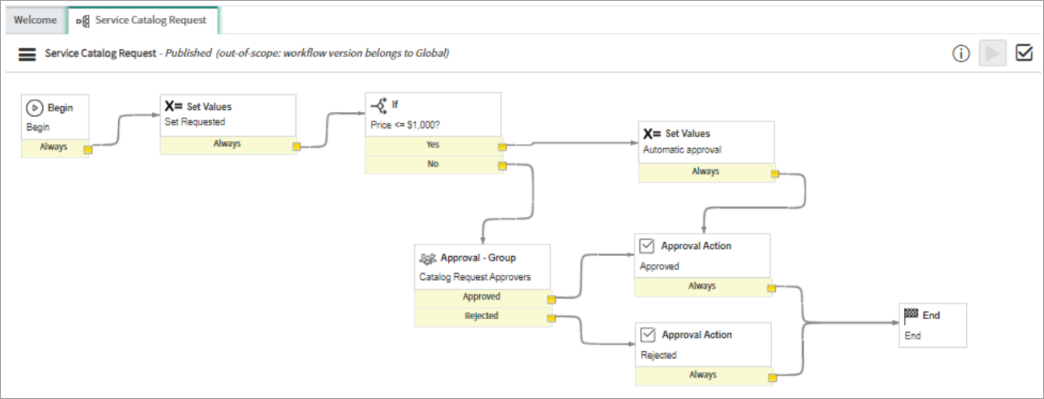
In ServiceNow go to All > Maintain Items > Search for Execute Application Request, select the Pricing tab, and modify the price accordingly. The amount is automatically set to $1001. Requests under $1000 will be auto approved or denied.
Duplicate Request Items Created in ServiceNow
If you have workflows that depend on ServiceNow request items being created and see duplicate RITM requests being created in ServiceNow, adjust the following configuration in Privilege Manager as follows:
-
Navigate to Admin > Configuration > Foreign Systems.
-
Select the desired ServiceNow system in the list of foreign systems.
-
On the Configuration tab, in the Settings section, clear the Use Webhook checkbox.
-
Select Save Changes.


