Configuring Secret Server
To configure Secret Server for the integration with Jenkins:
Step 1: Creating an Application Account and Assign Permissions in Secret Server
The Delinea Secret Server Platform Jenkins plugin requires an application account in Secret Server to connect to your Secret Server instance and fetch secrets for use in Jenkins. The application account must have a role with the View Secret and View Launcher Password permissions. This section describes how to create an application account in Secret Server and how to create a role with the View Secret and View Launcher Password permissions and assign it to the application account.
To create an application account and assign it a role with the View Secret and View Launcher Password permissions:
-
Log in to Secret Server with admin credentials.
-
Navigate to Access > Users and select Create User.
-
In the Add User window, enter the required details, select Application Account, and then select Add User.
-
Go to Access > Roles to create a role for the created application account and select Create Role.
-
Enter the Role Name, select the View Launcher Password and View Secret permissions, and then select Save.
-
Return to Access > Users, select the created application account, and go to the Roles tab.
-
Select Edit, assign the created role, and select Save.
Step 2: Creating a Secret in Secret Server
Make sure that you have the required View permissions for the secrets that you need to access through Jenkins.
If you want to fetch secrets from Secret Server through a credential resolver configuration in Jenkins, note that the Delinea Secret Server Platform plugin fetches only the values of the standard Username and Password fields or equivalent custom fields (for example, client ID and client secret fields) from a secret. Therefore, make sure that the secret template of the secret you want to fetch from Secret Server includes the Username and Password fields or equivalent custom fields.
If you want to fetch secrets from Secret Server through a Jenkins pipeline, you can use any secret template.
To create a secret in Secret Server:
-
Log in to Secret Server.
-
Complete the steps in Creating Secrets in the Secret Server documentation.
-
Go to the Security tab for the secret and make sure that the Hide launcher password setting under Other security is set to No.
-
Go to the Sharing tab for the secret, select Add, and add the application account that you created.
-
Make a note of the secret ID in the secret's URL at the top, as shown.
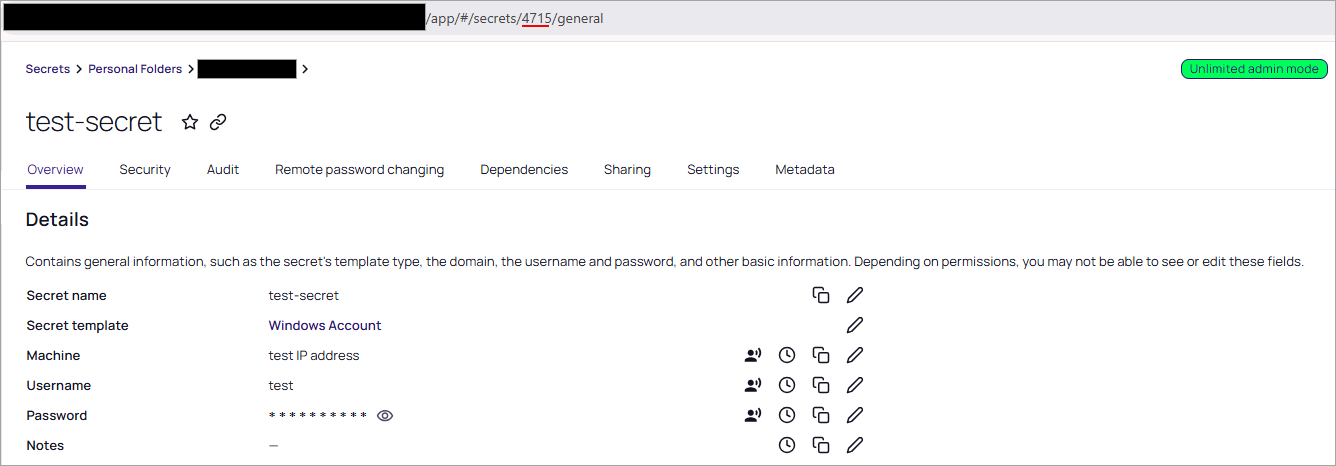 .
. -
(Optional) Configure the plugin to enter a comment when accessing the secret in Secret Server:
-
Select the secret.
-
Go to the Security tab.
-
In the Other security section, select the edit pencil icon and select the Require comment checkbox.
-
Select Save.
The comment will be stored in the audit log for the secret in Secret Server.
-
-
To create additional secrets, repeat steps 2–6.


