Configuring the Delinea Platform
To configure automatic updating of secrets in Delinea Credentials Cache using an event pipeline, complete the following steps:
SecretChanged API Endpoint
The Event Pipeline integration uses the POST /api/secretchanged endpoint
in the Credentials Cache API to trigger immediate cache refreshes when a secret password changes.
| Method | POST
|
| Path | /api/secretchanged
|
| Authorization | Required (Bearer token) |
| Content-Type | application/json
|
| Success response | 202 Accepted
|
Request body:
{ "secretId": "<SecretId>" }Behavior: Validates the request, fetches the updated secret from Secret Server using the supplied secret ID, and updates or inserts the secret in the local cache.
For interactive testing via Swagger, see Delinea Credential Cache Supported Endpoints.
Step 1: Creating a Service User in the Delinea Platform
The Delinea Credentials Cache integration requires a service user to authenticate with the Delinea Platform. If you don't have a service user, you can create one. For more information about creating a service user, see Service Users in the Delinea Platform documentation.
The following procedure describes how to create a role with these permissions and how to assign the role to the service user.
To create a role with the required permissions and assign it to the service user:
-
In the Delinea Platform, navigate to Access > Roles.
-
Select Add Role.
-
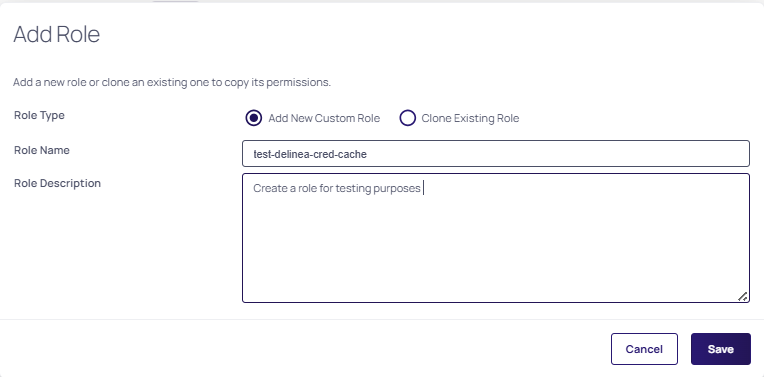
In the Add Role dialog, select the Add New Custom Role checkbox, provide a name and an optional description for the new role, and select Save.
-
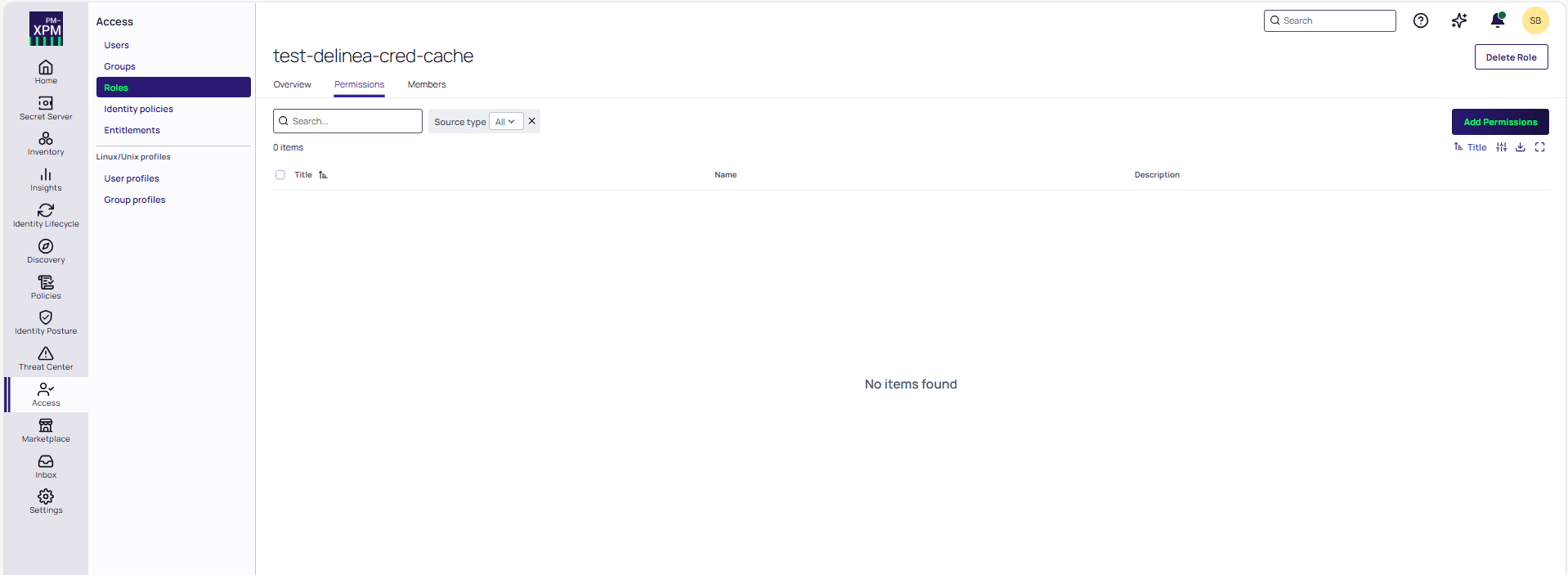
Go to the Permissions tab for the role.
-
Select Add Permissions and in the Add Permissions window, search for and select the following permissions:
- Administer Secret Server Pipelines - Required to create and manage Event Pipeline policies.
-
Administer Secret Server Scripts - Required to create and manage PowerShell scripts.
-
View Secret - Required for the Credentials Cache application to retrieve secrets.
You can search for the permissions by using the search box at the top.
-
Select Assign.
-
Assign the role to the service user:
-
Navigate to Access > Users.
-
On the Users page, search for and select the service user.
-
On the user page, go to the Roles tab and select Assign Roles.
-
In the Assign Roles window, search for and select the role that you created and select Assign.
-
Step 2: Create a Secret in the Delinea Platform
You must create a secret in Secret Server on the Delinea Platform to store the credentials that will be managed by Delinea Credentials Cache. You must also share the secret with the Delinea Platform service user that you use for this integration to enable the integration to access the secret.
The following procedure describes how to create a secret and how to grant the service user the View permission for the secret.
To create a secret and share it with the service user:
-
In the Delinea Platform, select Secret Server > All secrets.
-
Select Create secret.
-
In the Create new secret dialog, do the following:
-
(Optional) Change the default folder.
Make sure that the service user has the View permission for the folder.
-
Under Choose a secret template, select the template from which to create a secret.
A custom template should be created with the following fields: TENANTURL, CLIENTID, CLIENTSECRET, CREDCACHEURL, and DOMAIN.
-
Enter a name for the secret and the username and the password to store in the secret.
-
Provide values for the other secret fields according to the template.
-
-
Share the secret with the service user:
-
Go to the Sharing tab of the secret's page.
-
Select Edit in the upper-right corner.
-
Clear Inherit permissions.
-
To find the service user, use the search box at the top.
-
Select the check box to the left of the service user name and then select View in the dropdown list under Secret Permissions.
-
Select Save.
-
Step 3: Create a PowerShell Script in the Delinea Platform
Your script must accept the Secret ID as an input parameter, call the Delinea Credentials Cache /api/secretchanged endpoint, and log the request and response for monitoring purposes.
-
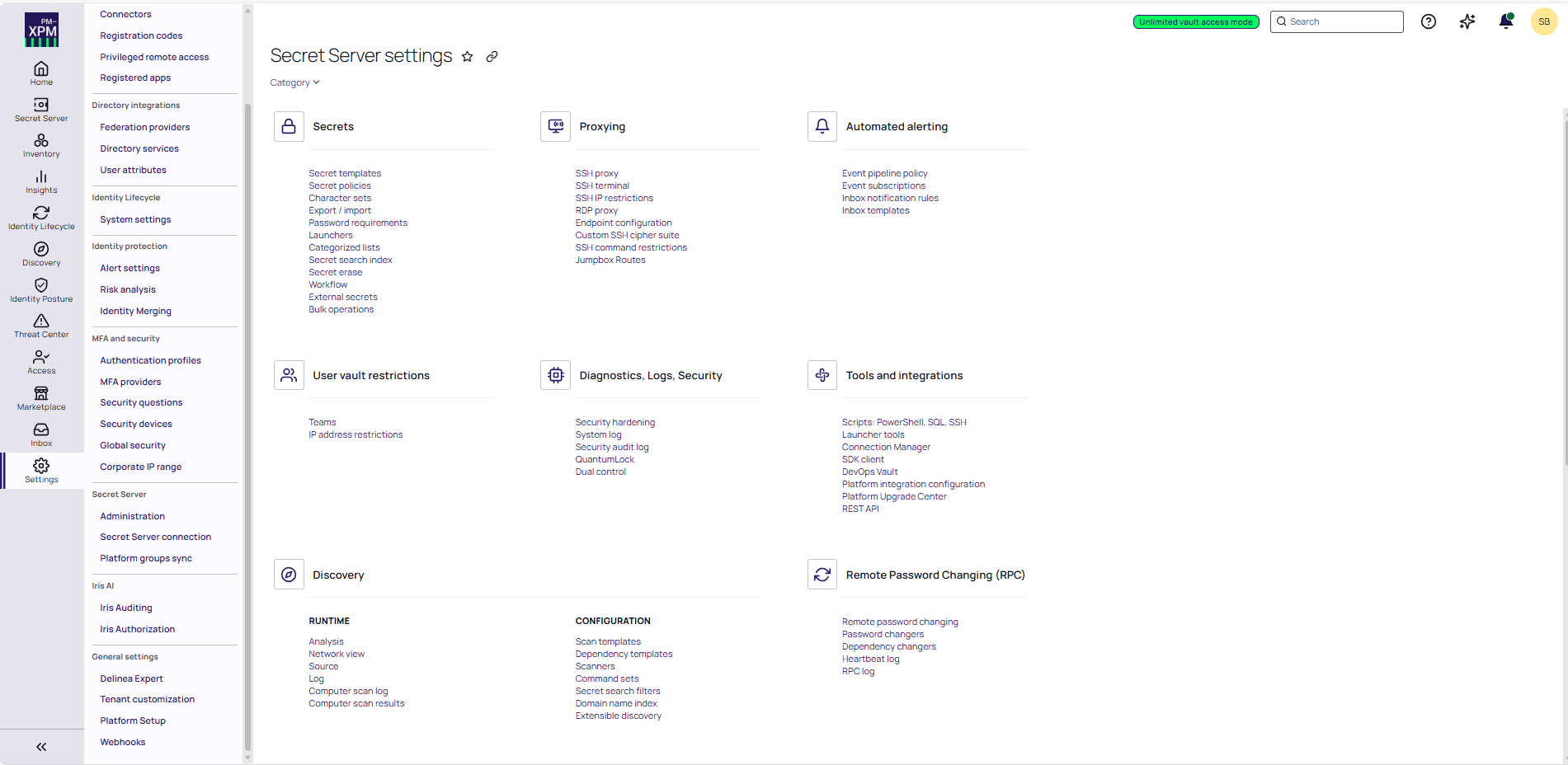
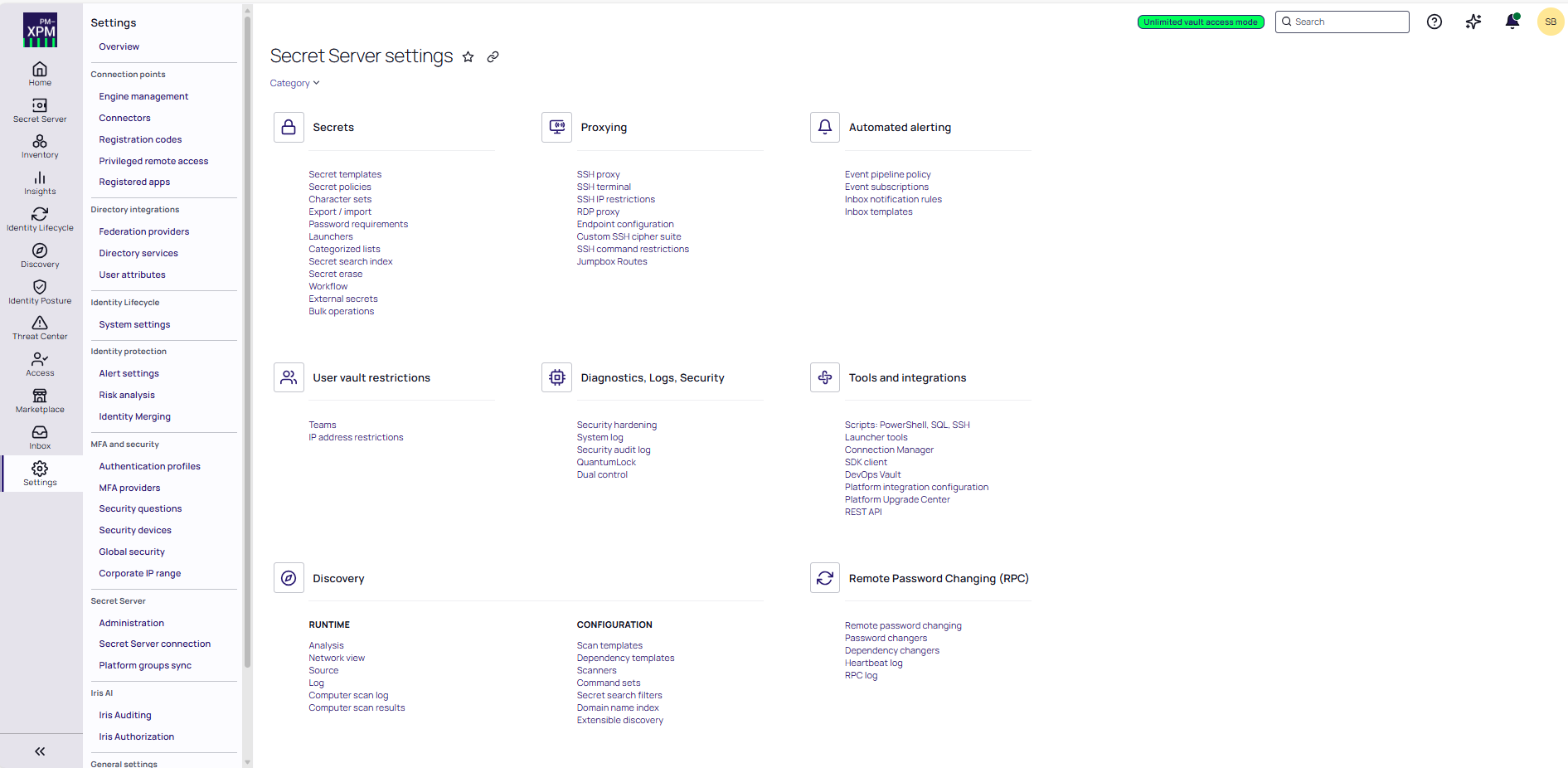
Open the Delinea Platform and navigate to Settings.
-
Go to Administration.
-
Select Scripts: PowerShell, SQL, SSH.
-
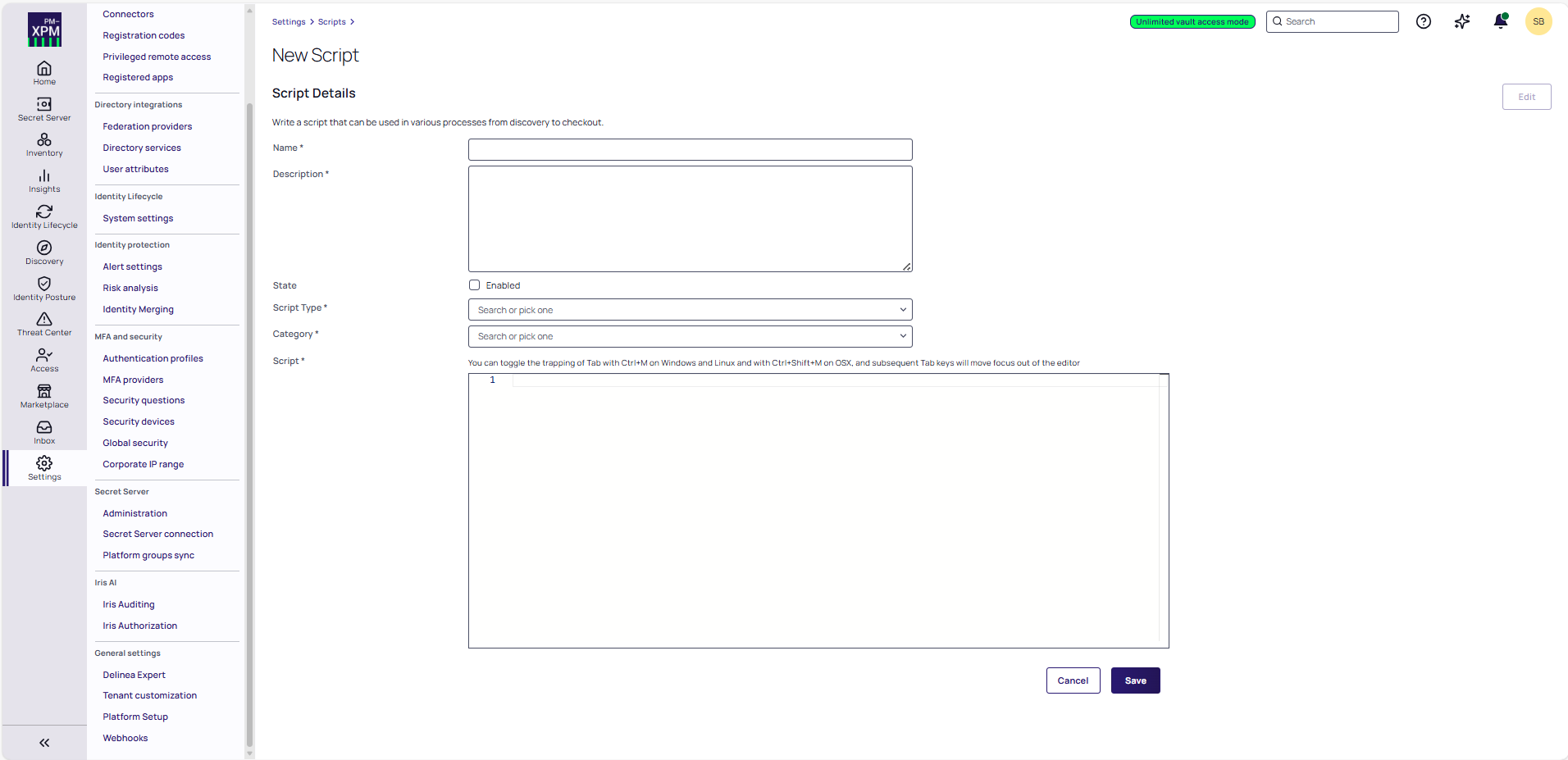
Select Create script. The New Script page opens.
-
Complete the script details:
-
Name: Name of the script.
-
Description: Optional description of the script.
- Script Type: PowerShell, SSH, SQL
- Category: Password Changing
- Use PowerShell Core: Clear this checkbox.
- Script: Paste the below PowerShell script in the script editor section:
- Make sure to not modify the script.
- Select Save to store your PowerShell script.
$ItemId = $Args[0]
                    # ===============================
                    # CONFIGURATION
                    # ===============================
                    $BaseUrl    = $Args[1]
                    $Username   = $Args[2]
                    $Password   = $Args[3]
                    $ApiBaseURI = $Args[4]
                    $Domain     = $Args[5]
                    # ===============================
                    # TLS + CERT FIX (DEV ONLY)
                    # ===============================
                    [Net.ServicePointManager]::SecurityProtocol = [Net.SecurityProtocolType]::Tls12
                    [System.Net.ServicePointManager]::ServerCertificateValidationCallback = { $true }
                    # ===============================
                    # STEP 1: GET JWT TOKEN
                    # ===============================
                    $TokenUrl = "$ApiBaseURI/api/token"
                    $TokenBody = @{
                    Username = $Username
                    Password = $Password
                    BaseUrl  = $BaseUrl
                    Domain   = $Domain
                    }
                    try {
                    Write-Host "Requesting JWT token..."
                    $TokenResponse = Invoke-RestMethod `
                    -Method Post `
                    -Uri $TokenUrl `
                    -ContentType "application/x-www-form-urlencoded" `
                    -Body $TokenBody `
                    -ErrorAction Stop
                    $AccessToken = $TokenResponse.token
                    if ([string]::IsNullOrWhiteSpace($AccessToken)) {
                    throw "JWT token missing in response."
                    }
                    Write-Host "JWT token retrieved successfully."
                    }
                    catch {
                    Write-Error "❌ Token request failed: $($_.Exception.Message)"
                    exit 1
                    }
                    # ===============================
                    # STEP 2: CALL SECRET CHANGED API
                    # ===============================
                    $SecretChangedUrl = "$ApiBaseURI/api/secretchanged"
                    $Headers = @{
                    Authorization = "Bearer $AccessToken"
                    "Content-Type" = "application/json"
                    }
                    $Body = @{
                    secretId = "$ItemId"
                    } | ConvertTo-Json
                    try {
                    Write-Host "Calling SecretChanged API..."
                    Invoke-RestMethod `
                    -Method Post `
                    -Uri $SecretChangedUrl `
                    -Headers $Headers `
                    -Body $Body `
                    -ErrorAction Stop
                    Write-Host "✅ Secret cached successfully."

                    }
                    catch {
                    Write-Error "❌ SecretChanged API failed."
                    Write-Error $_.Exception.Message
}Step 4: Create an Event Pipeline Policy
-
Open the Delinea Platform and navigate to Settings.
-
Go to Administration.
-
Under Automated alerting section, select Event pipeline policy.
-
Click Add policy.
-
In the Add policy window, type the name of your policy and select Secret as the policy type.
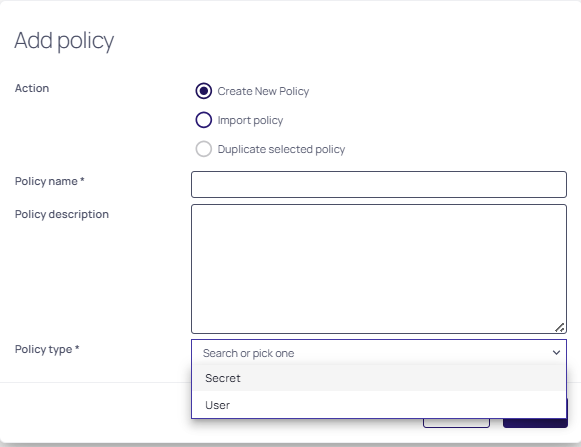
- Click Create to create the event policy.
For more information about event pipelines, go to the Secret Server documentation.
Step 5: Configure a Pipeline Task
To configure the pipeline task:
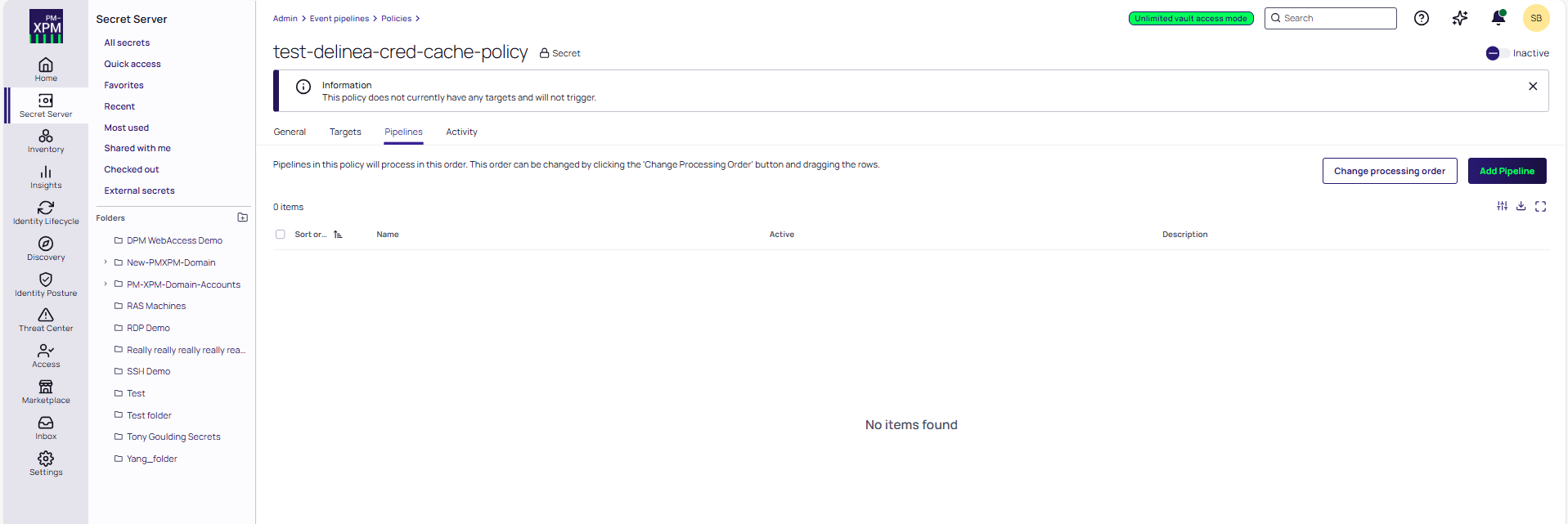
- In Delinea Platform, click on your created Pipeline Policy.
- In the Pipelines tab, click Add Pipeline.
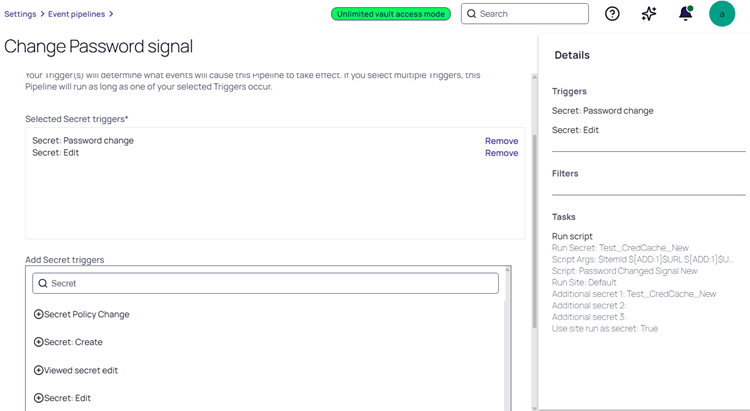
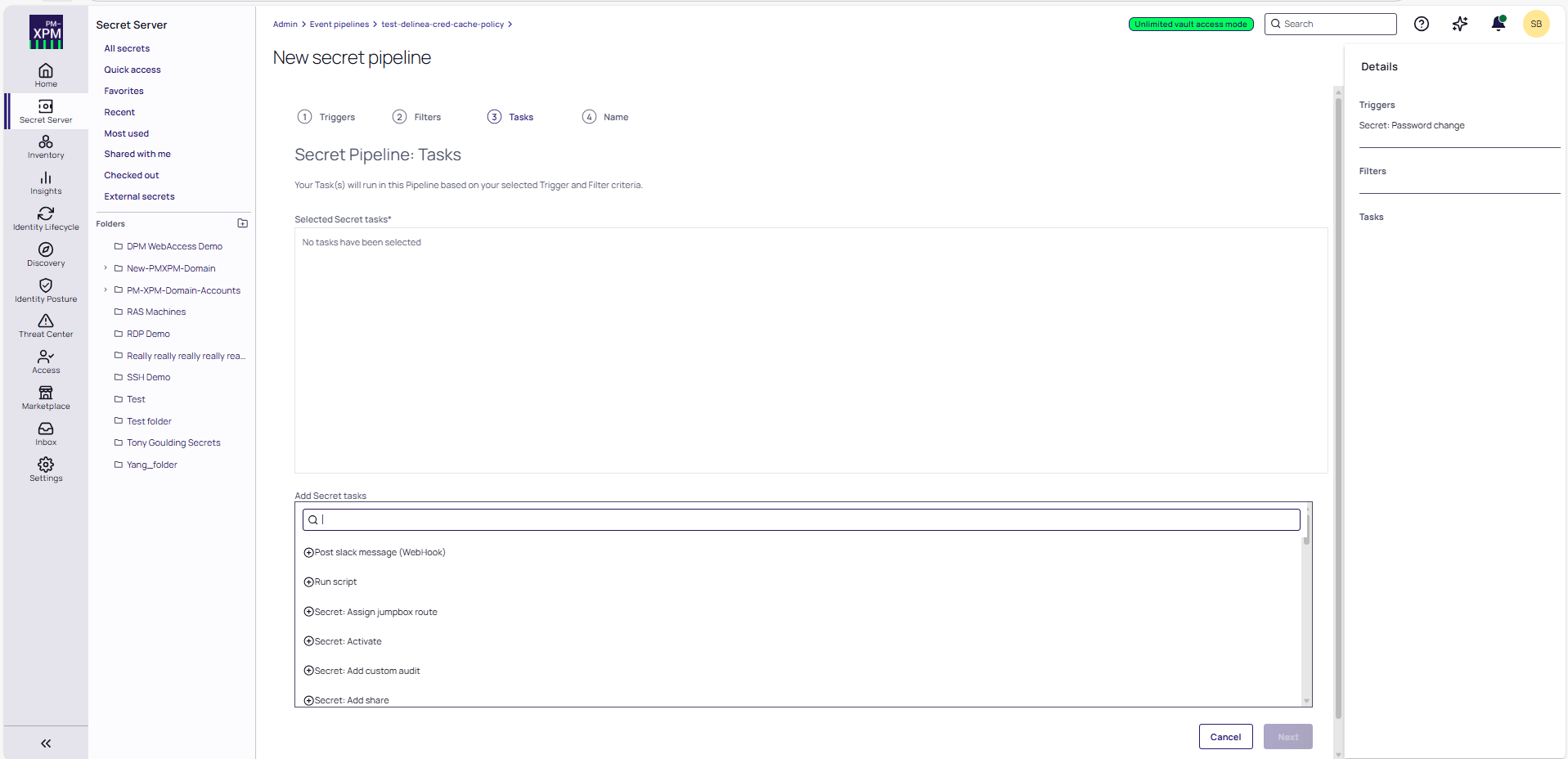
- Select the Secret: Password Change and Secret:Edit option from the Add Secret triggers drop-down menu.
- Select Next.
- Add Secret filters if you want to trigger the pipeline for a specific secret.
- Click Next.
- Select the Run script option from the Add Secret tasks drop-down menu.
- Click Next.
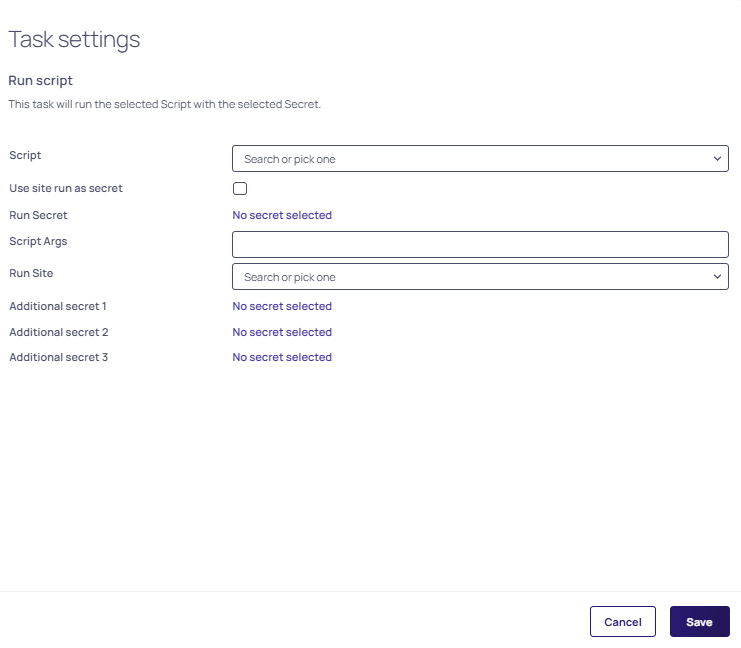
- In the Task settings dialog, provide the following information:
- Script: Select the name of the PowerShell script you created.
- Use site run as secret: Select this checkbox.
Script Args: Select $ItemId $[ADD:1]$TENANTURL $[ADD:1]$CLIENTID $[ADD:1]$CLIENTSECRET $[ADD:1]$CREDCACHEURL $[ADD:1]$DOMAIN as the script argument.
$ItemIdcontains the Secret ID passed to the script when the pipeline runs.Input Parameters:
Secret ID (automatically passed by the Delinea Platform)
Tenant URL: Delinea Platform tenant URL
Client ID: OAuth client ID
Client Secret: OAuth client secret
Cred Cache URL: Credentials Cache URL
Domain (Optional): Provide this only if the Client ID and Client Secret belong to a domain user.
- Run Site: Select the site in your Distributed Engine.
- Additional secret 1: Select the secret containing the OAuth credentials.
- Select Save.