PRA Live Session Sharing
This feature is currently available only to customers participating in a Public Preview. For details, see Preview Program.
Prerequisites
-
Administrators need to make sure users who need to share their PRA sessions are assigned the
delinea.platform/remoteaccess/session/liveshare/manage(Share PRA Session) permission. See Remote Access Permissions for more information. -
Invited users need to have at least the Launch with PRA permission. See Remote Access Permissions for more information.
PRA concurrent licensing applies to all connected users, regardless of session role (initiator or participant). See Understanding PRA Entitlements for more information.
Sharing a PRA Session With Other Users
To share your PRA session:
-
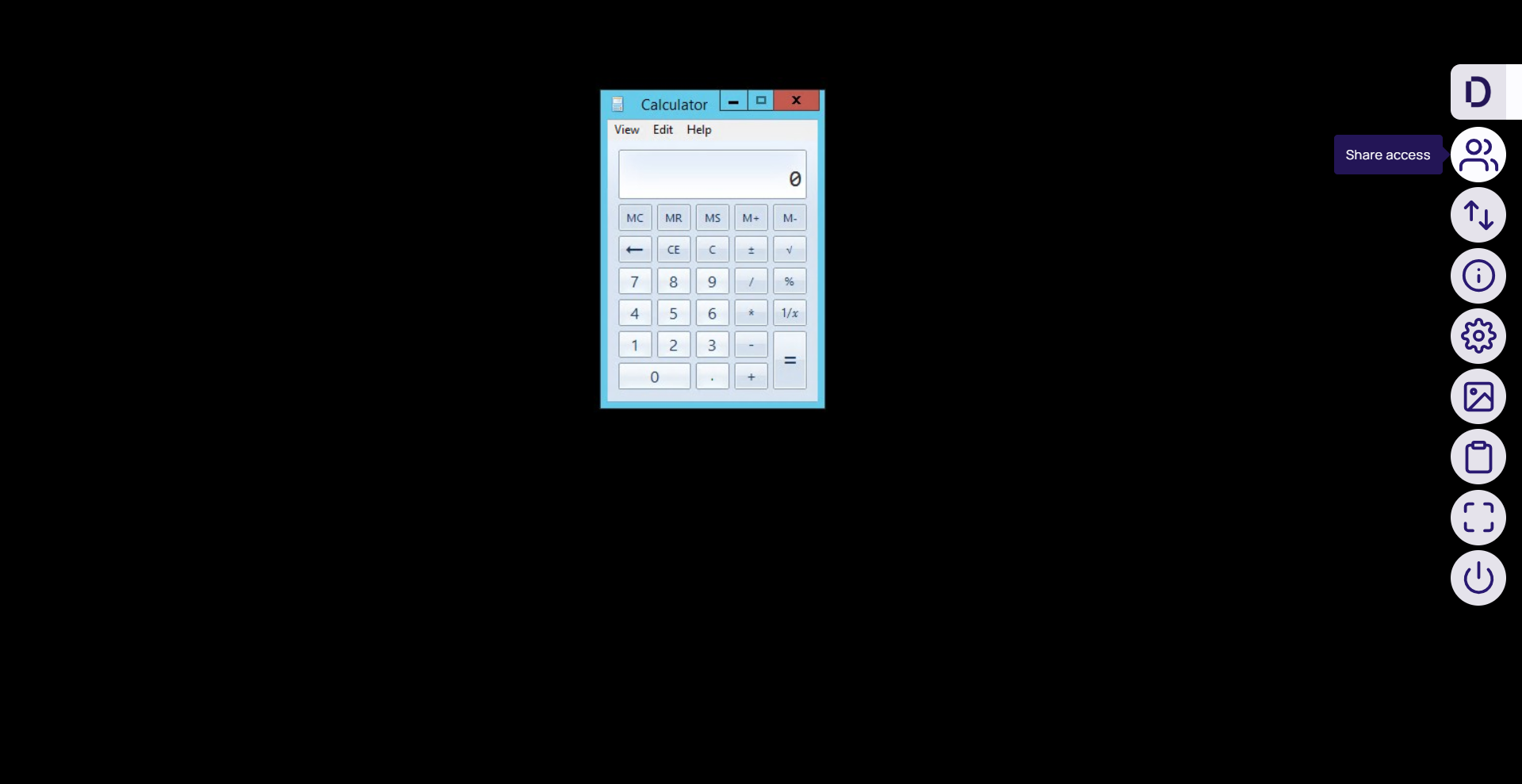
In the D menu, click the Share Session button.
-
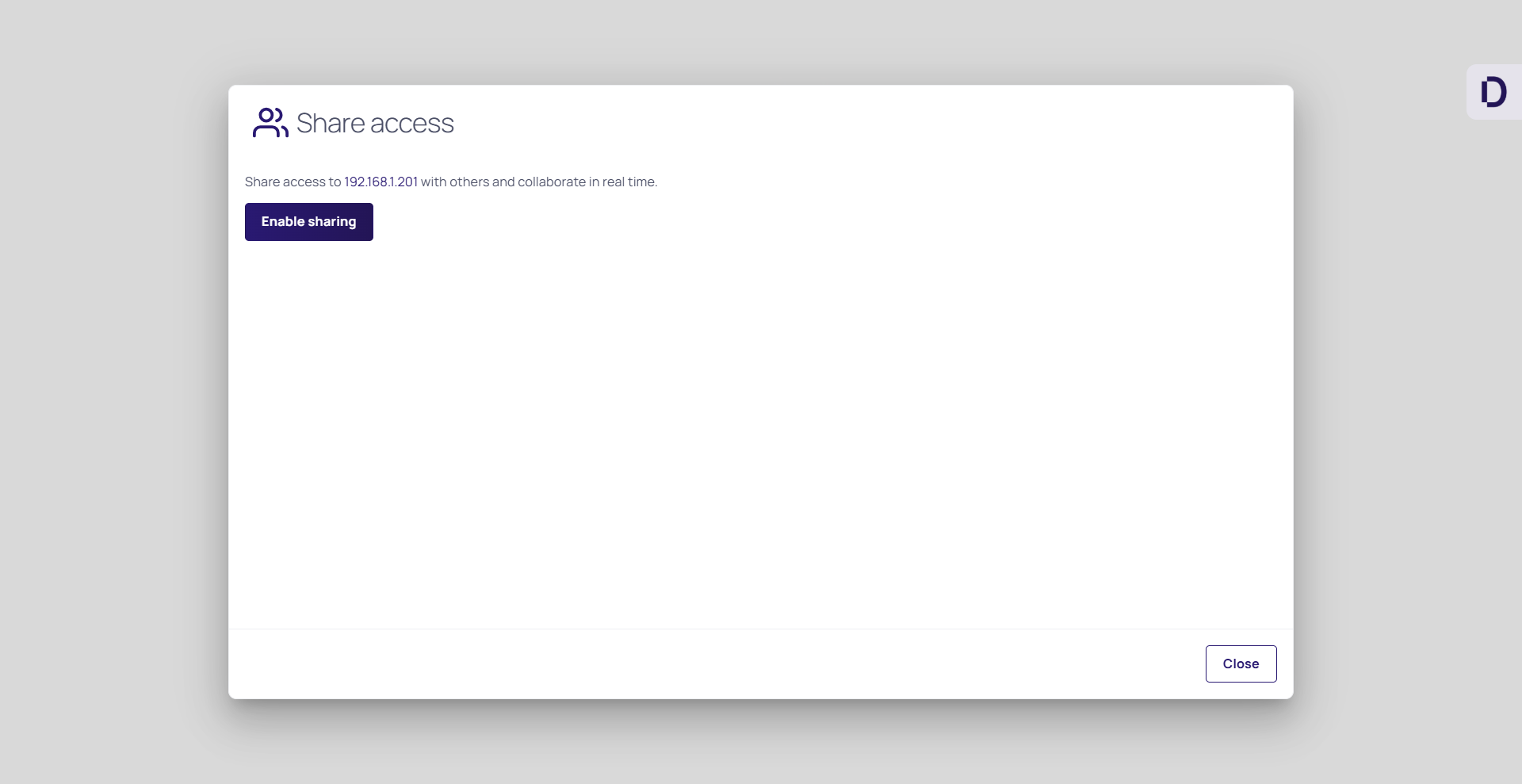
Click Enable Sharing.
-
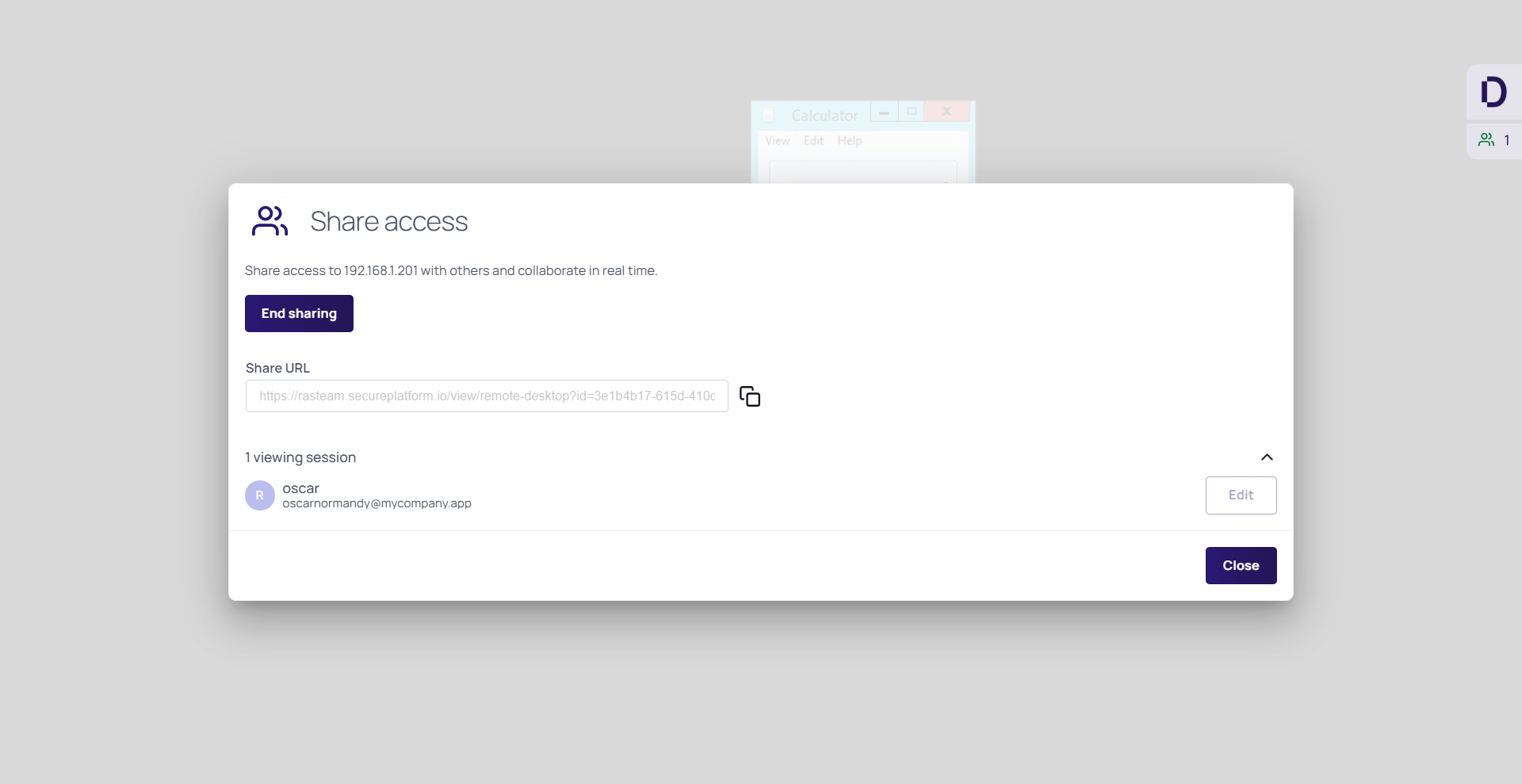
In the Share Session dialog, you will see the current users in the session, including yourself.
-
Copy and share the session link with users you want to share the session with.
-
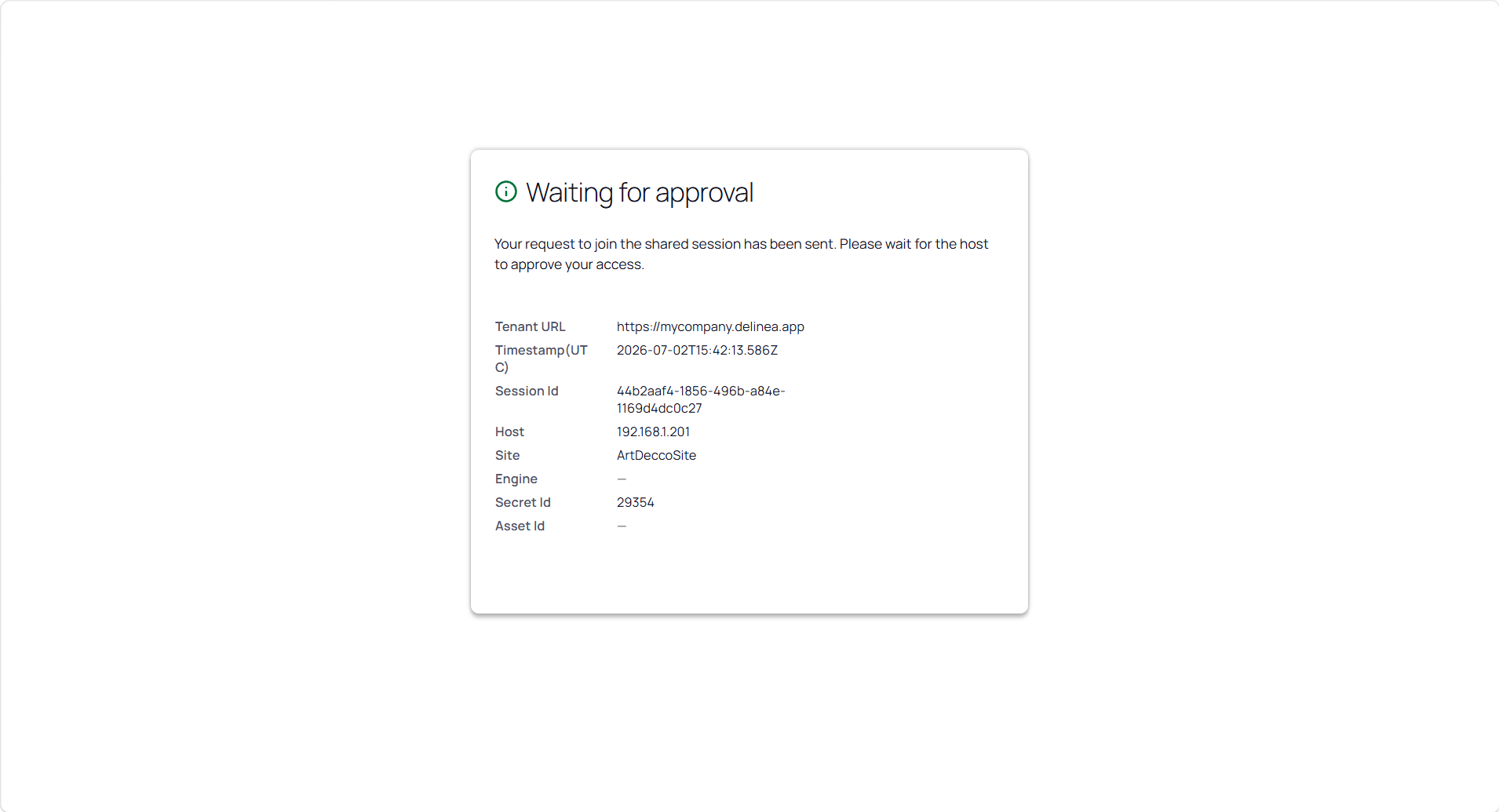
When the invited user opens the link, they will be redirected to sign-in to the platform if they do not have a current platform session.
-
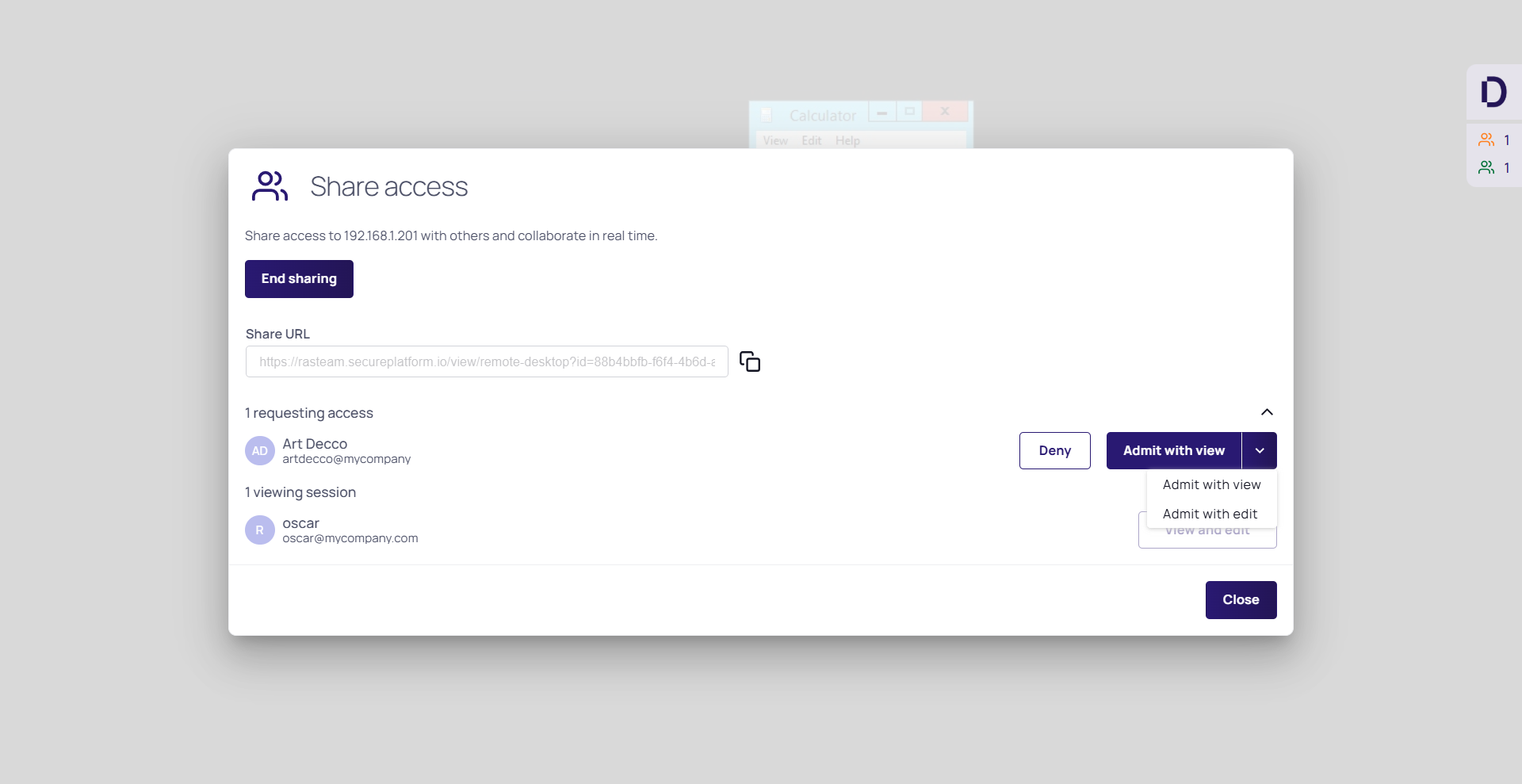
After signing in, they will be redirected to the requesting access dialog:
-
Click either:
-
Admit with edit - Admitted user can control the mouse and keyboard.
-
Admit with view - Admitted users cannot control the mouse and keyboard, but may be able to access clipboard and file transfer functions depending on the secret configuration and their own permissions.
-
-
The invited user can now view your session. Users admitted with Edit permissions can use the mouse and keyboard.
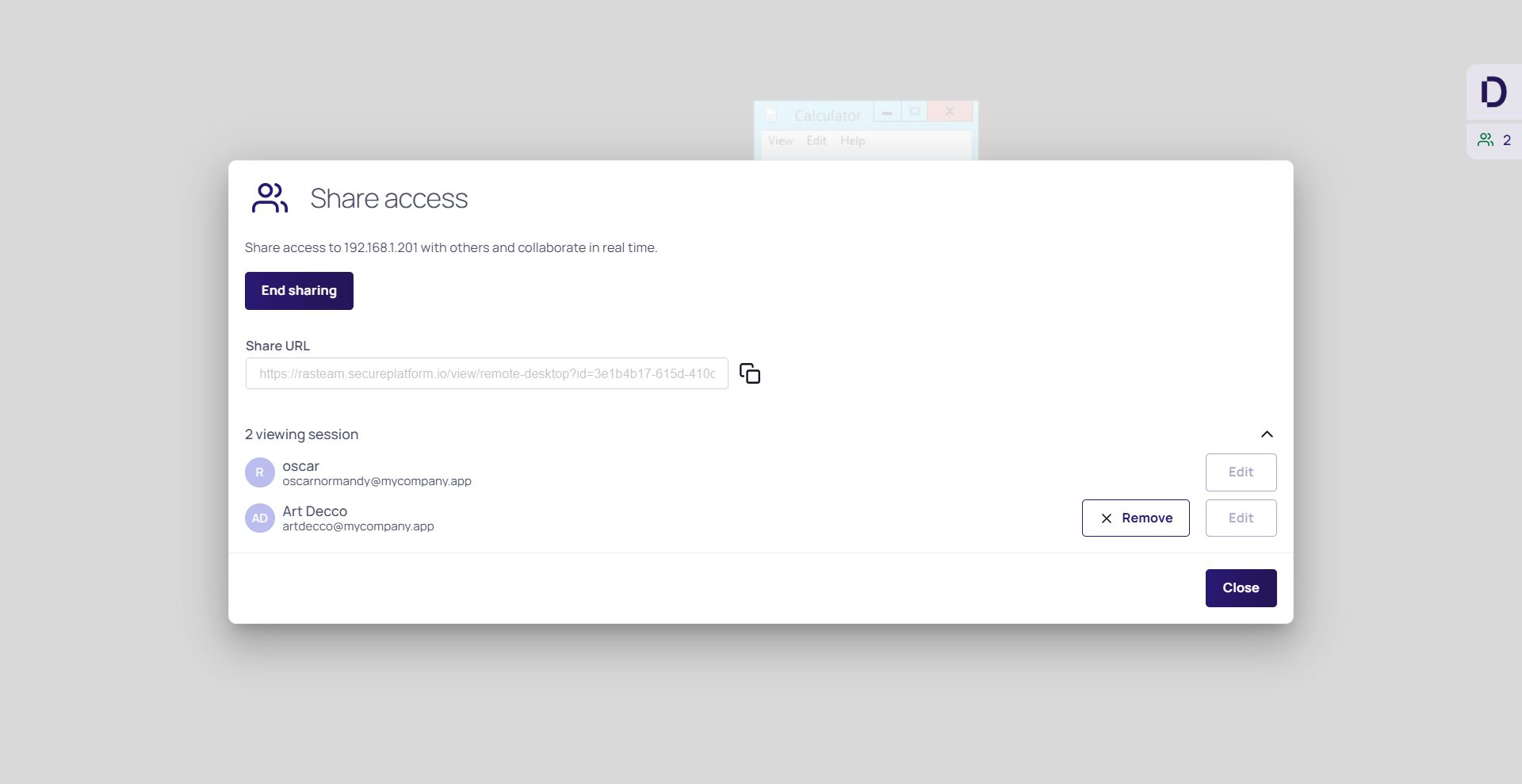
If the user has permissions to transfer files or use the clipboard, they will be able to do so. You will not see their clipboard or file transfer activity in your PRA session.
-
Clicking the End Sharing button, removes all other users from the shared session and invalidates the shared URL. If you need to share the session again, you'll need to enable sharing again.


