Using TCP Proxying with a Custom Process Launcher
Secret Server's SSH Proxy can tunnel TCP traffic for any application that accepts a host and port as command-line arguments—not just SSH clients. This enables users to launch tools like database clients through the Secret Server proxy, connecting to endpoints that are not directly reachable from the client machine.
When to Use This Feature
Use a tunneled (proxied) custom launcher when you need to broker, record, or restrict access to a protocol that has no dedicated Secret Server proxy. Common scenarios include:
-
Operational technology (OT) and industrial control systems (ICS): Reaching PLC, HMI, or SCADA management interfaces in segmented OT networks where engineering workstations must not connect directly to the control network. Only the Secret Server proxy or a distributed engine needs network access to the target.
-
Remote access tools: VNC, Telnet, and similar clients that accept a host and port on the command line.
-
Database clients: Tools such as Azure Data Studio, MySQL Workbench, or psql connecting to database servers that are firewalled from user workstations.
-
Thick clients with proprietary protocols: Any TCP-based application that accepts a host and port as arguments and does not validate the target hostname for trust.
For SSH and RDP sessions, use the dedicated proxies instead. See Configuring SSH Proxies for Launchers.
How It Works
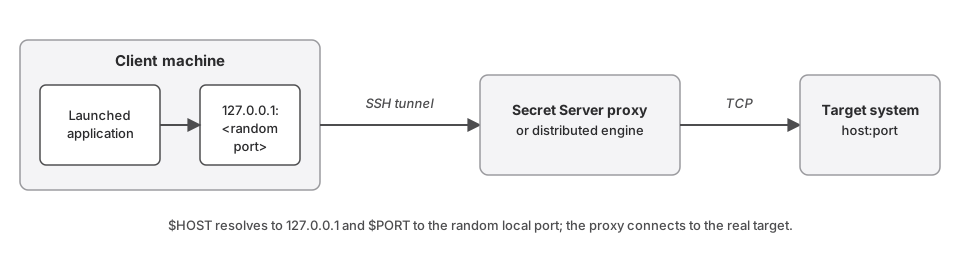
When Use SSH Tunneling with SSH Proxy is enabled on a Process-type launcher and the secret has proxying enabled:
-
Secret Server opens a local TCP listener on the client machine at a randomly assigned port.
-
The
$HOSTtoken in the process arguments is replaced with127.0.0.1. -
The
$PORTtoken is replaced with the random local port number. -
The launched application connects to
127.0.0.1:<random port>. -
Traffic flows from the client through an SSH tunnel to the Secret Server proxy, which connects to the real target host and port.
The user's machine never connects directly to the target. Only the Secret Server proxy (or a distributed engine) needs network access to the target endpoint.
Prerequisites
Before configuring this launcher:
-
The SSH Proxy must be enabled and configured. See Configuring SSH Proxies for Launchers.
-
The secret must have proxying enabled.
-
The Secret Server proxy endpoint must be able to reach the target on the relevant port (for example, TCP 1433 for SQL Server). The client machine does not need this access.
-
The secret template must have Host and Port fields defined and mapped to the launcher.
Example: Azure Data Studio — SQL Server
This example creates a custom launcher that opens Azure Data Studio and connects to a SQL Server instance through the Secret Server SSH Proxy.
Step 1: Create the launcher
-
Search for and select Secret Templates. The Secret Templates page appears.
-
Select the Launchers tab, then click Create. The New Launcher page appears.
-
Configure the General Settings:
-
Launcher Type: Process
-
Launcher Name:
Azure Data Studio (Proxied) -
State: Enabled
-
Use SSH Tunneling with SSH Proxy: Checked
-
Use Additional Prompt: Unchecked
Use SSH Tunneling with SSH Proxy and Use Additional Prompt are mutually exclusive. Enabling one disables the other. -
-
Configure the Windows Settings:
-
Process Name:
C:\Users\<username>\AppData\Local\Programs\Azure Data Studio\azuredatastudio.exe -
Process Arguments:
--server $HOST,$PORT --user $USERNAME --password $PASSWORD --database master
$HOSTand$PORTare replaced with127.0.0.1and the local tunnel port when proxying is active. The comma between host and port in the--serverargument matches Azure Data Studio's connection string format. -
-
Click Save.
Step 2: Map the launcher to a secret template
The launcher must be mapped to a template with Host and Port fields for the SSH Tunneling feature to function. Without this mapping, the checkbox has no effect.
-
Navigate to the desired secret template (for example, a SQL Server Account template).
-
Click the Mapping tab, then click Add Mapping.
-
In the Mapping Type dropdown, select your new launcher.
-
Map the fields:
-
Host → Server (or Machine)
-
Port → Port (set a default of
1433if no port field exists on the template) -
Username → Username
-
Password → Password
-
-
Click Save.
Step 3: Enable proxying on the secret
When launching a secret, ensure that Proxy Enabled is set on the secret. If the SSH Proxy is not available or proxying is not enabled on the secret, $HOST and $PORT fall back to the actual secret values and the connection is made directly from the client machine.
Step 4: Test the connection
-
Navigate to a secret based on the configured template.
-
Click the launcher. Azure Data Studio launches and connects through the local tunnel.
-
Verify that the connection succeeds.
If the connection fails, confirm that the proxy endpoint has TCP access to the SQL Server on port 1433. See Configuring SSH Proxies for Launchers.
Network Requirement
The Secret Server proxy endpoint (or distributed engine) must have network access to the target host on the required port. The client machine does not need direct access. This is the primary use case for this feature: allowing users to reach endpoints that are firewalled from their workstations.
Caveats and Limitations
-
TCP-based protocols only. The tunnel forwards TCP traffic. Protocols that require UDP or that open additional dynamic connections back to the client are not supported.
-
Credentials pass through the user's machine. Secret field values referenced in the process arguments (such as
$USERNAMEand$PASSWORD) are supplied to the launched application on the client machine. Unlike the dedicated SSH and RDP proxies, this launcher does not keep credentials off the endpoint. -
The client must not rely on the target hostname for trust. Because the application connects to
127.0.0.1rather than the real host, clients that validate the server hostname or certificate against the connection address (for example, TLS connections with strict certificate validation) may refuse to connect. -
Not for SSH or RDP sessions. Use the dedicated proxies instead, which offer credential protection and session recording designed for those protocols. See Configuring SSH Proxies for Launchers.
Troubleshooting
-
The application launches but connects directly to the target (or fails to connect). Verify that proxying is enabled on the secret and that the SSH Proxy is enabled and reachable. If proxying is not active,
$HOSTand$PORTfall back to the actual secret values and the client connects directly. -
The tunnel establishes but the client cannot connect. Check the connection-string format expected by the client. Some applications require the host and port in a specific syntax or enclosed in quotation marks. Test the exact argument string from a command prompt with a known-good host and port before troubleshooting the launcher.
-
The connection times out. Confirm that the Secret Server proxy endpoint or distributed engine can reach the target host on the required port. The tunnel only succeeds if the proxy side has network access to the target.
-
The launcher checkbox appears to have no effect. Confirm that the launcher is mapped to a secret template with Host and Port fields. Without this mapping, the Use SSH Tunneling with SSH Proxy setting does nothing.


