Creating a Service User in Delinea Platform
-
Log in to the Delinea Platform instance using an administrator account.
-
Navigate to Access > Users.
-
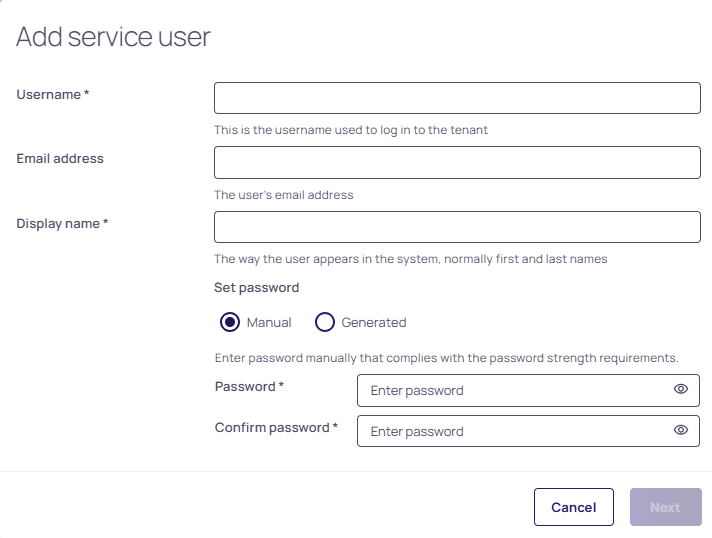
Expand the More dropdown list and select the Add service user option. The Add service user page opens.
-
Complete the mandatory fields. and select Next.
-
Once the service user is created, go to Access > Roles.
-
Select Add Role to create a new role.
-
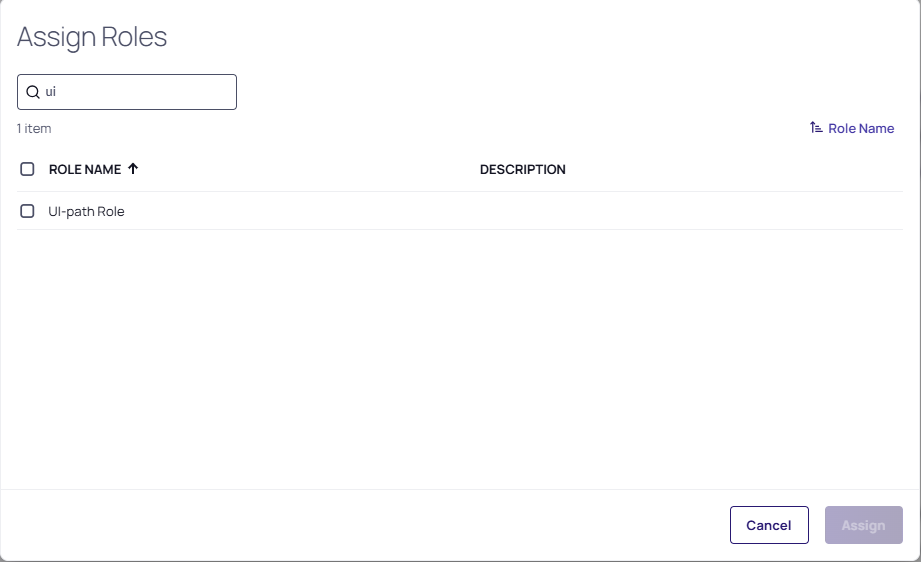
Open your newly created service user and select Assign Roles. The Assign Roles window opens.
-
Here you can find and select the newly created roles and select Assign to assign the role to the service user.
-
Go to Access > Roles.
-
Enter the name of the newly created role that was assigned to the service user in the Search field and open it.
-
Go to the Permissions tab and select Add Permissions.
-
Enter the View Secret and View Launcher Password on Secrets permissions in the Search field and select Assign.
These permissions are essential for you to access and manage secrets.
Newly created service users are typically inactive by default. To activate, log in with the service user credentials on the Platform.
Share any required folders or secrets with the service user to ensure it has access to the relevant secrets it will use.


