Configuring Terraform for Delinea Platform Integration
To integrate Terraform with Delinea Platform, you must copy and update required files from the Terraform provider GitHub repository:
-
Terraform configuration files (.tf)
-
Terraform variable files (.tfvars)
Step 1: Copy and Update the Terraform Configuration Files (.tf)
-
Go to the Delinea Terraform provider GitHub repository
terraform-provider-tss/examples/secrets. -
Copy the relevant example .tf file into your Terraform working directory. Rename them if needed (e.g., main.tf).
-
Update each file with the required configuration definition.
-
The required Terraform version
-
The Delinea provider version (
terraform-provider-tss) -
References to variables
-
The type of secret-management operation to perform
-
Inside your copied .tf file, update the required provider block. This ensures Terraform uses the correct provider and version to communicate with Delinea Platform
| Use Case | Example File |
|---|---|
| Retrieve a single secret | examples/secrets/secret_get/main.tf
|
| Retrieve multiple secrets | examples/secrets/secrets_get/main.tf
|
| Create or update a secret | examples/secrets/secret_create/main.tf
|
| Retrieve ephemeral secret | examples/secrets/ephemeral_secret_get/main.tf
|
| Retrieve multiple ephemeral secrets | examples/secrets/ephemeral_secrets_get/main.tf
|
| Delete Secret by id | examples/secrets/secret_delete/main.tf
|
| Delete multiple secrets by their id | examples/secrets/secrets_delete/main.tf
|
terraform {
                required_version = "> 1.11.0"
                required_providers {
                tss = {
                source  = "DelineaXPM/tss"
                version = "4.0.0"
                }
                }
        }
Step 2: Copy and Update the Terraform Variable Files (.tfvars)
To ensure security when using Terraform with Delinea Platform, avoid storing user credentials in the .tfvars file or the .tfstate file in plain text. Use one of the supported secure methods below to protect sensitive information during infrastructure provisioning. Ephemeral resources are temporary and short-lived. They are not persisted in the Terraform state file, making them ideal for managing sensitive secrets such as usernames, passwords, or tokens.
The variable files define the values required by your configuration file.
Navigate to terraform-provider-tss/vars/secrets and choose .tfvars file that fits your use case:
| Use Case | Example File |
|---|---|
| Retrieve one secret | secret_get.tfvars
|
| Retrieve multiple secrets | secrets_get.tfvars
|
| Create Windows account secret | secret_windows_account.tfvars
|
| Create Oracle (Linux) account secret | secret_oracle_account.tfvars
|
| Create SSH key secret | secret_ssh.tfvars
|
| Delete secret by secret ID | secret_delete.tfvars
|
| Delete multiple secrets by their ID | secrets_delete.tfvars
|
Static Credential Variables
The following variables must be updated in the files (secret_get.tfvars and secrets_get.tfvars):
| Variable | Description | Note |
|---|---|---|
| tss_username | Application account username |
If using token authentication, do not include this variable. Use the example below to set up. |
| tss_password | Application account password |
If using token authentication, do not include this variable. Use the example below to set up. |
| tss_server_url | Delinea Platform URL | Use the example below to set up. |
| tss_token | An OAuth token to authenticate with the Delinea Platform. |
If using credentials authentication, do not include this variable. Use the example below to set up. |
| tss_secret_name | Secret name | Use the example below to set up. |
| tss_secret_templateid | Template ID |
|
| fields[] | Field name and value pairs |
|
Example: secret_get.tfvars
Use only tss_username and tss_password or tss_token in secret_get.tfvars depending on whether you use credentials or token-based authentication.
Credentials authentication
                tss_username   = "username"
                tss_password   = "password"
                tss_server_url = "https://yourtenantname.delinea.app"
                tss_secret_id  = 1
Token authentication
                tss_token      = "token"
                tss_server_url = "https://yourtenantname.delinea.app"
                tss_secret_id  = 1
Example: secrets_get.tfvars
Use only tss_username and tss_password or tss_token in secrets_get.tfvars depending on whether you use credentials or token-based authentication.
Credentials authentication
                tss_username   = "username"
                tss_password   = "password"
                tss_server_url = "https://yourtenantname.delinea.app"
                tss_secret_id  = ["1", "2", "3"]
Token authentication
                tss_token      = "token"
                tss_server_url = "https://yourtenantname.delinea.app"
                tss_secret_id  = ["1", "2", "3"]
Using Environment Credential Variables
Direct Provider Environment Variables
The provider reads these variables directly. No TF_VAR_ prefix is required, and the provider block can be empty:
| Environment Variable | Provider Attribute |
|---|---|
TSS_SERVER_URL
|
server_url
|
TSS_USERNAME
|
username
|
TSS_PASSWORD
|
password
|
TSS_TOKEN
|
token
|
TSS_DOMAIN
|
domain
|
TSS_ALLOW_INSECURE_HTTP
|
allow_insecure_http
|
Configure either TSS_USERNAME plus TSS_PASSWORD, or TSS_TOKEN; do not configure both authentication methods. TSS_SERVER_URL is required.
Terraform input variables with the TF_VAR_ prefix remain a separate supported mechanism. Use TF_VAR_tss_username, for example, only when the Terraform configuration declares and references a variable named tss_username.
Starting with provider v5.0.0, a provider attribute whose value is unknown during configuration produces an error instead of falling back to a TSS_* environment variable. Either set the provider attribute statically or leave it unset and use the environment variable exclusively.
Server URL Requirements and Backend Probe (v5.0.0)
-
tss_server_urlmust usehttps://for any remote host. Provider v5.0.0 rejects a plaintexthttp://URL to a non-loopback host at configure time;terraform planandterraform applyfail with an error naming theallow_insecure_httpopt-in. Setallow_insecure_http = trueon the provider block, or exportTSS_ALLOW_INSECURE_HTTP=true, only when you deliberately accept plaintext HTTP. -
With username/password authentication, the provider sends an unauthenticated
GETto<tss_server_url>/api/v1/healthcheckand then<tss_server_url>/healthbefore sending credentials, so it can distinguish Secret Server from Delinea Platform. The endpoint must answer with a direct 2xx response; redirects are not followed. Allow the health path through any proxy in front of the tenant before upgrading. Token authentication skips the probe.
Ephemeral Resource Support (Preferred Method)
The Terraform provider now supports ephemeral resources using the latest Terraform Plugin Framework. Ephemeral resources are temporary, short-lived entities created during the execution of the terraform application operation. They are not persisted in the Terraform state file or any other Terraform-managed storage, offering enhanced security for managing sensitive data such as username, passwords, and API tokens.
Usage Example
In your .tf file, use the ephemeral block:
ephemeral "tss_secret" "my_username" {
                    id    = var.tss_secret_id
                    field = "username"
                    }
                    ephemeral "tss_secret" "my_password" {
                    id    = var.tss_secret_id
                    field = "password"
                }
These values can be dynamically injected into other Terraform resources:
resource "print_resource" "print_username" {
                    secret = ephemeral.tss_secret.my_username.secret_value
                    }
                    resource "print_resource" "print_usernames" {
                    secret = ephemeral.tss_secrets.my_usernames.secrets
                }
Sample Terraform files demonstrating the use of ephemeral resources are available in the terraform-provider-tss/examples/secrets directory for reference. For more details and examples on using ephemeral resources, see Ephemeral Resource Support for Improved Security.
SSH Keys and Passphrase Generation in Terraform Provider for TSS
To generate SSH keys and a passphrase when creating a secret using templates that include SSH key and passphrase fields, you need to set the generate_passphrase and generate_ssh_keys flags to true. By default, these flags are set to false.
To Pass SSH Key and Passphrase Generation Arguments from Terraform Variable File:
fields = [
                    {
                    fieldname = "Public Key"
                    itemvalue = null
                    },
                    {
                    fieldname = "Private Key"
                    itemvalue = null
                    },
                    {
                    fieldname = "Private Key Passphrase"
                    itemvalue = null
                    }
                    ]

                    # SSH Key Generation Settings
                    generate_passphrase = true
                generate_ssh_keys   = true
Important Notes
-
Set
itemvaluetonullfor SSH key fields. -
Set the appropriate boolean values for
generate_passphraseandgenerate_ssh_keys.
Limitations and Considerations
-
Creation only: SSH key generation is only supported during secret creation, not during updates.
-
Field values: When updating a secret with previously generated SSH keys, the provider automatically preserves the generated values.
-
Changing
sshkeyargsreplaces the secret (v5.0.0): the block is replacement-only, so editinggeneratepassphraseorgeneratesshkeysproduces a destroy-and-create plan instead of an in-place no-op.
Delete Secret
This functionality deactivates the secret in Delinea Secret Server. It does not permanently delete the secret, but renders it inaccessible.
Delete Secret by ID
The tss_secret_deletion resource allows you to delete a secret by its ID, even if it is not managed by Terraform state. Use the following block in your .tf file:
resource "tss_secret_deletion" "delete_secret" {
                    secret_id = var.tss_secret_id
                }
Apply this configuration to delete the secret with the ID provided in your Terraform variable file. After deletion, run terraform destroy to remove the resource from state before deleting another secret.
Delete Multiple Secrets
The tss_secret_deletion resource also supports deleting multiple secrets by their IDs, even if they are not managed by Terraform state. Use the following block in your .tf file:
resource "tss_secret_deletion" "delete_secrets" {
                    for_each  = toset(var.tss_secret_ids)
                    secret_id = tonumber(each.key)
                }
This configuration deletes all secrets listed in the set provided from the Terraform variable file. Each deletion is tracked separately in state.
Important Notes
-
After deleting, run
terraform destroyto clean up the state before deleting new secrets. -
Deletion is performed during the
terraform applyphase. -
The resource is tracked in state to prevent repeated deletion attempts.
-
Creating...in logs indicates the deletion is being performed. -
v5.0.0:
tss_secret_deletionis a one-shot operation. If the deleted secret is later restored, refresh reports a warning and keeps the completed operation in state; Terraform does not delete the restored secret again. Remove the resource from state and apply again only when another deletion is intended. -
v5.0.0: changing
secret_idon an existingtss_secret_deletionresource now replaces the resource, so the newly selected secret is actually deleted. Earlier versions rewrote the state record without deleting the new target.
Step 3: Complete Configuration
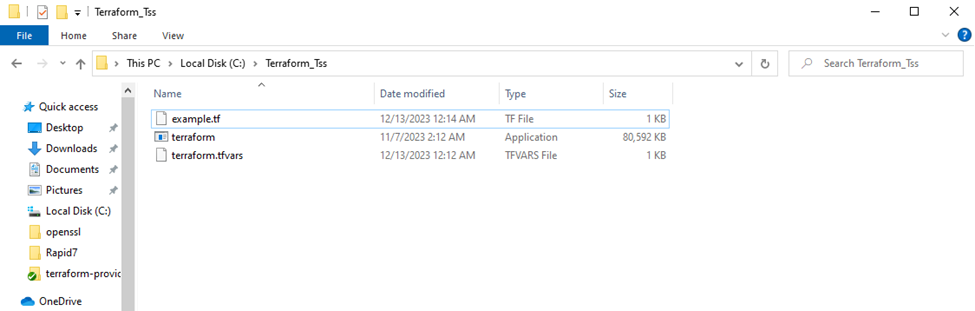
After completing the configuration, your Terraform executable directory should include:
-
The .tf configuration file
-
The .tfvars variable file
-
Terraform executable (terraform)
Upgrading to Provider v5.0.0
Terraform state from provider v4.0.x is compatible with v5.0.0, but configurations must be reviewed before upgrading. Use Terraform 1.11 or later, allow the Delinea Platform /health endpoint to return a direct 2xx response when username/password authentication is used, migrate password fields from itemvalue to password_value plus password_wo_version, remove configured computed field metadata, and add an unambiguous fieldname to every fields block. Changing sshkeyargs now replaces the secret. Managed-secret and multi-secret reads now fail closed instead of silently replacing or shortening results. Pin version = "~> 4.0" until these changes are complete.


