Verification
To verify that Server Suite and ServiceNow are configured correctly, submit a test request and confirm that it completes successfully end to end.
Submitting a Test Request
Only authorized Active Directory users can submit a request through the catalog item. If a non-AD user opens the catalog item, all fields become read-only and the request cannot be submitted. You will see the following message:
"You are not an authorized user. Please contact your System Administrator, as you will not be able to order this item without a valid user."
To test the request flow:
-
Sign in to ServiceNow as an AD user.
-
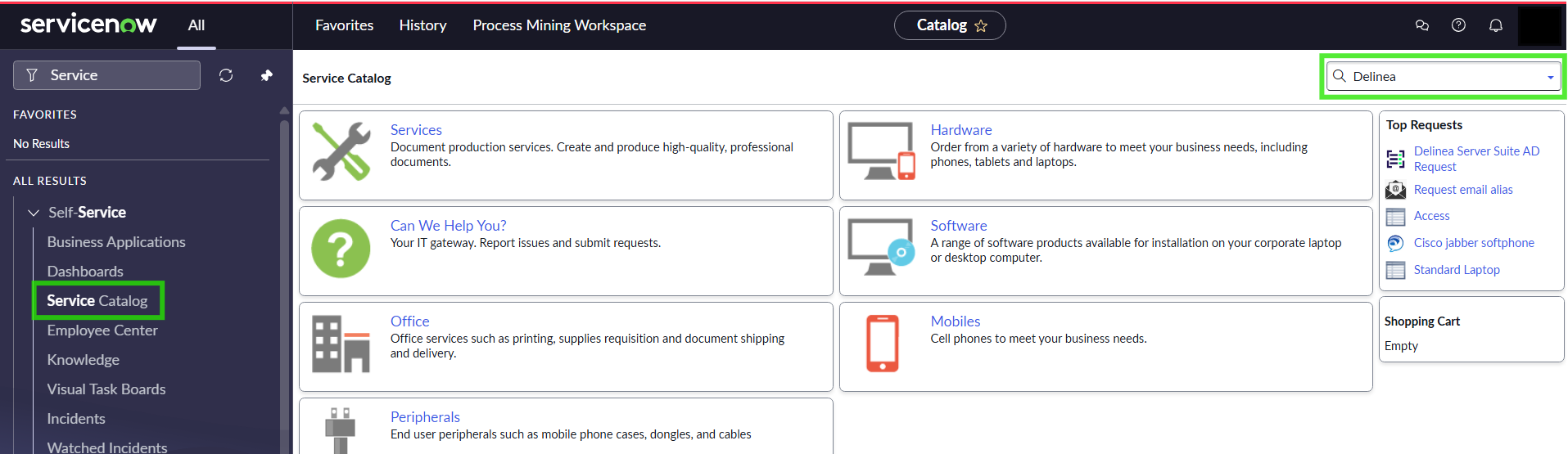
Go to All > Service Catalog, and type Delinea in the search box.
-
Open the Delinea Server Suite AD Request catalog item.
-
Complete the form. All catalog fields are mandatory.
-
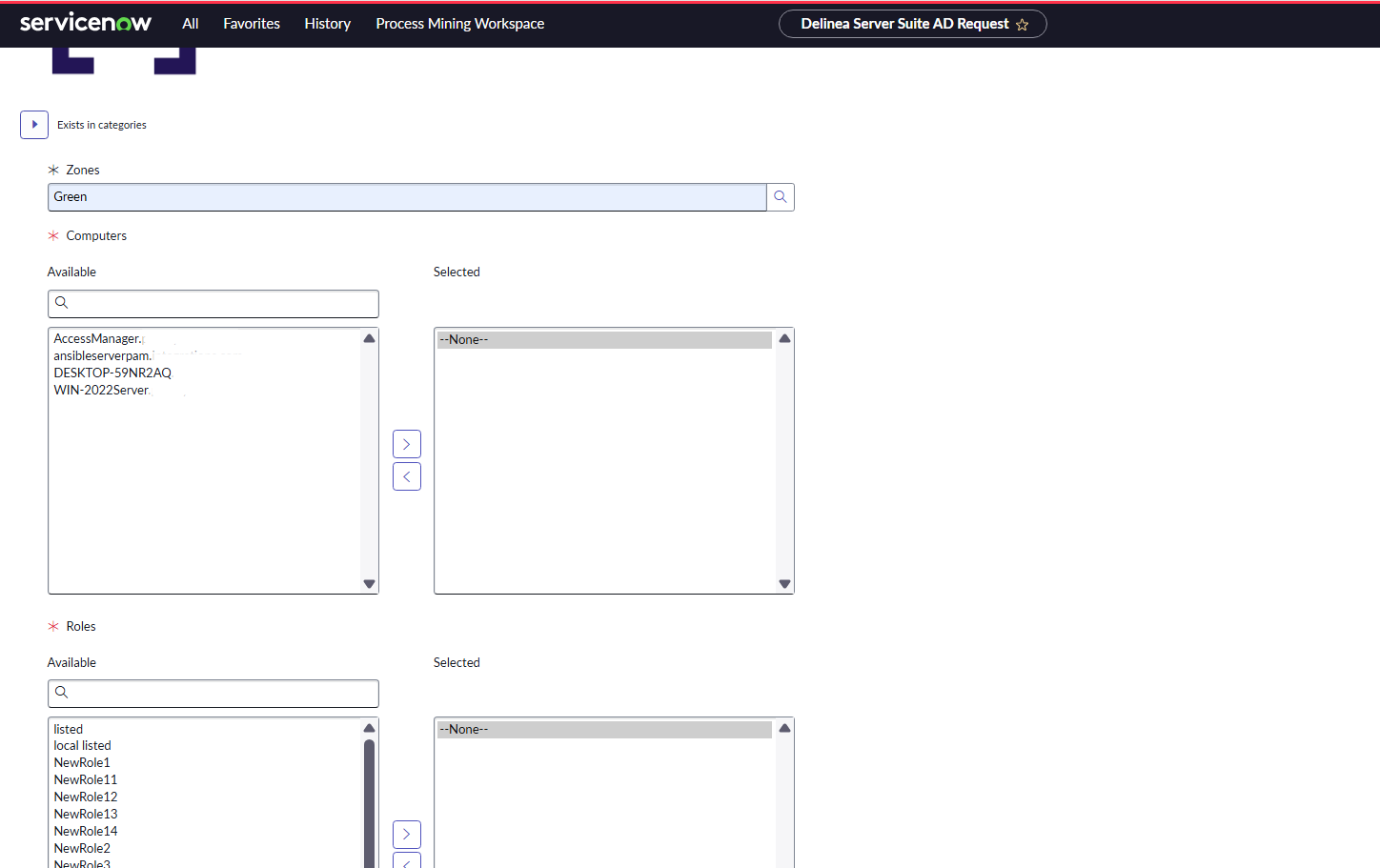
Select a Zone. The Computers and Roles fields are dynamically populated based on the selected zone.
-
Select one or more Computers and move them to the Selected list.
-
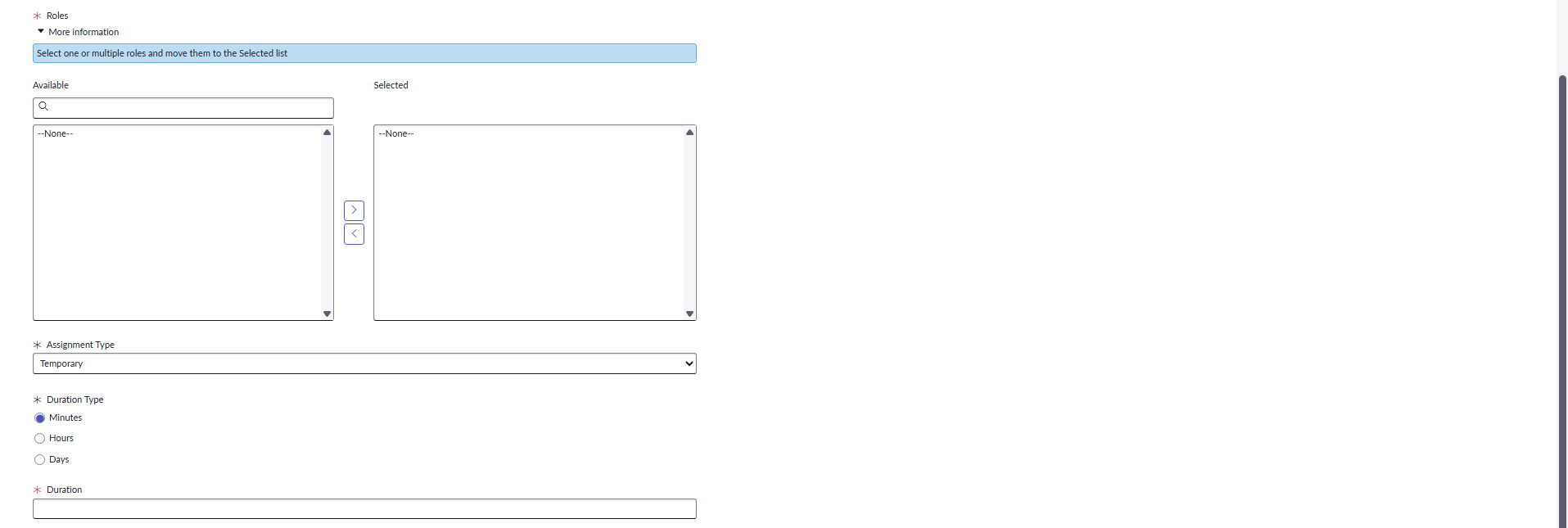
Select one or more Roles and move them to the Selected list.
-
Select the Assignment Type, Duration Type, and Duration.
-
-
Click Order Now in the upper-right corner to submit the request. Note that a request cannot be submitted while a synchronization job is in progress.
| Assignment Type | Requires |
|---|---|
| Temporary | Duration Type and Duration, capped at the administrator's configured Maximum Access Duration |
| Windowed | Start and End Date/Time (the two must differ), same duration cap applies |
| Permanent | Only available to users holding the x_delin_server_ad.permanent_access_user role; access never expires |
ServiceNow confirms the submission with a request number. Note this number to track your test request.
Approving the Request
-
Sign in as the approver.
-
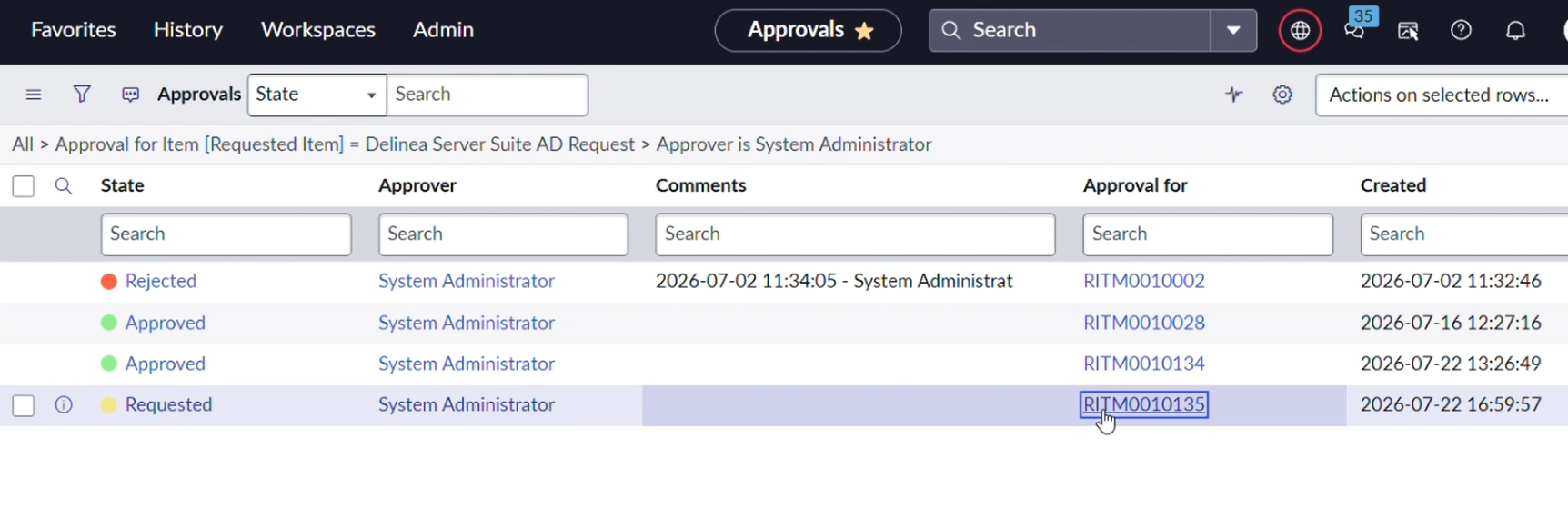
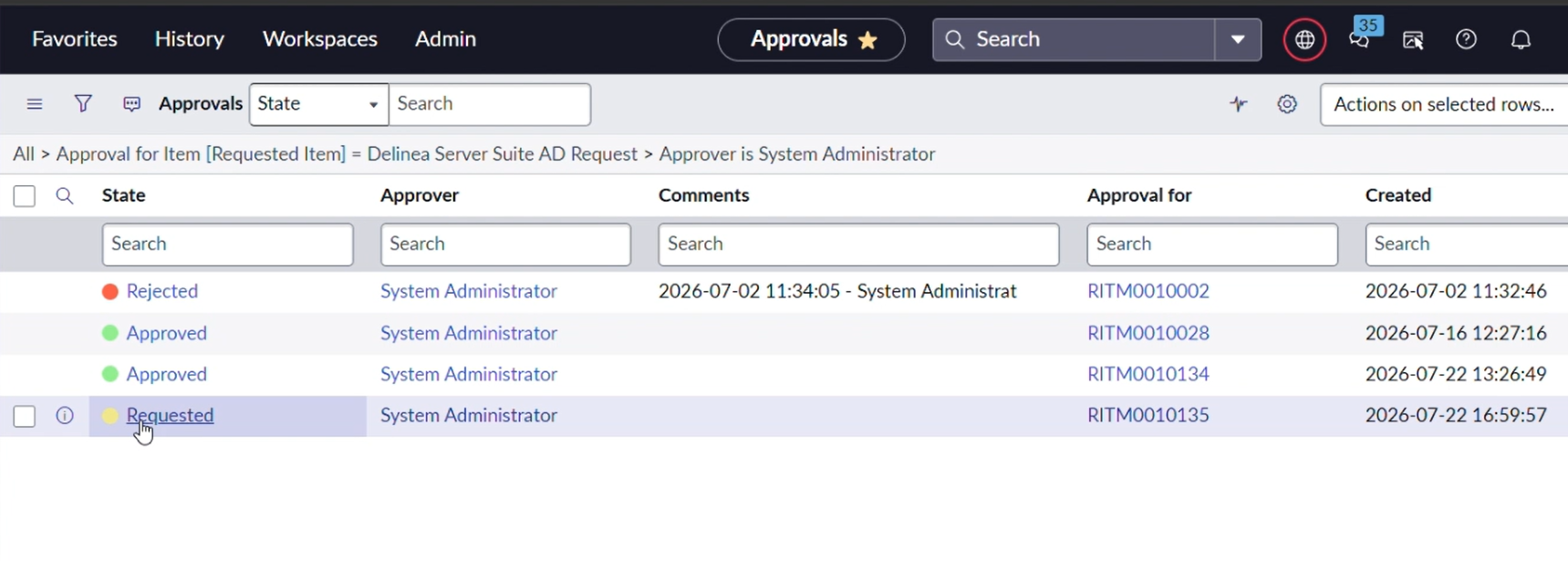
Go to All > Delinea Server Suite AD Integration > Approvals > My Approvals.
-
To review the request before approving, click the request number in the Approval for column. The requested item shows the zone, computers, roles, assignment type, and duration submitted with the request. Return to the Approvals page when you finish.
-
Click Requested in the State column to open the approval record.
-
Click Approve.
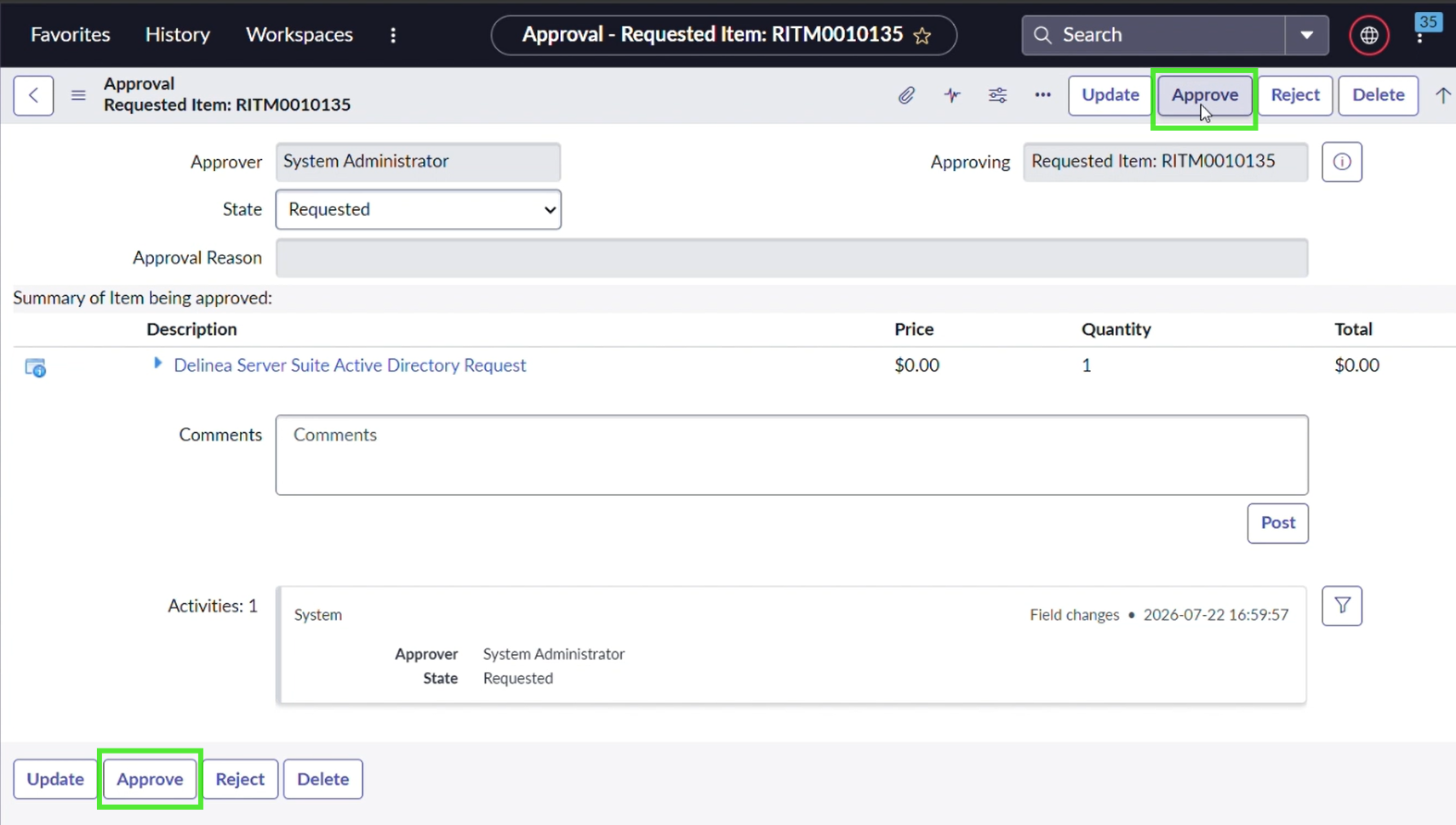
Approval behavior depends on how the approval rule and its approvers are configured:
-
If no approval rule is configured for the catalog item, the request is automatically approved.
-
If multiple approvers are configured, once one approver acts, the remaining approvals are marked as "No Longer Required."
-
If the requester and the approver are the same user, the request is automatically denied.
Checking the Request Status
-
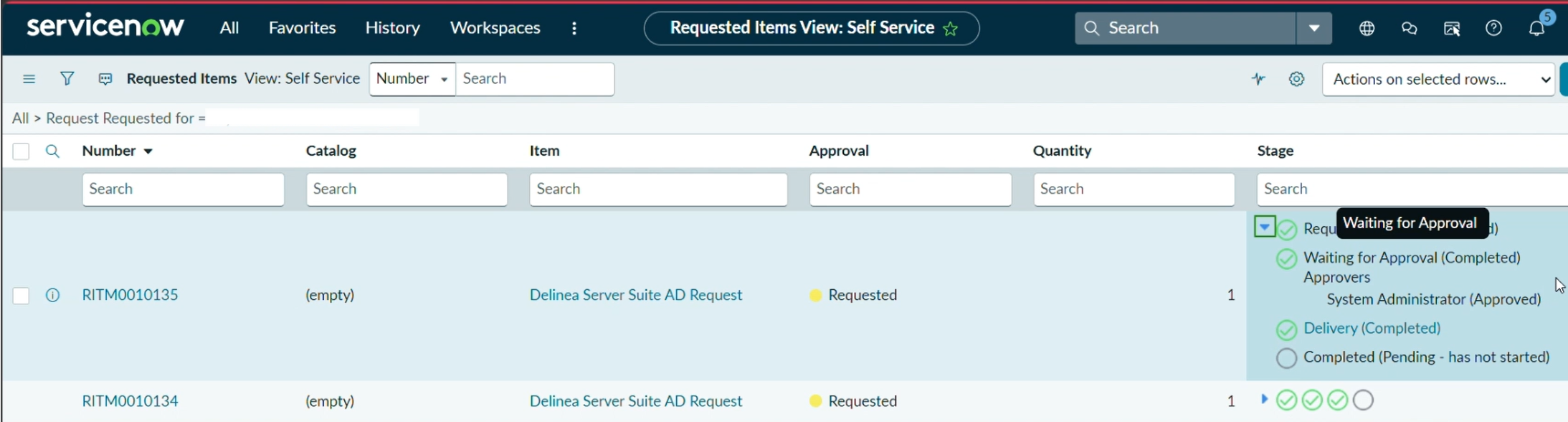
Go to All > Requested Items.
-
Click the arrow in the Stage column to see the current status of the submitted requested item.
Verifying in Active Directory
Confirm that the assignment was applied directly in Active Directory using Delinea Access Manager:
-
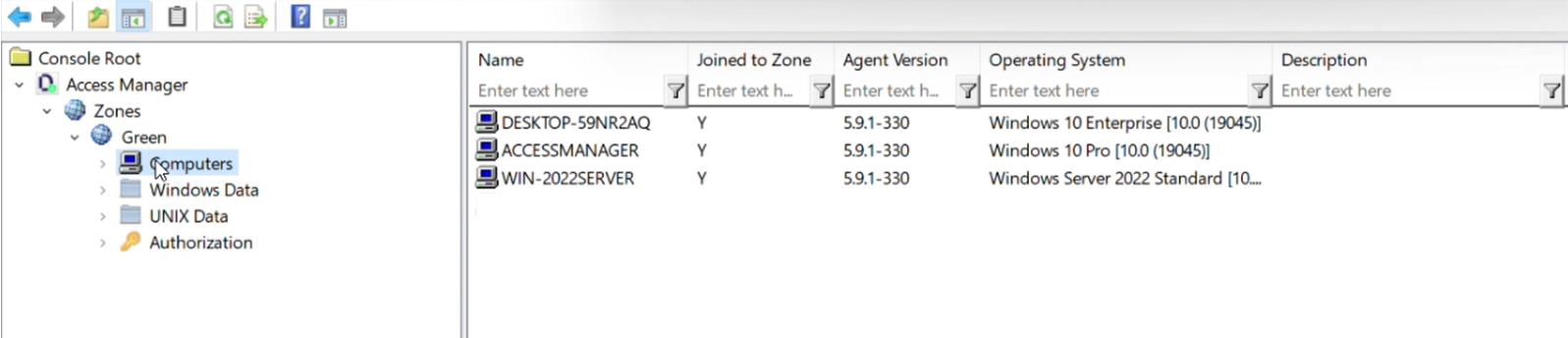
Open Delinea Access Manager.
-
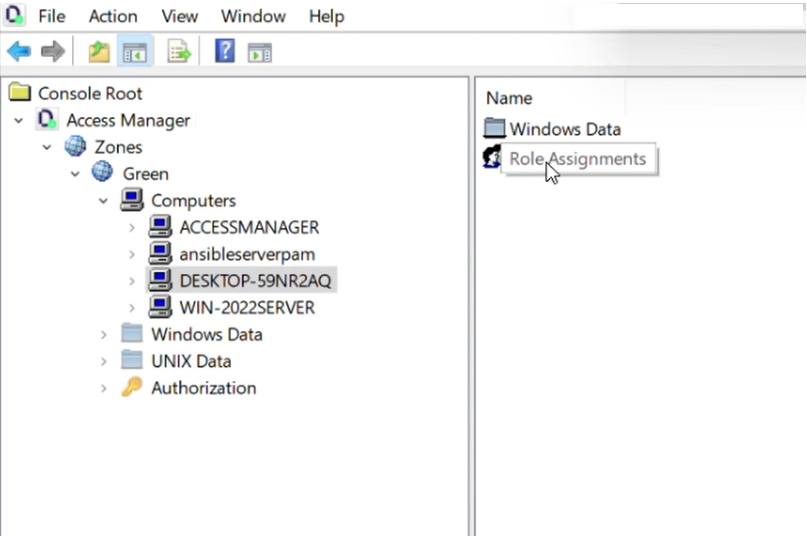
Go to the zone used in the test request and open Computers.
-
Open the computer selected in the request.
-
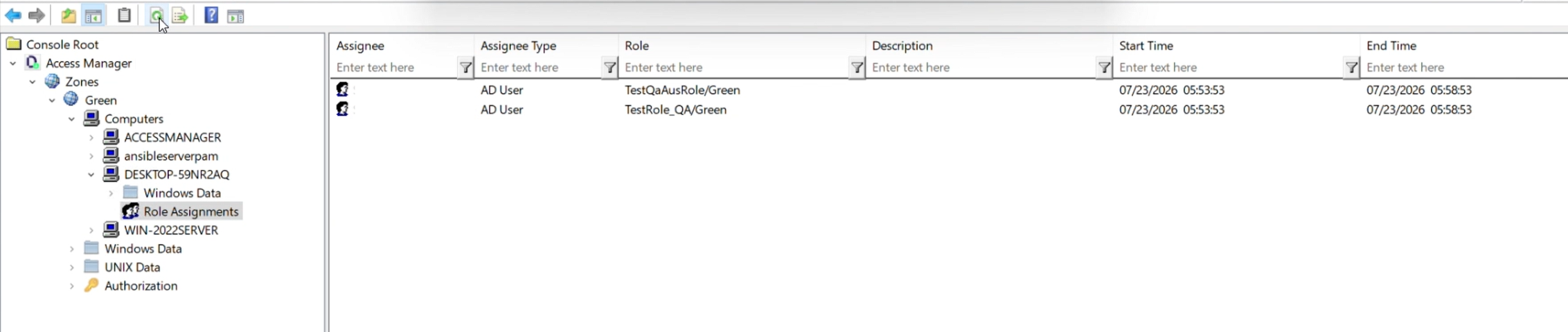
Click Role Assignments and refresh the view.
-
Verify that the requested roles appear, assigned to the AD user, with the assignment type and duration from the request.


