Setup
To set up the integration between Server Suite and ServiceNow, install the integration package on your ServiceNow instance.
Installing the Integration Package
You can install the Server Suite AD Integration with ServiceNow through the ServiceNow store or by manually importing the XML file that contains the integration package.
Installing the Integration Package with the ServiceNow Store
-
Go to the ServiceNow Store and download the most recent version of Delinea Server Suite/AD Zone Access Management.
-
Follow the ServiceNow process to install the integration from the store.
Installing the Integration Manually with the XML File
You can optionally import the XML file that contains the integration package into ServiceNow.
-
Download the most recent version of the integration here.
-
Extract the ZIP file to get the XML file with the integration package.
-
Sign in to ServiceNow.
-
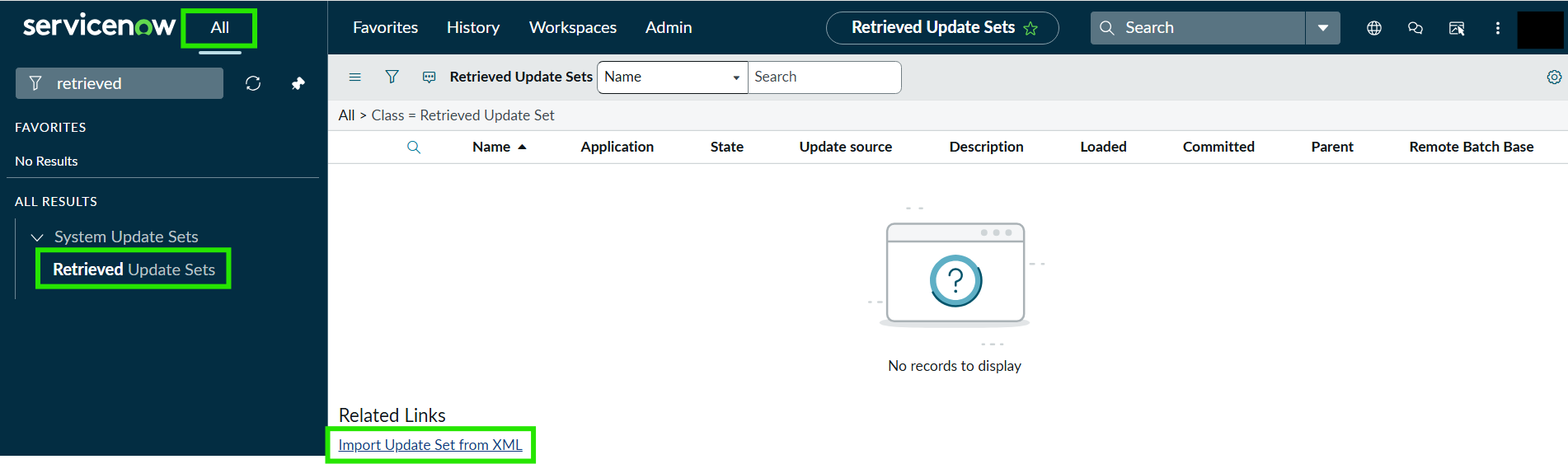
Go to the All tab and select Retrieved Update Sets on the left side pane. Use the filter bar to make a quick search.
-
Select Import Update Set from XML.
-
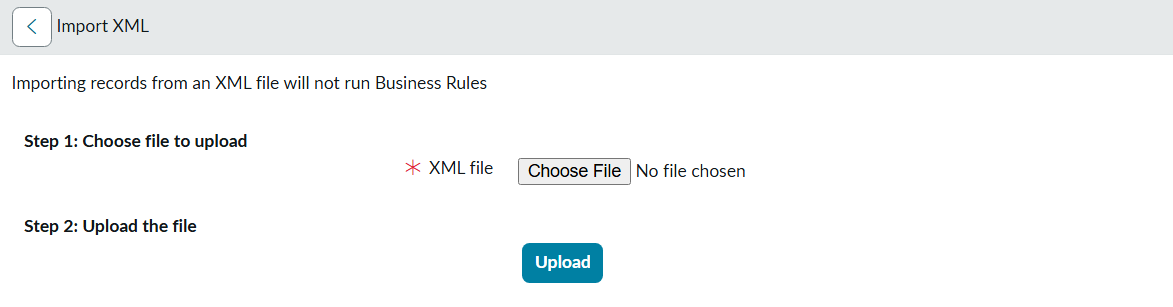
Click Choose file and select the XML file.
-
Click Upload. Once the import is complete, Delinea Server Suite Active Directory Integration appears in the Retrieved Update Set page.
-
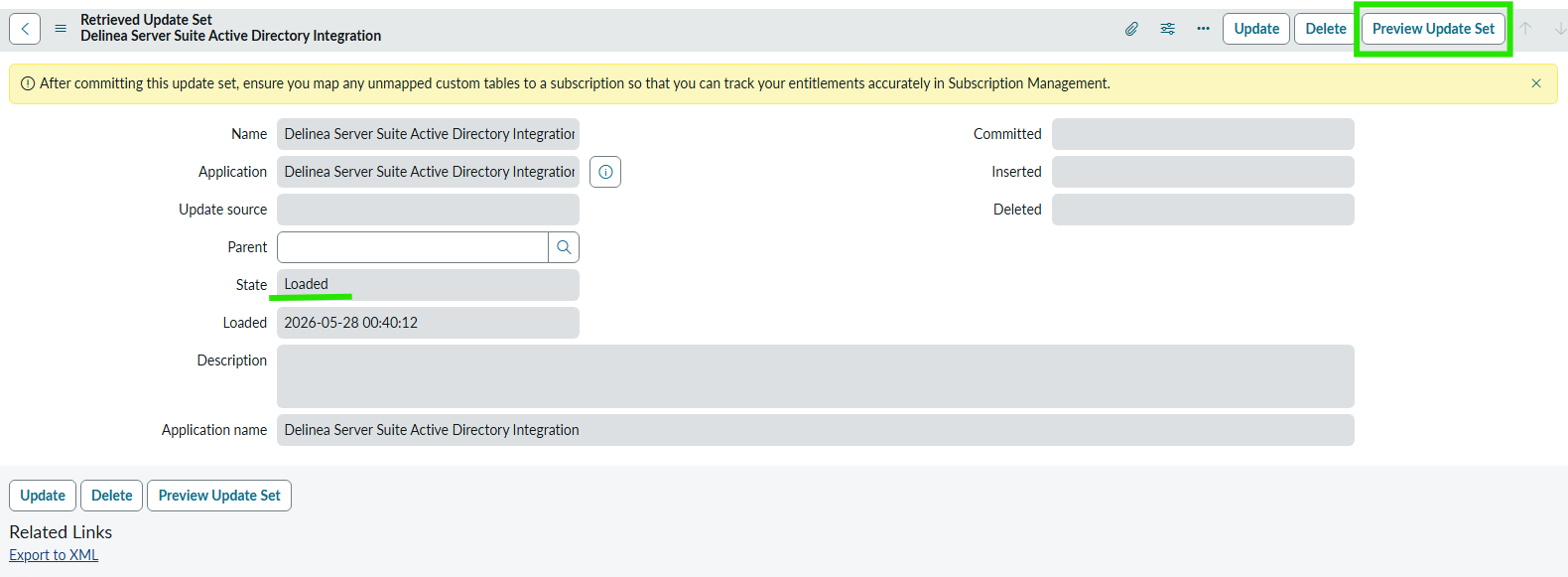
Click Delinea Server Suite Active Directory Integration on the Retrieved Update Set page.
-
Verify that the State is Loaded.
-
Click Preview Update Set in the upper-right corner of the page.
-
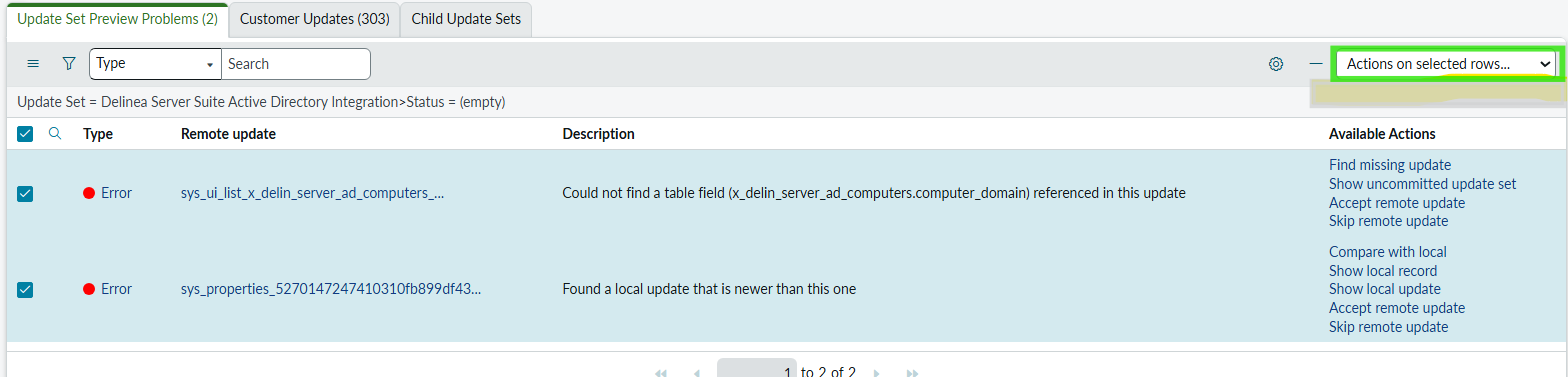
The system may display two expected errors. Select the error records and click Actions on selected rows in the upper-right corner of the page.
-
Click Accept Remote Update. This will change the State to Previewed.
-
Click Commit Update Set in the upper-right corner of the page.
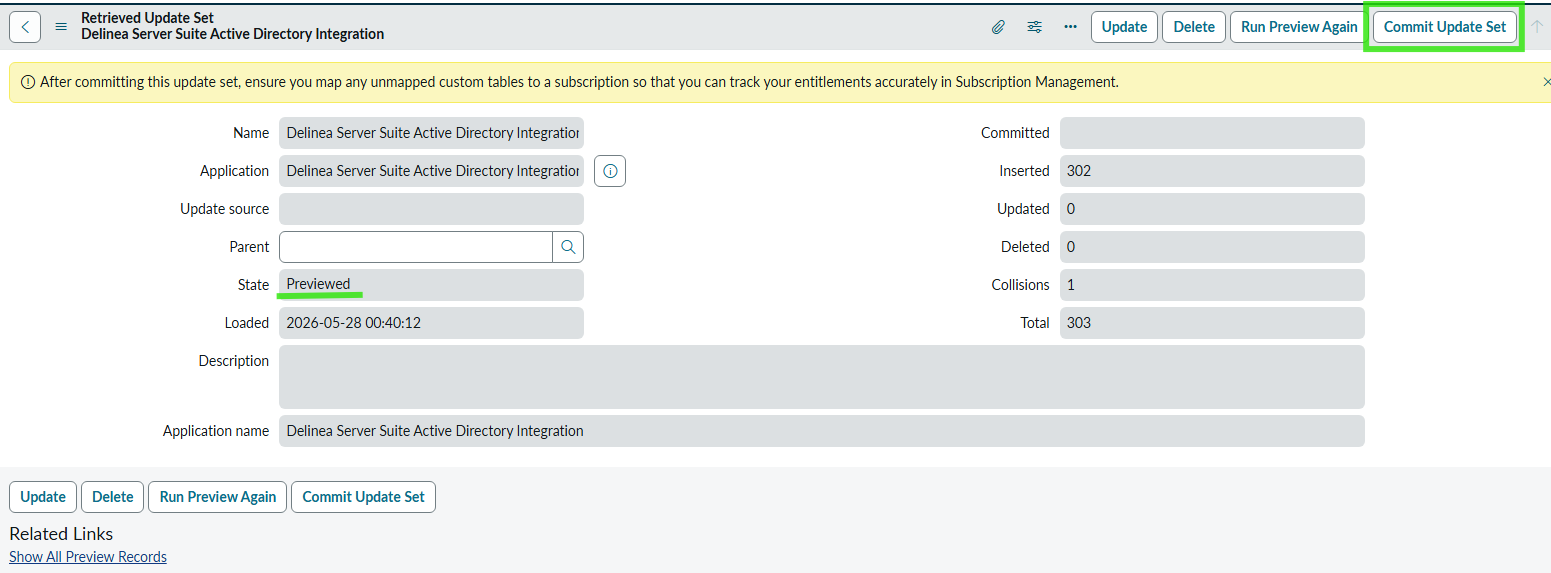
-
Verify that the State changes to Committed on the Retrieved Update Set page to confirm the installation is complete.
-
Refresh the browser so that the Delinea Server Suite AD Integration application appears in the All menu.
Activating the MID Server Script File
The integration synchronizes Active Directory data through the ADEntitySync.ps1 script, which the MID Server runs with the PowerShell Access Module. The script is inactive by default. Activate it after you install the integration package and the MID Server.
-
In ServiceNow, type
ecc_agent_script_file.listin the filter navigator and press Enter to open the MID Server Script Files table. -
Open the ADEntitySync.ps1 record.
-
Select the Active check box and click Update.
-
Wait for the MID Server to download the script. Confirm that
ADEntitySync.ps1exists in<installation_path>\agent\scripts\PowerShell\on the MID Server host, where<installation_path>is the folder where you installed the MID Server.
The PowerShell Access Module must be installed on the MID Server host before the script can run. See Prerequisites.


