Configuration
To enable seamless integration between Privilege Manager and ServiceNow for approval requests, you need to configure both systems correctly. This process involves creating ServiceNow admin credentials, setting up the foreign system configuration to link Privilege Manager to ServiceNow, and creating the necessary SOAP-based request items within ServiceNow. These steps ensure that Privilege Manager can communicate effectively with ServiceNow to handle approval requests, execute workflows, and update records.
Below are the steps to configure the integration, starting with creating the ServiceNow admin credentials, configuring the foreign system, and running the task to create the required approval request items in ServiceNow.
Step 1: Create Service Now Admin credentials
-
Log into Privilege Manager console with admin credential.
-
Navigate to Admin > Configuration. The Configuration page opens.
-
Select the Credentials tab.
-
Select Create.
-
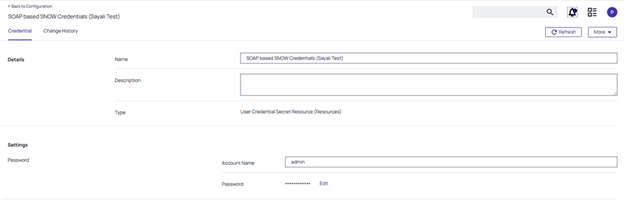
In the Details section enter a Name and Description for your ServiceNow credentials.
-
In the Settings section complete the following fields:
-
Account name: Enter the ServiceNow admin username
-
Password: Enter the ServiceNow admin password
-
-
Select Save Password and then save the changes.
Step 2: Configure Foreign System
-
Select Back to Configuration.
-
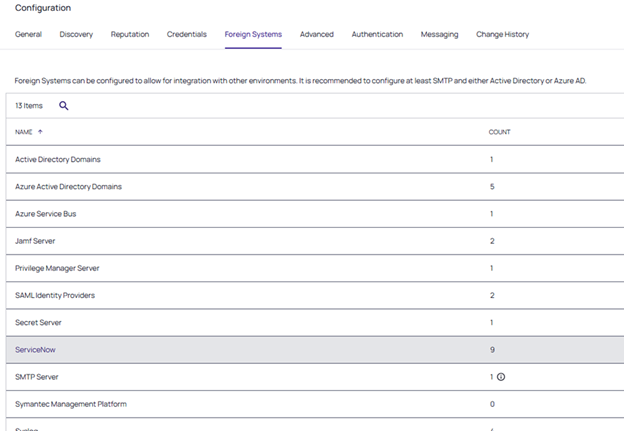
Select the Foreign Systems tab.
-
Select the ServiceNow link from the list of foreign systems.
-
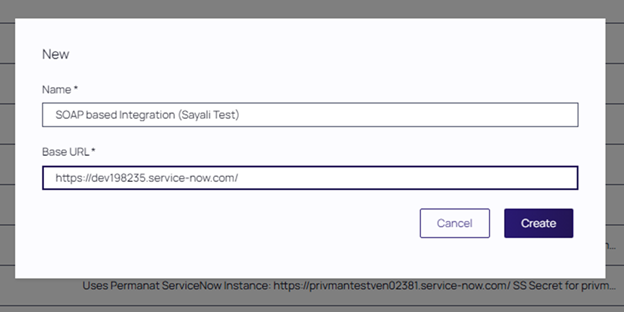
Select Create. The New pop-up opens.
-
In the Name field, enter a Name for your ServiceNow Server.
-
In the Base URL field, enter the Base URL from your ServiceNow instance, https://[InstanceName].service-now.com/
-
Select Create.
-
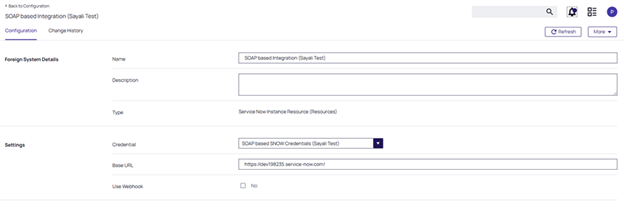
In the Credential field, under the Settings section, select the Service Now Admin credentials you created previously to link to your instance with ServiceNow.
-
Select Save Changes.
Make sure that you clear the Use Webhook checkbox.
Step 3: Create ServiceNow Approval Request Items
-
Create the necessary SOAP-based request items within ServiceNow, which are required to handle approval requests between Privilege Manager and ServiceNow:
-
In the Global Search field in Privilege Manager, enter: Create ServiceNow Approval Request Items.
-
Select the Create ServiceNow Approval Request Items task from the search results.
-
Expand the More dropdown list and select Run Task.
-
When prompted, add the Foreign System Configuration you created earlier for the ServiceNow integration.
-
Select Run Task to execute the task.
-
After running the task, Privilege Manager will redirect you to the Task History.
Make sure to refresh to see if the task is closed.
-
Open ServiceNow and go to All > Scripted Web Services > Scripted SOAP Services to verify that the following three options are listed:
-
CreateExecuteAppApprovalRequest
-
CancelExecuteAppApprovalRequest
-
GetExecuteAppApprovalRequestStatus
-
This configuration links Privilege Manager to ServiceNow, using the ServiceNow instance and credentials you set up.


