Verification
This topic provides steps to verify that the integration of the Delinea Platform with ServiceNow works.
Follow the steps in the sections below to verify the following tasks:
-
Submitting a privilege elevation request in ServiceNow.
-
Updating the details of a user-submitted privilege elevation request, including the default authentication policy and the default policy type applied to the request.
-
Viewing a PCS policy created for a request in the Delinea Platform.
Submitting a Privilege Elevation Request
Users request access to remote endpoints (computers and servers) and elevated permissions to run commands on those endpoints by submitting privilege elevation requests in the Service Catalog in ServiceNow.
To submit a privilege elevation request:
-
Log in to ServiceNow as a requester user.
-
Navigate to All > Service Catalog.
-
In the search box in the upper-right corner of the Service Catalog page, search for Delinea Platform Privilege Elevation Request.
-
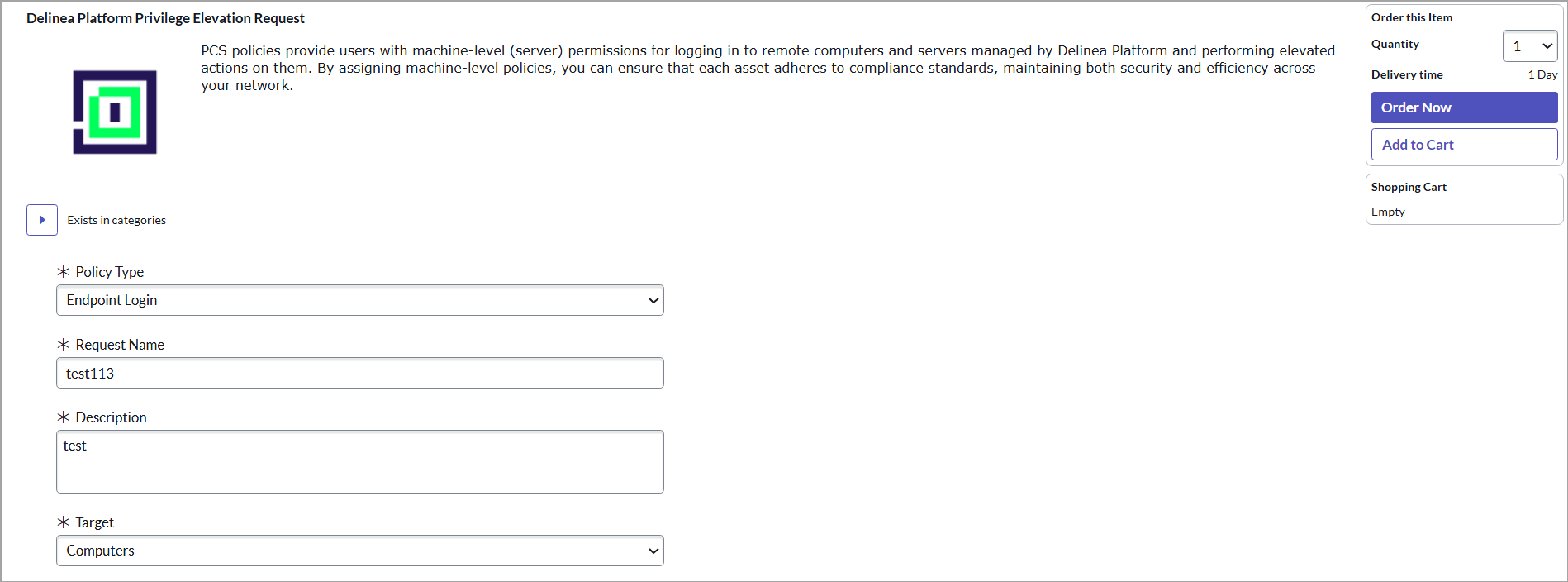
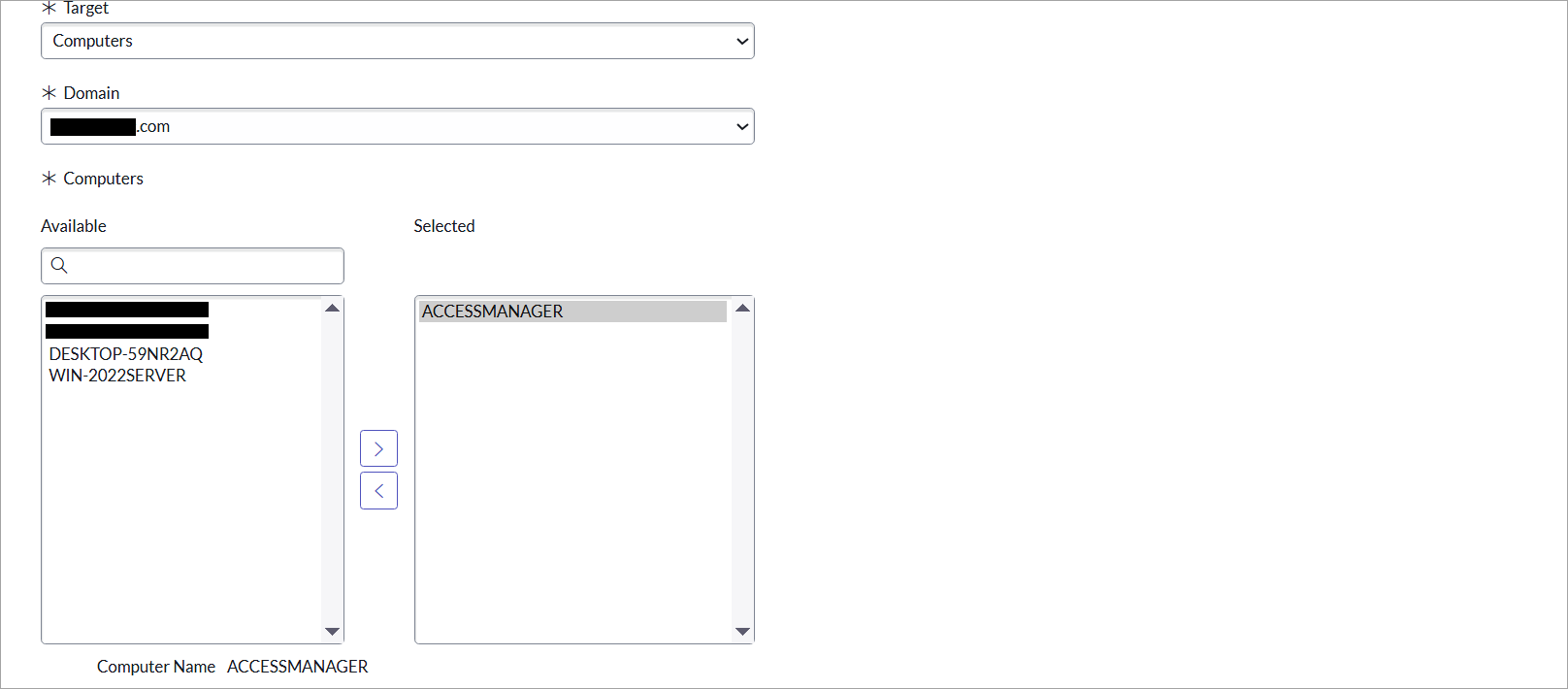
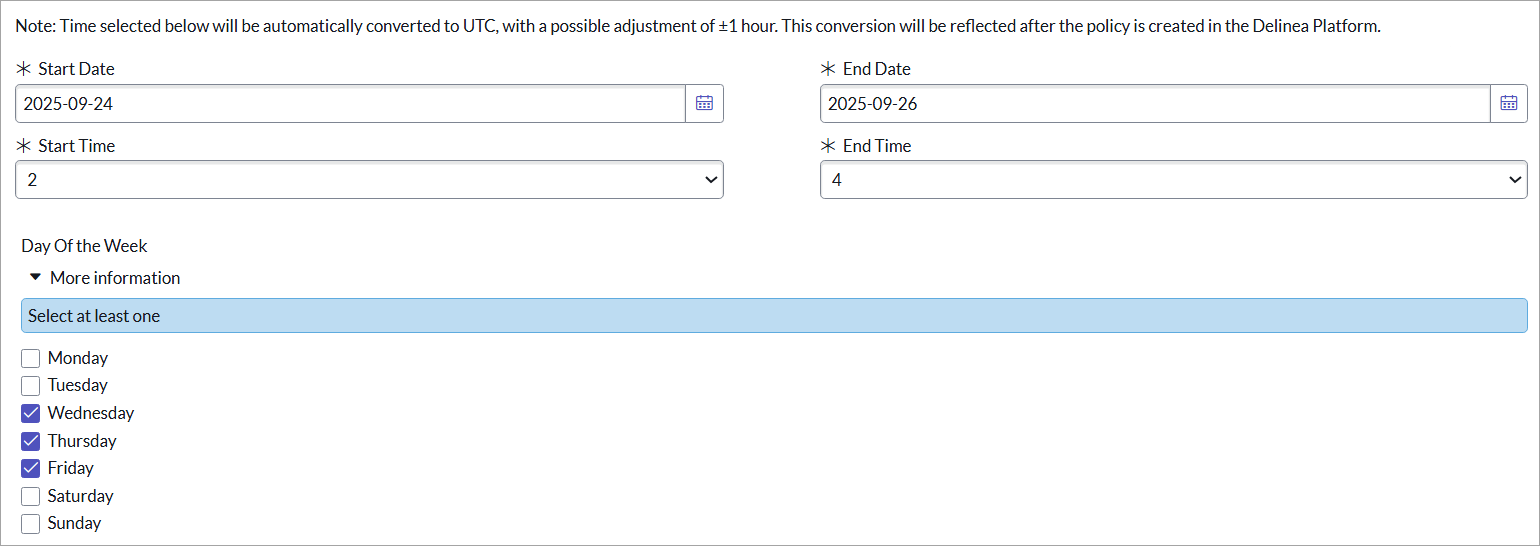
On the search results page, select the Delinea Platform Privilege Elevation Request link to open the Delinea Platform Privilege Elevation Request page, shown in the images below.
-
On the Delinea Platform Privilege Elevation Request page, provide the following information:
-
Policy Type: The policy type. By default, this displays the default policy type set by your ServiceNow administrator (for example, Granular Privilege Elevation) in the integration settings. If the administrator allowed the default policy type to be changed by users, you can select a different policy type for your request. Otherwise, the Policy Type box displays the read-only default policy type, and you must use that default policy type for your request.
The approvers of the request can choose to override the selected policy type.
-
Request Name: The name for the request. The name cannot be the same as another request's name.
-
Reason: The reason why access is being requested.
-
Target: Select Computers. When you select Computers, the Domain list and the Computers section become available below.
-
Domain: Select the Active Directory domain of the computers that you are requesting access to.
-
Computers: The box under Available displays the names of the computers that belong to the selected domain. To specify that you need access to a computer, select its name under Available and select
 to move the computer to the Selected box (as shown in the second image under step 4).
 -
Command Groups: Specify the command groups that contain the commands that you want to run on the selected computers. Select the name of each command group under Available and select
 to move the command group to the Selected box.
The Command Groups section does not appear if Endpoint Login or Local Administrator Privileges is selected as the default policy type in the integration settings in ServiceNow.
-
Start Date & Start Time and End Date & End Time: The period for which access to the selected computers are being requested. Select the end and start dates on the calendar (see the third image under step 4).
-
By default, the Start Date and Start Time are set to the current date and time of the logged-in user.
-
By default, Start Date and End Date have a difference of two days, and Start Time and End Time have a difference of two hours.
-
The Start Time and End Time appear in the logged-in user's time zone and will be converted to UTC. This can cause the resulting UTC time range to be adjusted by +- 1 hour. The converted UTC time range will be shown for the policy that will be created in the Delinea Platform.
-
-
Day of the Week: If you need access only on specific days of the week, select the checkbox for each day on which you need access.
The corresponding days of the week are automatically selected according to the specified Start Date and End Date.
-
-
To submit the request, under Order this Item on the right side of the page, select Order Now.
The request is submitted, and the Order Status page displays the automatically generated request number and indicates that the request is in Waiting for Approval stage, specifying the names of the approvers for the request. Each approver is automatically assigned an approval requested item based on the request, and they need to approve or reject the request.
If the request is approved, the stage of the request in the Service Catalog changes to Completed. If the request is denied, the stage changes to Waiting for approval (Rejected).
To view the current stage of the request, select the arrow in the Stage column.
Updating a Privilege Elevation Request
After a user submits a privilege elevation request, the Privilege Elevation workflow matches the request to an approval rule and creates an approval requested item (RITM) for each approver defined in the approval rule. The approvers need to approve or deny the request.
The default authentication (MFA) profile and the default Granular Privilege Elevation policy type from the integration settings are applied to all new privilege elevation requests. As an approver, you can change the default authentication profile and the default policy type. If the user's request is approved, a PCS policy that will be created in the Delinea Platform will be of the selected policy type and with the selected authentication profile.
This topic doesn't cover how to approve or deny a request; the topic helps you verify that you can update details of a privilege elevation request as an approver. In particular, you can change the default authorization profile and the default policy type applied to the request.
To update a privilege elevation request:
-
Log in to ServiceNow as an approver user.
-
Navigate to All > Delinea Platform Integration > My Approvals.
-
On the Approvals page, in the State column, select the Requested link for the appropriate RITM in the Approval for column.
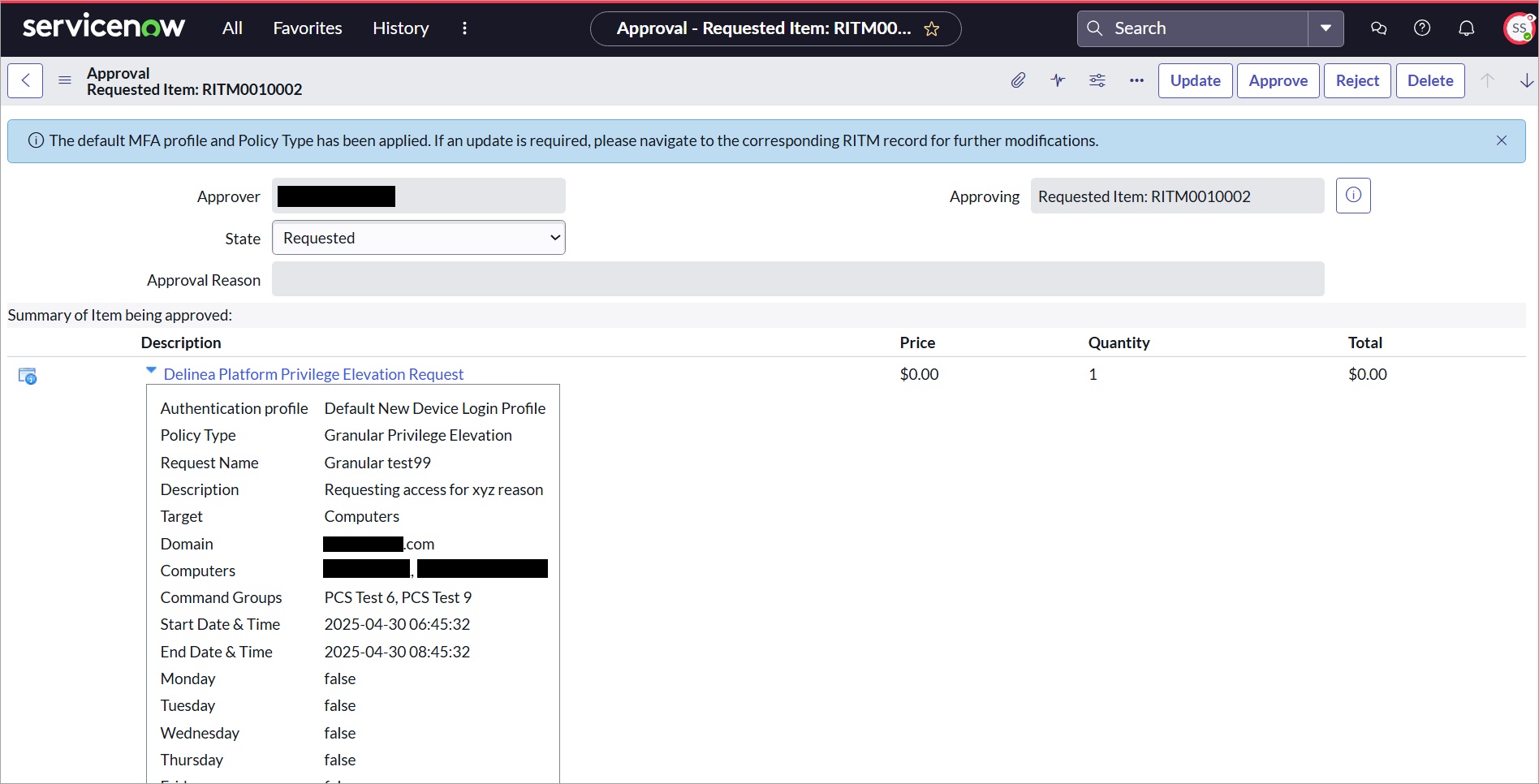
A message at the top of the RITM page says that the default MFA (authentication profile) has been applied and that you can change the default authentication profile in the RITM record. -
To view the details of the request (such as the request name, the names of the remote computers that the user requests access to, the names of the command groups, and the period for which access is requested), under Description, select the Delinea Platform Privilege Elevation Request link.
-
To change the default authentication profile, the policy type, and other settings as needed:
-
To the right of the Approving box, which contains the RITM, select the information icon.
-
In the upper-right corner of the Requested Item window, select Open Record.
-
To change the default authentication profile, under Variables, in the Authentication profile list, select an authentication profile.
-
To change the policy type, in the Policy Type list, select a policy type.
-
Change the following settings of the request:
-
Domain
-
Computers
-
Command Groups
The Command Groups section appears only if Granular Privilege Elevation is selected in the Policy Type list.
-
-
-
(Optional) To add a comment on the request, in the Comments box, enter your comment and select Post.
-
To save the changes, in the upper-right corner, select Update.
Verifying a PCS Policy in the Delinea Platform
Once the approval workflow process is executed in ServiceNow, an appropriate PCS policy is created in the Delinea Platform to grant or deny the user access to the specified endpoints (computers and servers) and assign the user elevated permissions to run the specified commands on those endpoints.
You can identify the policy created for a privilege elevation request by policy name. The policy name is the same as the request name. The policy description contains the following details about the request:
-
The status of the request: Approved or Rejected.
-
The associated requested item (RITM) number.
-
The name of the person who approved or rejected the request.
-
An optional comment on the request entered by an approver, for example, a comment explaining why the request was rejected.
The integration syncs changes in the approval of a request in ServiceNow to the Delinea Platform in real time and automatically updates the state and the description of the corresponding PCS policy. If the approval period expires or the request is no longer in Approved state, the policy is automatically disabled (its state changes to Disabled), and a comment in the description records the reason why the policy is disabled.
For more information about PCS policies, see Setting Up PCS Policies in the Delinea Platform documentation.


