Verification
Step 1: Creating a Ticket Incident
In order to verify the integration, make sure to create a ticket incident in ServiceNow.
Incidents can logged when a user fills out a record producer in the service catalog, or sends an email to the instance.
See How to Create an incident in ServiceNow for more details.
Step 2: Validating Ticket Numbers in Secret Server
-
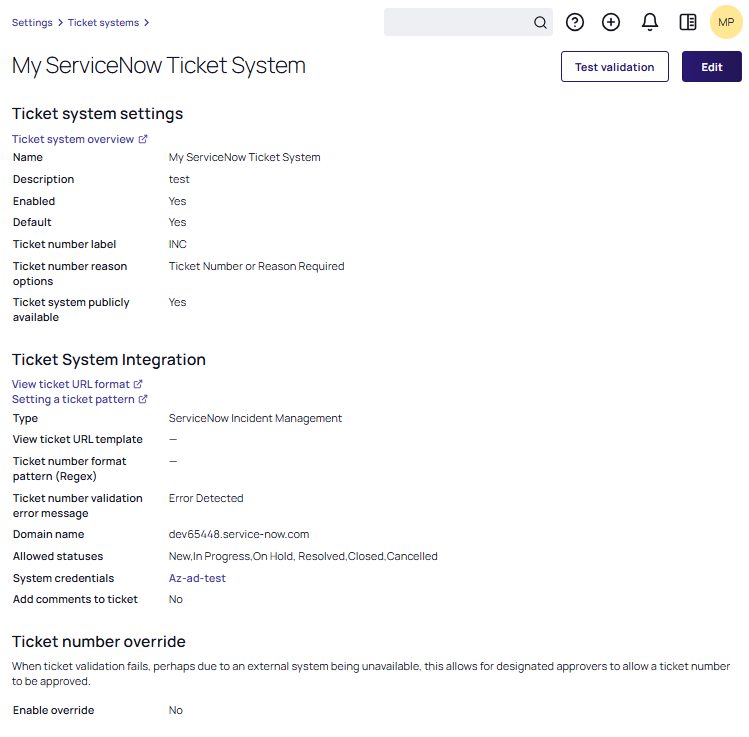
Once your ticket system is saved, the Test validation button will be displayed.
-
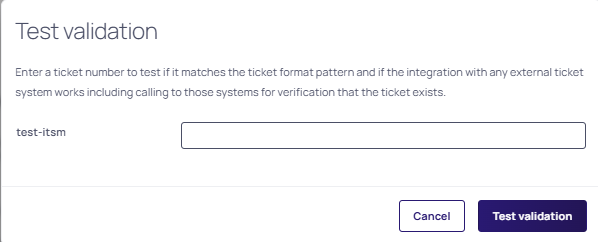
Select Test Validation. The Test Validation dialog box appears.
-
In the text box, type the incident ticket number or the change management ticket number which was created in your ServiceNow instance.
-
Select Test validation.
If the validation is successful, the following success message is displayed: Ticket Number was validated successfully, which means that ServiceNow is now integrated with Secret Server. If the validation failed, the following message is displayed: No result returned. The ServiceNow ticket number was not found in the system or there was an error with the ServiceNow request address.