Verification
-
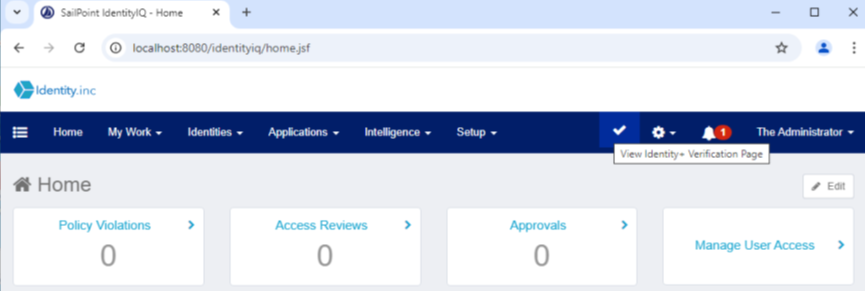
Select the Tick icon in the header at the top right corner. This icon appears when the Identity + Verification plugin is installed and redirects you to the View Identity + Verification page.
-
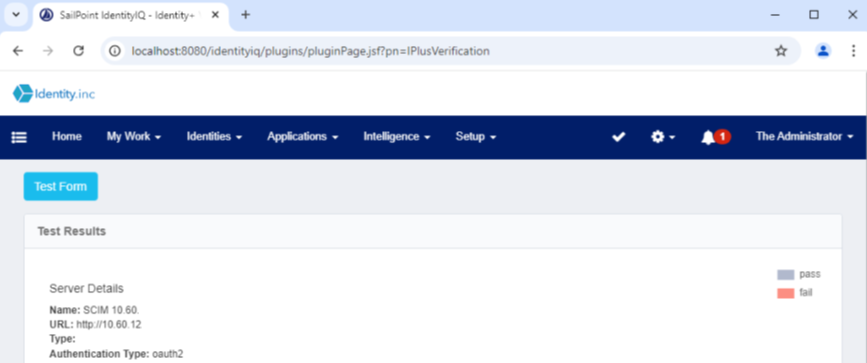
Select the Test Form button.
-
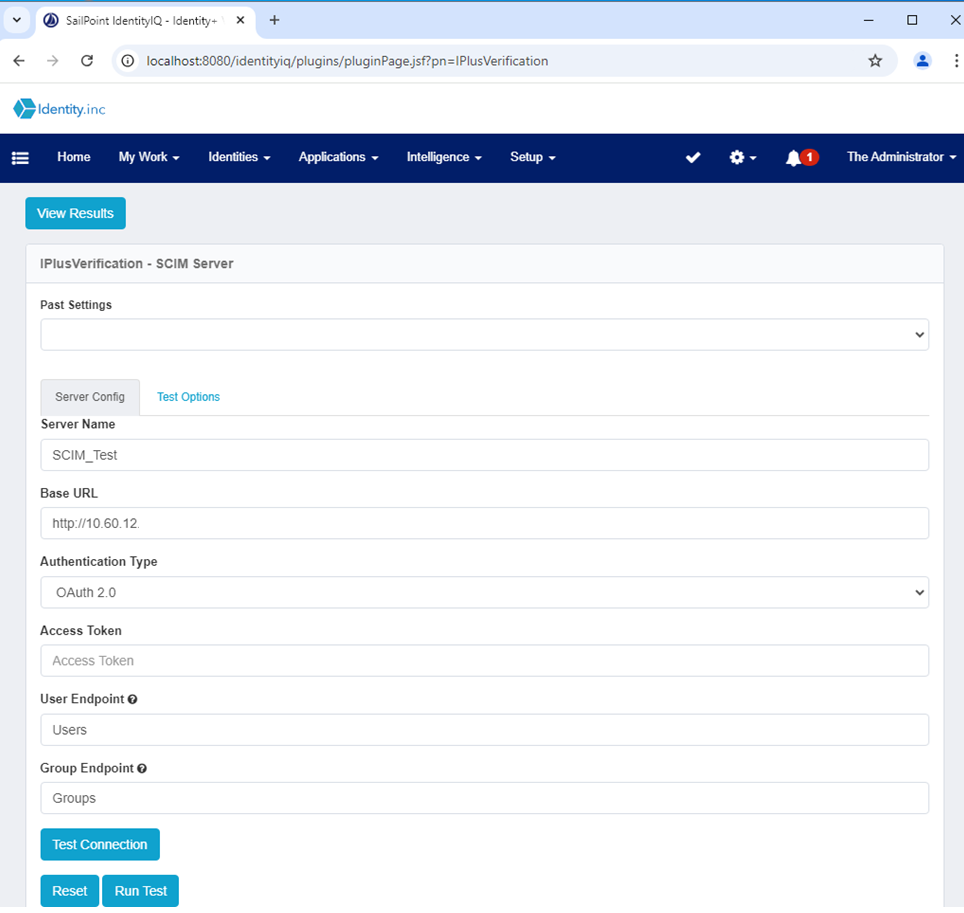
Enter the SCIMConnector details, including the Base URL and Access Token (use the non-expiry token generated in SCIMConnector), then select the Test Connection button.
-
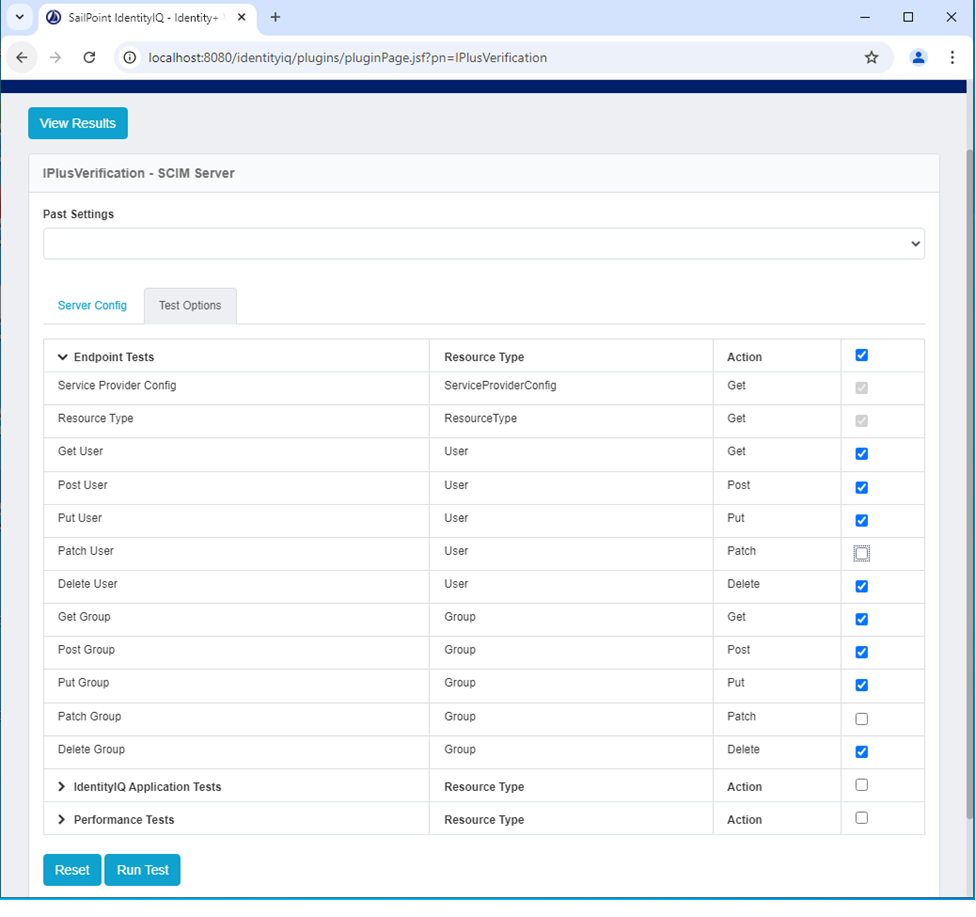
Once the connection is successful, navigate to the Test Options tab. Select all tests by using the checkboxes in the corresponding line of each endpoint test, except for Patch User and Patch Group, then select the Run Test button.
-
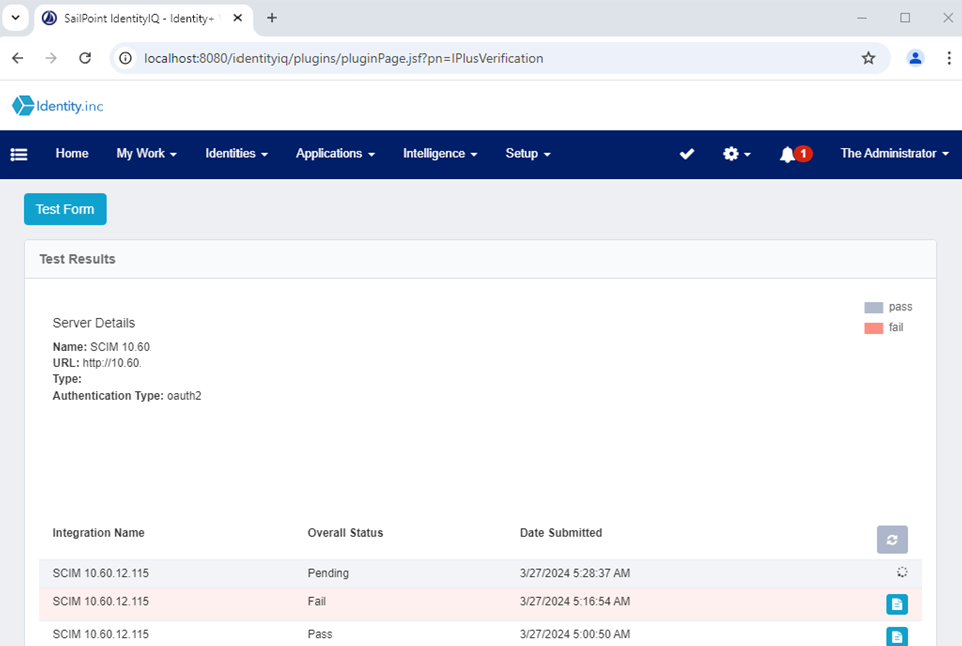
On the Test Results page, you will see the verification results for all endpoints.
Once SailPoint IdentityIQ is configured to work as an endpoint for the SCIM Connector and a connection has been established from the SCIM Connector itself, you can run actions directly from IdentityIQ.


