Configuring XSOAR
This section describes how to configure Cortex XSOAR to connect to Delinea Secret Server or the Delinea Platform. Credential caching settings must be configured on Palo Alto XSOAR. Without this setting, credentials may not update in time for automated workflows.
Step 1: Instance Configuration
-
Navigate to Settings > Integrations > Instances.
-
Search for Delinea.
-
Select either Delinea Secret Server or Delinea Platform.
-
Click Add Instance.
-
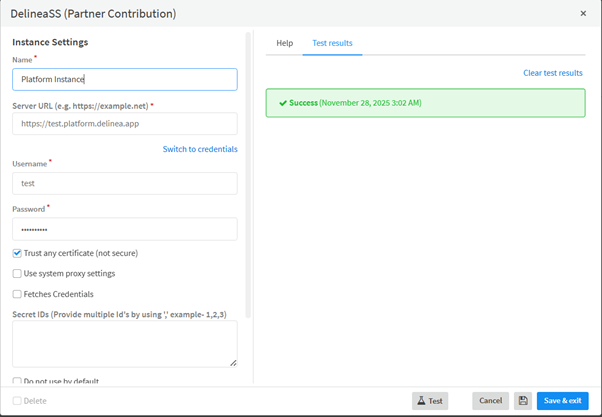
In the Instance Settings window, provide the following values:
-
Name: A unique name for the instance.
-
Server URL: The Delinea Secret Server or Platform base URL.
-
Username: Fill in based on the authentication options bellow.
-
Password:Fill in based on the authentication options bellow.
-
Auto Comment: Required if the secret enforces comment auditing.
-
-
Click Test. When the Success message appears, click Save & Exit.
Authentication Options
Use the method appropriate for your environment.
Option A: Username + Password
Use this method during initial setup or troubleshooting.
-
Enter the Username and Password directly into the instance configuration. If authenticating with the Delinea Platform make sure to use the service user, and if you are authenticating with Secret Server use the application account as the username.
-
Click Test.
-
If authentication succeeds, click Save & Exit.
If you are authenticating using Username + Password, no additional configuration is required for this method.
Option B: Credential-Based Authentication (Recommended)
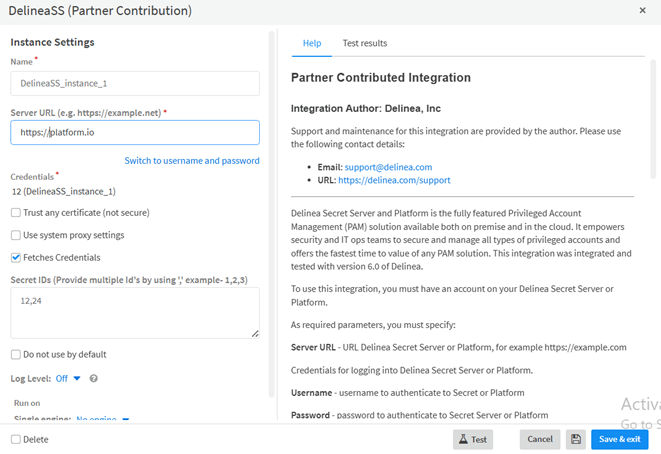
For the first-time configuration, enter the Secret Server or Platform URL along with the username and password. XSOAR will use these details to retrieve the credentials and populate the cache.
-
Select the Fetches Credentials checkbox.
-
Enter one or more Secret IDs (comma-separated).
-
Click Save & Exit.
-
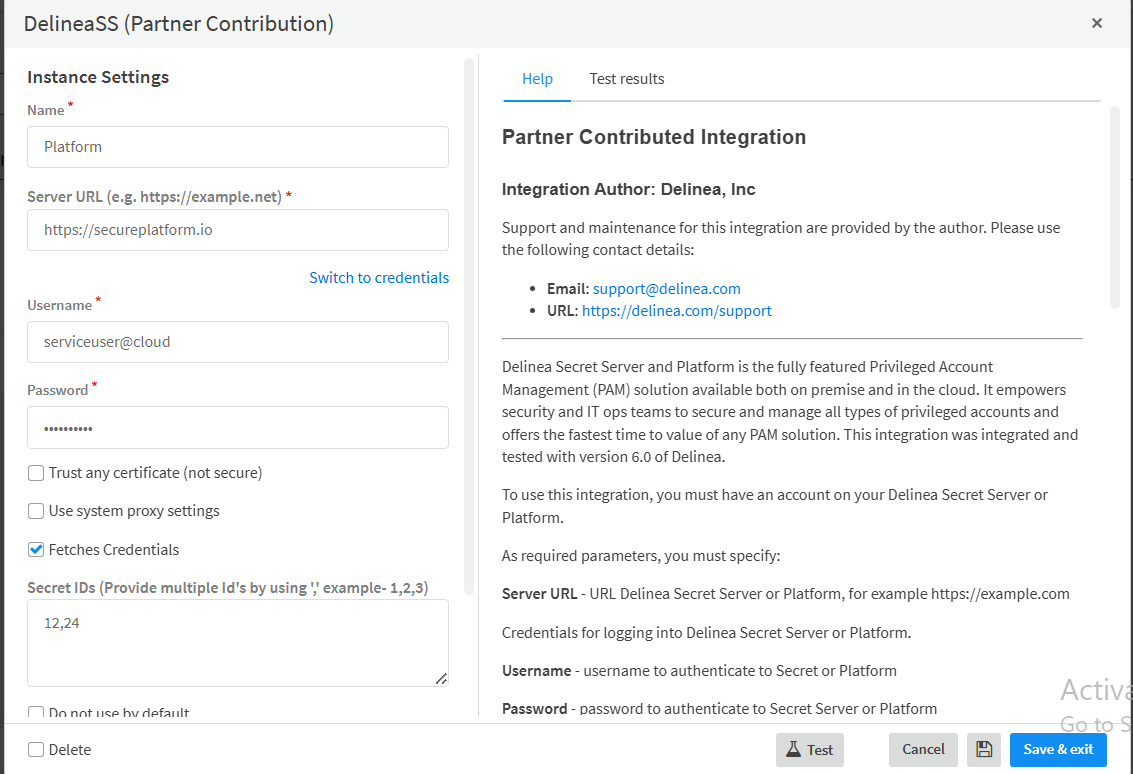
Reopen the instance and select Switch to credentials.
-
Select the fetched credential from the dropdown.
-
Click Test.
-
Step 2: Configure Credential Cache
XSOAR caches credentials retrieved from Delinea. To control how often credentials sync:
-
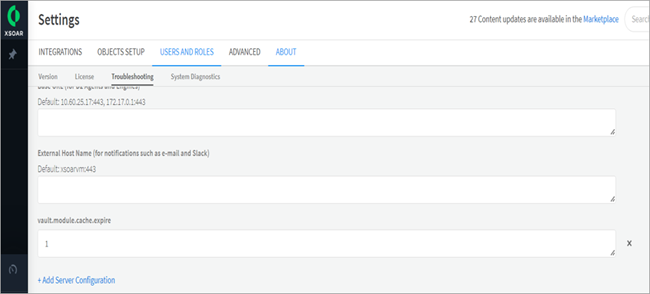
Go to About > Troubleshooting > Server Configuration.
-
Add or edit the key vault.module.cache.expire:
-
vault.module.cache.expire = 1: Sync every 1 minute.
-
Unset: The configuration key does not exist. XSOAR uses its default 10-minute sync interval.
-
vault.module.cache.expire = 0: Disable caching.
-
-
The credentials will be displayed under the Credentials tab after fetching.
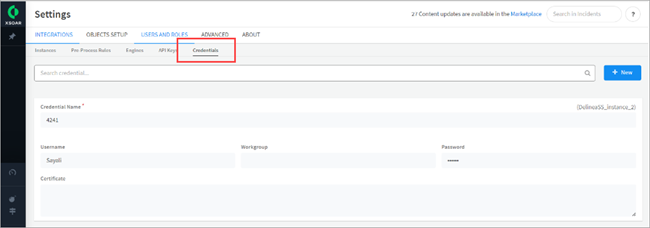
If credentials are saved through the Delinea plugin directly, authentication may fail. Palo Alto is aware of the issue and is scheduling a fix.
Workaround: Save credentials manually under Settings > Integrations > Credentials.


