Verification
This topic provides steps to verify the use cases that the integration between Microsoft Sentinel and the Delinea Platform supports.
Before you begin, perform some activity in the Delinea Platform so that the connector has events to retrieve, and then allow 5–10 minutes for the first events to arrive. Microsoft Sentinel creates the DelineaAuditEvents_CL table when it writes the first events.
Use Case: Ingesting Audit Events into Microsoft Sentinel
Verify that the connector is retrieving events from your Delinea Platform tenant and writing them to Microsoft Sentinel.
To verify that events are ingested:
-
In Microsoft Sentinel, go to Configuration > Data connectors and select Delinea Platform Audit Events.
The Status shows Connected, Last Log Received shows a time stamp from within the last 10 minutes, and
DelineaAuditEvents_CLappears under Data types with a green connected indicator. The Status is driven by data in the table, so it changes to Connected only after the first events arrive.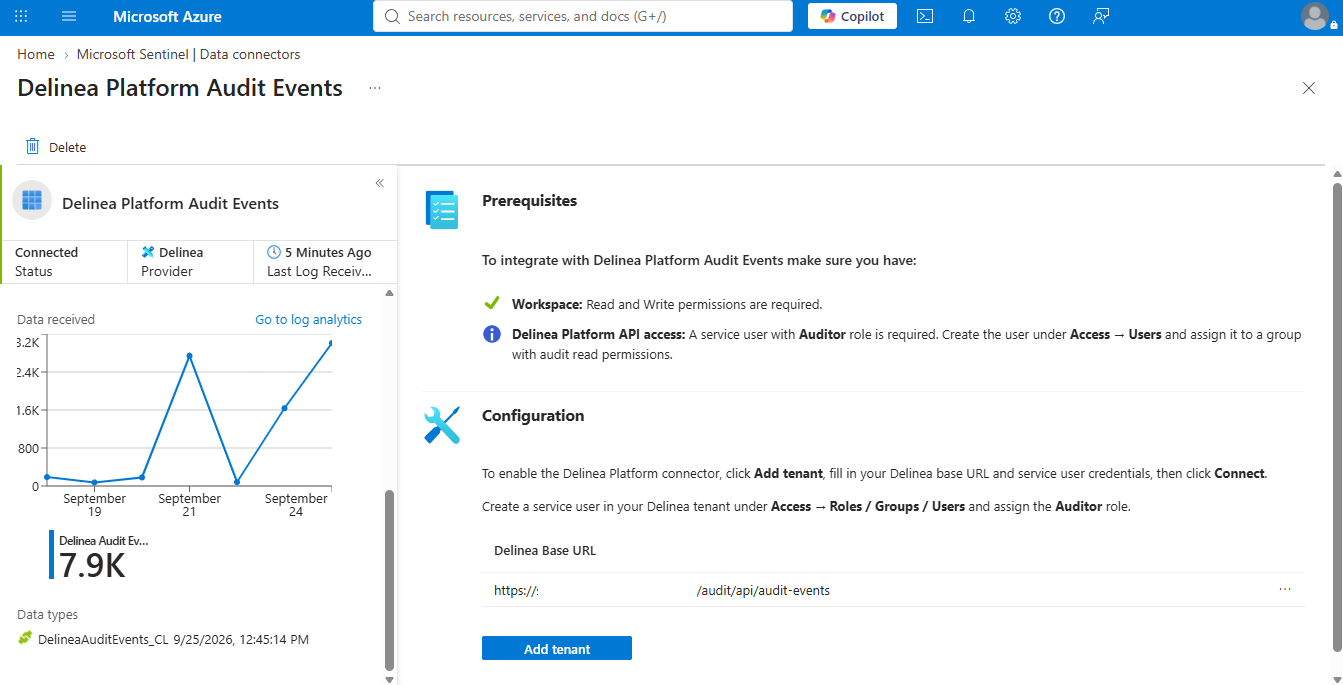
-
Select Logs, and then run the following query to confirm that events reached the table:
CopyDelineaAuditEvents_CL
| where TimeGenerated > ago(1h)
| sort by TimeGenerated desc
| take 20The query returns the most recent events.
-
Run the following query to confirm that the event fields are populated, not only the rows:
CopyDelineaAuditEvents_CL
| where TimeGenerated > ago(24h)
| summarize
Rows = count(),
MissingUser = countif(isempty(User)),
MissingEventType = countif(isempty(EventType)),
MissingRawData = countif(isempty(RawData))Check the value of
Rowsto see how many events arrived.MissingUserandMissingEventTypeare at or near zero.
Use Case: Investigating Activity with the Included Content
Verify that the workbooks, hunting queries, and analytic rules installed with the solution work against the ingested data.
To verify the content:
-
Select Workbooks, open the Secret Server Vault Activity workbook, select View saved workbook, and confirm that the tiles display data.
-
Select Hunting, search for
Delinea, select a query, and then select Run selected queries.The query returns rows.
-
Select Analytics > Active rules and confirm that each rule shows the status Enabled.
A rule that runs without producing incidents is working correctly. For more information, see Troubleshooting.


