Configuring the Delinea Platform
To configure the Delinea Platform for the Microsoft Sentinel integration, complete the following tasks in the specified order:
Step 1: Creating a Role with the Read Audit Events Permission
The integration requires a role that carries the Read Audit events permission (delinea.platform/audit/event/read). This permission allows Microsoft Sentinel to read all administrative and privileged activity events from your tenant.
Create a dedicated role for this integration. If you add the permission to an existing role, every user assigned to that role can read all audit events.
To create the role:
-
In the Delinea Platform, go to Access > Roles.
-
Select Add Role.
-
In the New Role dialog, select Add New Custom Role.
-
Enter a Role Name, for example
SentinelAuditor, and an optional Role Description, and then select Save. -
Select the Permissions tab, and then select Add Permissions.
-
Search for and select the Read Audit events permission, and then select Assign.
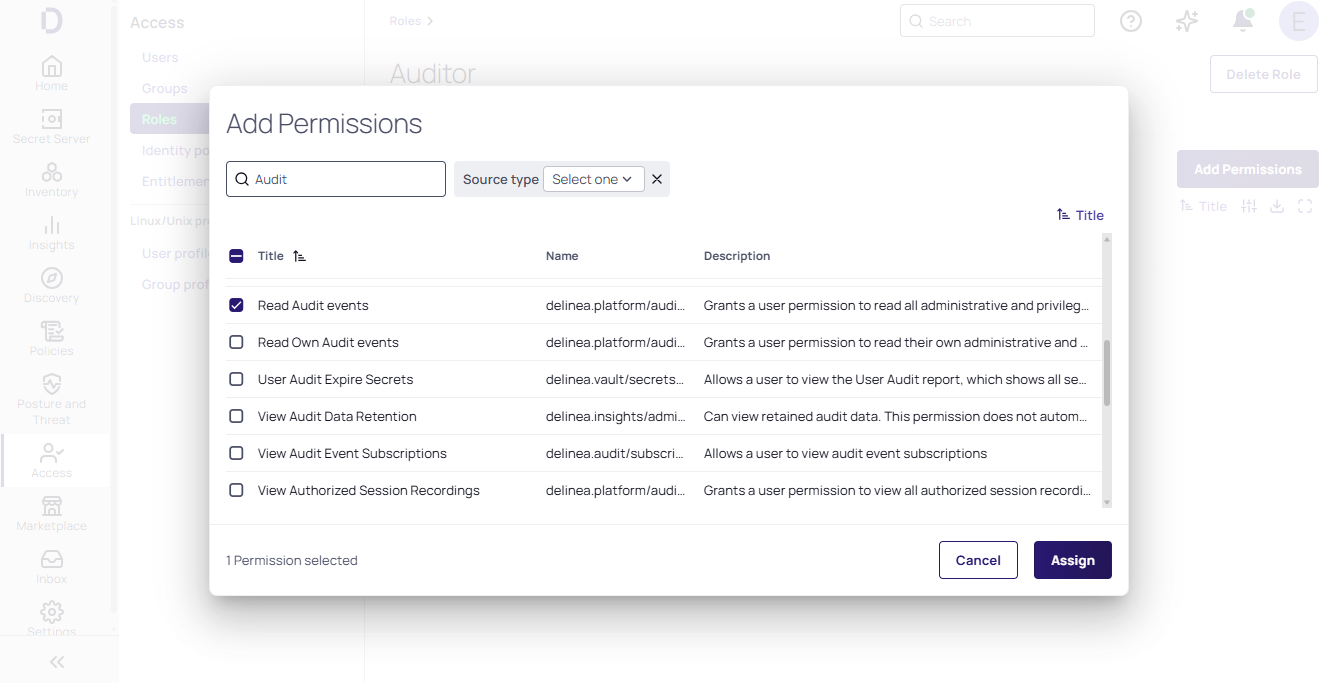
The Permissions tab shows the permission added to the role.
Step 2: Creating a Service User and Assigning the Role
Service user accounts are intended for non-interactive, programmatic access. Microsoft Sentinel uses this account to authenticate to the Delinea Platform Audit API. Service users have no permissions until you assign them a role.
To create the service user and assign the role:
-
In the Delinea Platform, go to Access > Users.
-
Select More, and then select Add service user.
-
Enter a Username and a Display name. The Email address is optional.
-
In Set password, set the password manually or select the generated option, and then save the service user.
-
On the Users page, select the service user you created.
-
Select the Roles tab, and then select Assign Roles.
-
Search for and select the role you created, and then select Assign.
For more information about creating a service user, see Service Users in the Delinea Platform documentation.
Values Required by Microsoft Sentinel
Record the following values before you continue. Microsoft Sentinel requires them to connect to your Delinea Platform tenant.
| Field | Value |
|---|---|
| Delinea Tenant Hostname | The hostname of your tenant, for example mycompany.delinea.app. |
| Client ID | The username of the service user. |
| Client Secret | The password of the service user. |
The generated password option creates a 40-character alphanumeric password.
To connect Microsoft Sentinel to your tenant, see Configuring Microsoft Sentinel.


