Configuring a Credential Resolver
To configure a credential resolver in Jenkins, complete the following steps:
-
Step 1: Creating a Credential in Jenkins. Create a credential in Jenkins to store the username and password of the Secret Server application account or Platform service account.
-
Step 2: Use Case for Creating the Credential Resolver Configuration Create the credential resolver configuration.
-
Step 3: Configuring Folder-Specific Credentials (Optional). If you want only authorized users to access the application accout or service account credentials, store the credentials in a folder and give the users permissions to the folder.
Step 1: Creating a Credential in Jenkins
You must create a credential in Jenkins to securely store the username and password of the application account or service user that you created in Secret Server or on the Delinea Platform. The Delinea Secret Server Plugin uses the Secret Server application account or the Platform service user credential to connect to your Secret Server or Platform instance.
To create a credential for the application account or Platform service user name and password:
- Log in to Jenkins.
-
From the Jenkins Dashboard, navigate to
Manage Jenkins > Credentials > System > Global credentials.
Creating a credential in this path will store the Secret Server application account or Platform service username and password in the Jenkins global credentials store, which is accessible by all Jenkins users.
- In the upper-right corner of the Global credentials page, select Add Credentials.
-
In the New credentials dialog, provide the following details:
- Kind: Select Delinea Secret Server User or Platform Service Account Credentials.
- Scope: Select Global or System.
- Username: Enter the username.
- Treat username as secret: Select this checkbox as needed.
- Password: Enter the password.
- (Optional) ID: Enter a unique ID.
- (Optional) Description: Enter a description.
- Select Create.
Step 2: Use Case for Creating the Credential Resolver Configuration
A credential resolver retrieves two secret fields (username and password or equivalents) and stores them in a Jenkins credential. The Delinea Secret Server Platform Plugin retrieves these fields automatically.
To create the credential resolver configuration:
- Log in to Jenkins.
- Navigate to Manage Jenkins > Credentials > System > Global credentials.
Creating the resolver in this path stores the fetched credentials in the global Jenkins credentials store. You may instead store it in a folder for restricted access. You can choose to store the credentials in a specific folder in Jenkins so that only authorized users can access those credentials. For more information, see Step 3: Configuring Folder-Specific Credentials (Optional).
- Select Add Credentials.
- Select Delinea Secret Server or Platform Vault Credentials as the Kind.
- Enter the following details:
- Scope: Global or System.
- ID (optional): Unique ID.
- Username: Leave blank — auto-populated.
- Username Slug: Slug name of the username field.
A slug name is a human-readable identifier for a field in a secret template. It appears on the Fields tab of the secret template in Secret Server or Platform.
If using a custom template (Client ID / Client Secret), use the Client ID slug for Username Slug.
- Password: Leave blank — auto-populated.
- Password Slug: Slug name of the password field.
- Secret Server/Platform URL: URL of your instance.
- Secret ID: ID of the secret to fetch.
- Comment: If you configured the secret in Secret Server or the Delinea Platform to require a comment when accessing the secret, enter the comment that you want the Delinea Secret Server Platform Jenkins plugin to provide when accessing the secret.
- Secret Server Application Account/Platform Service Account: Select the credential created earlier.
- Delinea Proxy Settings: Optional. Select this checkbox and configure the following proxy settings:
Proxy Host
Proxy Port
Username (optional)
Password (optional)
No Proxy Hosts (comma-separated)
The following proxy behavior is applied:
- All outbound calls use Delinea-specific proxy settings.
- If proxy credentials exist, authentication is attempted.
- The hosts in the No Proxy Hosts list bypass the proxy.
- If a Delinea proxy isn't configured, a Jenkins global proxy is used.
- If both are set, the Delinea proxy overrides.
-
Select Test Connection to validate.
A success message appears if configuration is correct.
-
Select Create to fetch the fields into the resolver credential.
These values can now be used anywhere Jenkins requires username/password credentials.
When a secret is updated (for example, the username is changed in the secret) in Secret Server or the Delinea Platform, the Delinea Secret Server Platform Jenkins plugin automatically retrieves the new values and refreshes the credential resolver configuration, withou. For details on how to view the automatically refreshed credentials, see Viewing Automatically Refreshed Credentials.
Step 3: Configuring Folder-Specific Credentials (Optional)
This topic describes how to store credentials in a specific folder in Jenkins so that only authorized users can access those credentials. The topic also describes how to give users folder-level permissions to the folder that contains the credentials. These steps involve Jenkins-specific configuration settings and are not related to the plugin itself.
You must install the Role-Based Strategy in Jenkins. By using the Role-Based Strategy plugin, you can effectively manage folder-level access and permissions for credentials, ensuring secure and organized credential management.
Configuring folder-level access involves setting up appropriate folder-level roles and permissions in Jenkins and assigning those roles to users.
To configure folder-specific credentials:
-
In Jenkins, create the folder where you want to store the credentials.
Below is an example of a Credential Resolver configuration. You can also configure folder-specific
credentials for use during builds.
-
From the Jenkins Dashboard, navigate to the created folder and then navigate to Credentials > Folder > Global credentials.
-
On the folder-specific Global credentials page, create a credential to store the Secret Server application account or Platform service user username and password or create a credential resolver configuration.
For detailed instructions on how to create a credential resolver configuration, see Step 3: Configuring Folder-Specific Credentials (Optional) (begin from step 3).
-
Install the Role-Based Strategy plugin:
-
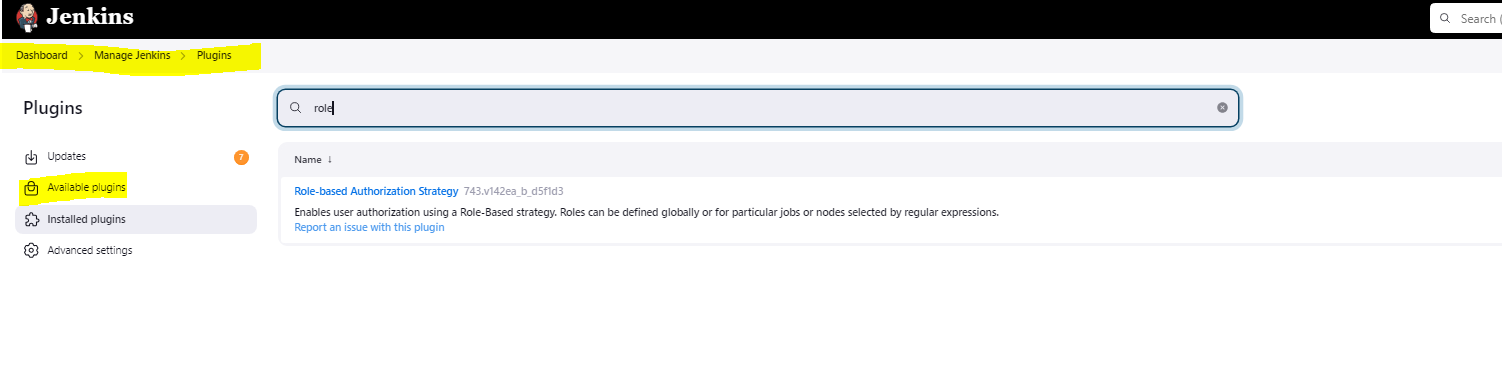
Navigate to Manage Jenkins > Plugins > Available plugins.
-
Search for Role-Based Strategy and install the displayed plugin.
-
-
Enable role-based strategy:
-
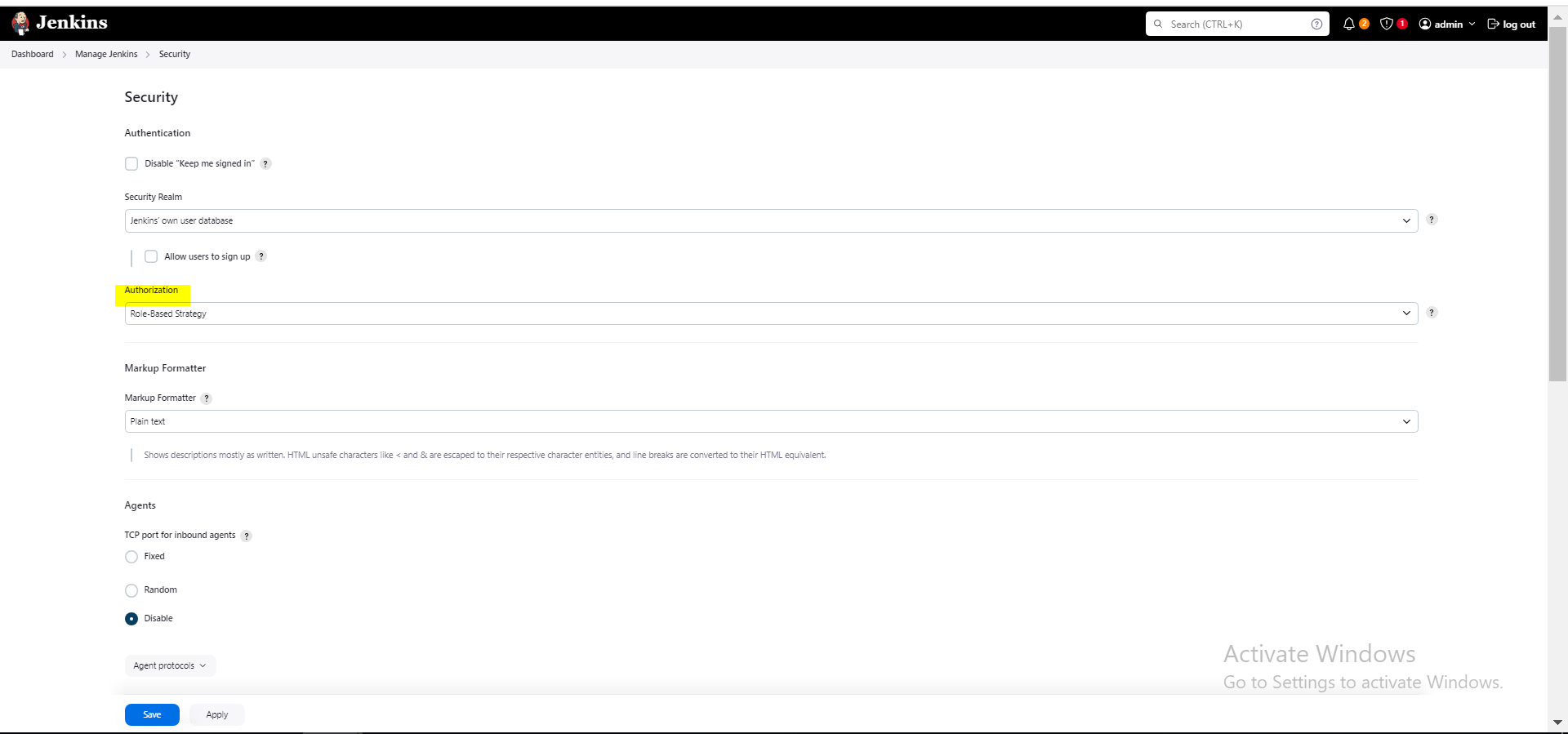
Go to Manage Jenkins > Security.
-
In the Authorization list, select the Role-Based Strategy option.
-
Select Save.
-
-
Set up the folder-level roles and permissions:
-
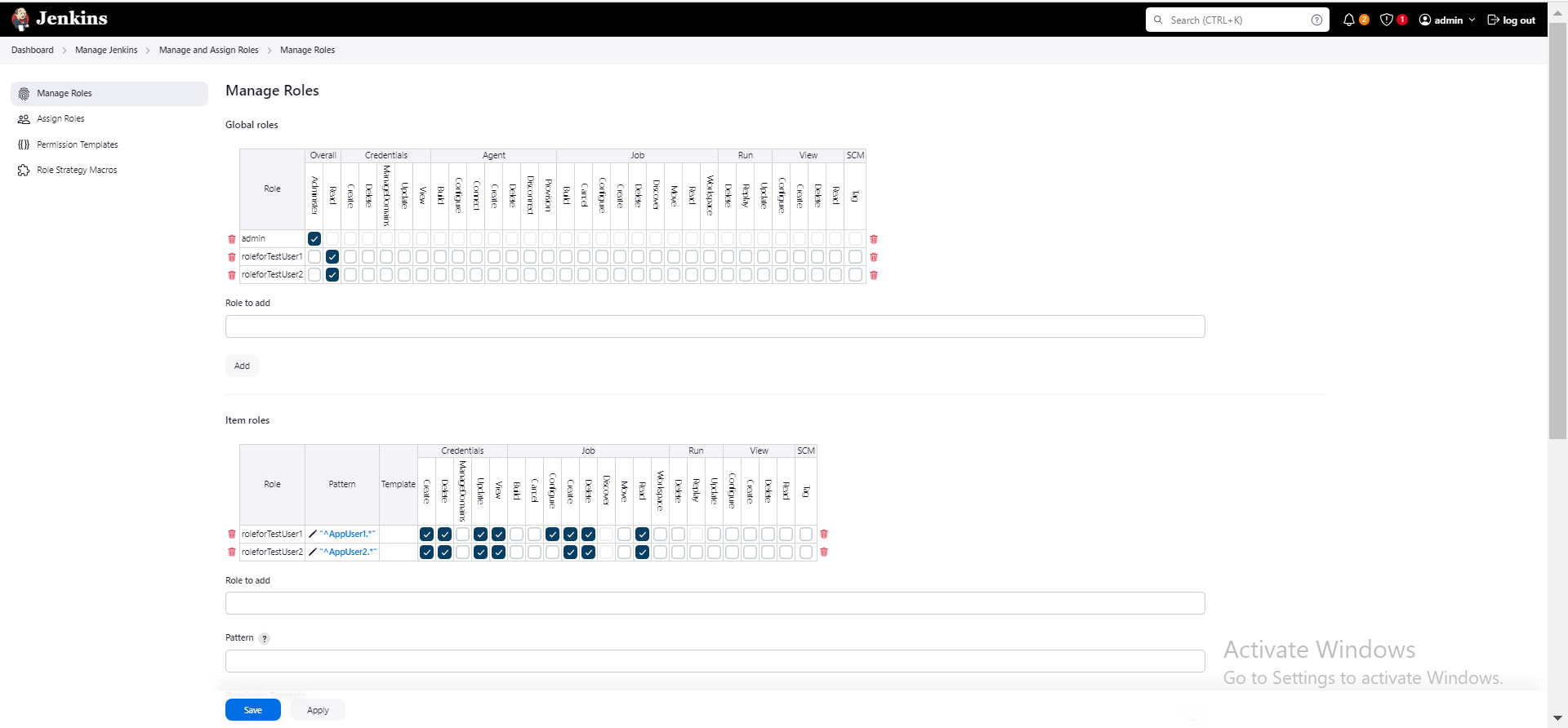
Navigate to Manage Jenkins > Manage and Assign Roles > Manage Roles.
-
Under the Global roles section, select Add to create a new role and assign it to the Overall > Read permission.
The image below shows example roles "roleforTestUser1" and "roleforTestUser2."
-
Under the Item roles section, assign the roles at least the Create Credentials permission and other required permissions (for example, Read, Build, Configure) and specify folder patterns in the Pattern column to apply them to specific folders.
The folder pattern must match the folder name. The image below shows the folder patterns for example "AppUser1" and "AppUser2" folders.
-
Select Save.
-
-
Assign the roles to users or groups:
-
Navigate to Manage Jenkins > Manage and Assign Roles > Assign Roles.
-
Assign the roles to users or groups as needed.
-
Select Save to save the role assignments to users or groups.
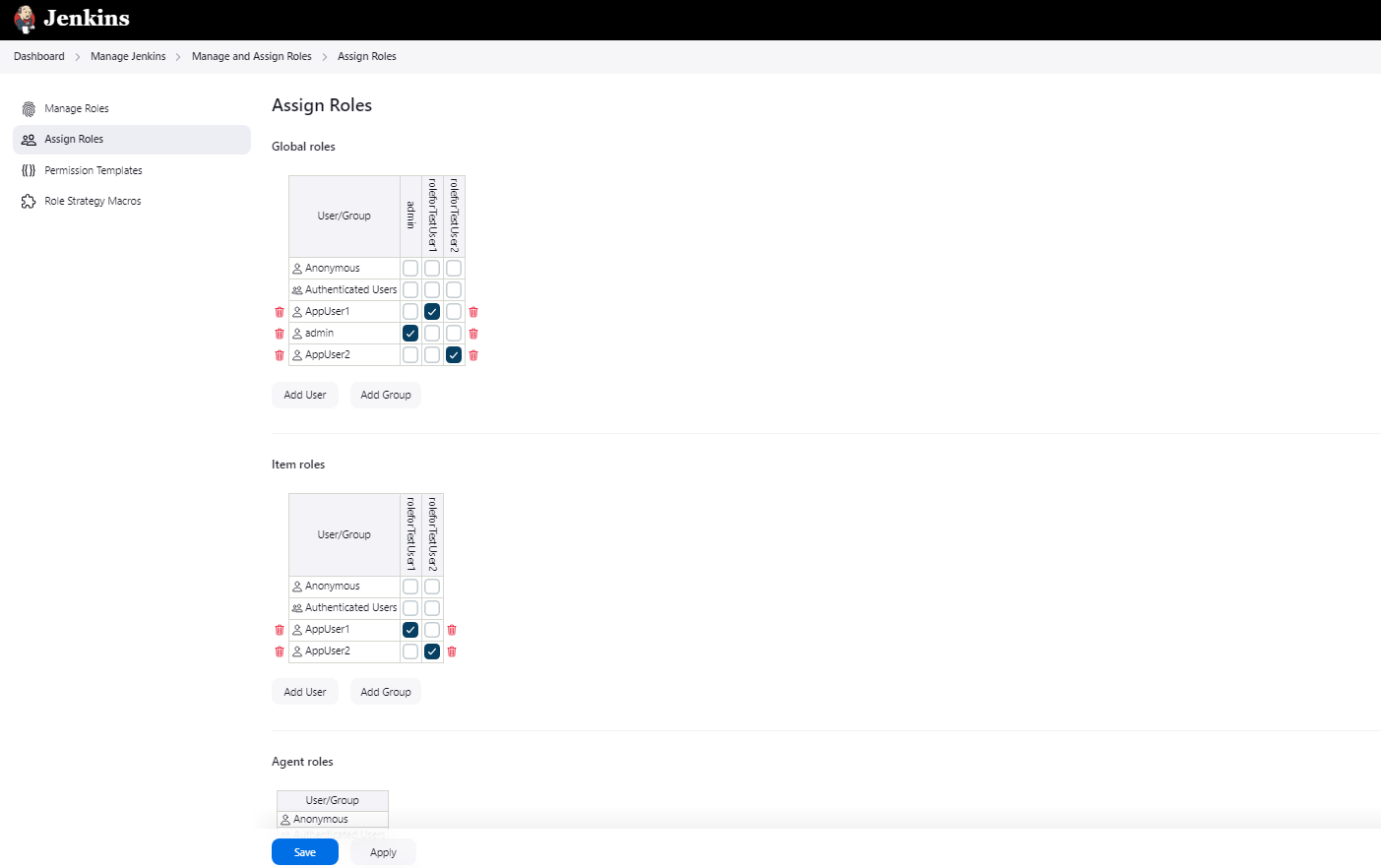
Now only the users and groups that have these folder-level roles can access the secrets stored in the folder.
-


