Enrolling the Linux Machine to Delinea Cloud Suite
-
Run the following command on the Linux machine:
sudo cenroll -t {Tenant_ID}.my.centrify.net -c {Enrollment_Code} -F all-
-t: This specifies the tenant to which the machine will be enrolled. -
-c: This provides the enrollment code that links the machine to the Delinea Cloud Suite. -
-F: This flag activates all available features for the machine during enrollment. This ensures that the machine gets all features of Delinea PAS (Privileged Access Service). -
-d: The scope of the machine to search in the PAS tenant. Because this is read only, this configuration searches all the data in the reporting area. -
-f: Optional. Forces the enrollment operation if the machine already exists in the Delinea Cloud Suite.
-
-
In the Delinea Cloud Suite/PAS Admin Portal, navigate to Resources > Systems to verify the system enrollment.
-
On the System page, select the checkbox for your machine.
The Actions dropdown list becomes available at the top of the page.
-
Select Test connection in the Actions dropdown list.
If the connection between the Linux machine and Delinea Cloud Suite is successful, the line corresponding to the machine is no longer grayed out in the Systems list.
-
Select the line with your new machine.
-
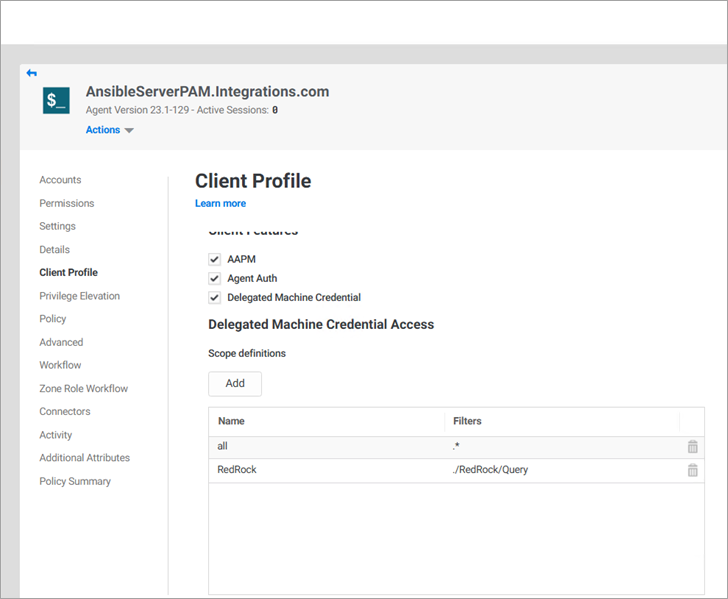
Select the Client Profile list item to verify that the Delegated Machine Credential checkbox is selected and the scope is set under Scope definitions.
-
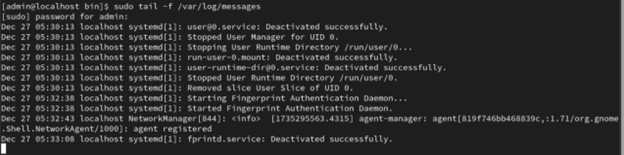
To monitor the data being sent, open a separate terminal and run the following command:
sudo tail -f cat /var/log/messages -
When you press Enter, the screen starts scrolling: