Creating an Enrollment Code
To enroll the machine to a specific tenant, create an enrollment code in the tenant's Cloud Suite.
-
In the Admin Portal of the Privileged Access Service, navigate to Settings > Enrollment > Enrollment Code.
-
In the Enrollment Codes page, select Add.
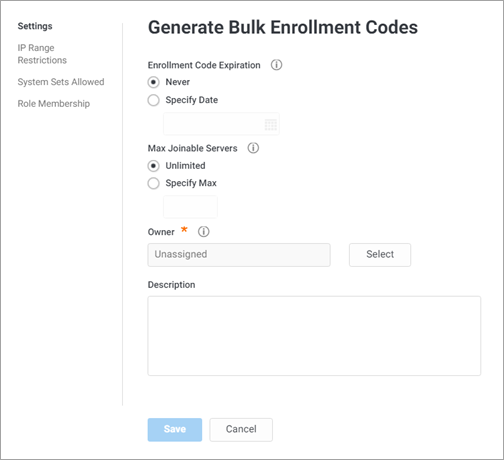
The Generate Bulk Enrollment Codes page opens.
-
Under Enrollment Code Expiration, select Specify Date and specify the expiration date for the enrollment code.
This means that after the selected date, the machine will lose its connection to Delinea Cloud Suite. If you select the Never checkbox, the enrollment code will have no expiration date.
-
In the Max Joinable Servers field, select the maximum number of machines that can connect to Delinea Cloud Suite, or select the Unlimited checkbox if you want to remove any limit on the number of machines that can connect.
-
In the Owner field, select Select.
-
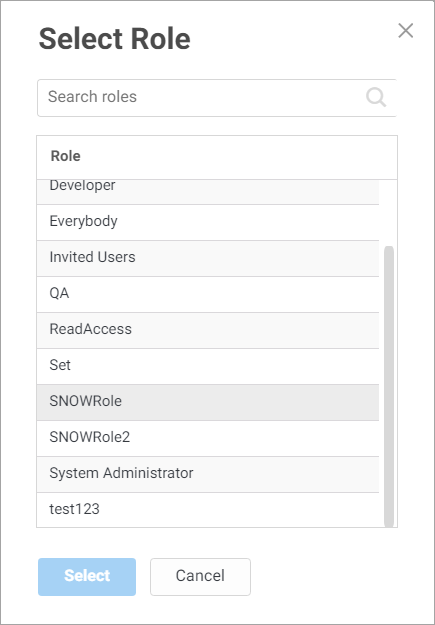
In the Select Role page, search for and select the System Administrator role and then select Select to finish the creation of the enrollment code.
-
In the Enrollment Code page, select Copy to copy the enrollment code because you will need it to enroll your Linux machine to Delinea Cloud Suite.


