Setup
-
Ensure you have administrative rights on the GCP organization.
-
Before running, update the following values in the script using a text editor:
-
Bucket Name: Use a unique bucket name to store GCP data before uploading it to the platform.
-
Service Account Name: Use the same service account used for secret service integration. If the Secret Server integration is not used, follow steps 1 and 3 from the Secret Server integration first.
-
Project ID: Use the Project ID to define the service account.
-
-
Select from the Project selector dropdown located next to the Google Cloud logo, the GCP project where you want to install the bucket.
-
Select the Activate Cloud Shell button to open the Cloud Shell Terminal within GCP, and run the script to set up the required resources.
-
Run the following script inside the GCP console to complete the setup.
-
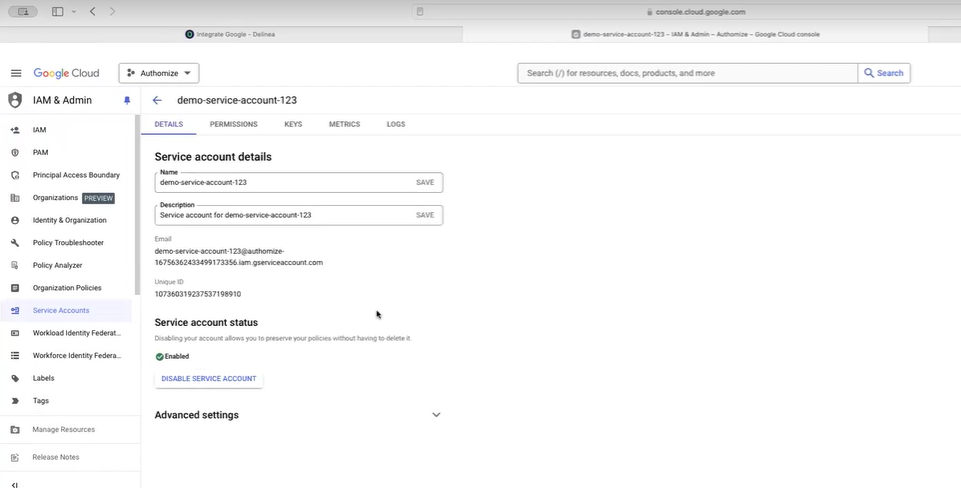
Once the script is completed, to generate access key for the newly created service account navigate to IAM & Admin > Service Account and select the service account by name.
-
Select the Keys tab and then got to Add Key > Create new key.
-
Select the JSON check box to generate and download the new private key.