Frequently Asked Questions About Okta SCIM Provisioning
User Provisioning Questions
-
Why is a user account suspended after their Okta username is changed?
-
Why does Okta throw a "firstName and lastName cannot be blank" error during import?
Why do users fail to provision from Okta?
Okta SCIM import or provisioning of users fails because those Platform users have a non-email-format username (for example, jsmith instead of jsmith@domain.com). Okta requires email-format usernames for SCIM matching. Ensure that all Platform users use email-format usernames.
Why is a user account suspended after their Okta username is changed?
The username field (userName) is configured as the unique identifier in the SCIM provisioning mapping and is treated as an immutable attribute within this integration.
If the userName is updated in Okta, the existing user account in the Platform will be automatically suspended, and a new user account will be created in the Platform with the updated username. This behavior occurs due to the SCIM unique identifier configuration during provisioning.
Because the username is a unique key field in the Platform and is used for identity correlation, do not change the userName field in Okta after initial user creation.
Why does Okta throw a "firstName and lastName cannot be blank" error during import?
Okta requires First Name and Last Name attributes for user creation. Since the Platform does not maintain separate first name and last name attributes, you must configure these user attributes by using attribute mappings in Okta. For detailed steps for how to create attribute mappings for First Name and Last Name, see .
How do I import users and groups from the Platform to Okta?
Complete the following procedure to import users and groups from the Platform to Okta.
Ensure that all Platform users have email-format usernames (for example, jsmith@domain.com) when Okta SCIM is configured. Non-email-format usernames (for example, jsmith) will cause Okta SCIM provisioning to fail during import, matching, or synchronization.
-
Navigate to Applications → Applications.
-
Select the SAML application.
-
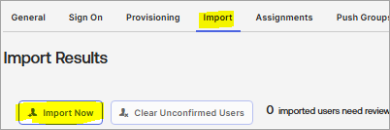
Go to the Import tab.
-
Select Import Now.
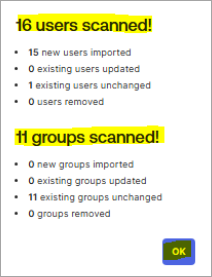
A popup displays the number of users and groups detected.
-
Select OK to proceed.
The Import tab displays a list of users from the Platform.
-
On the imported users list, select checkbox next to each users that you want to import into Okta, as shown.
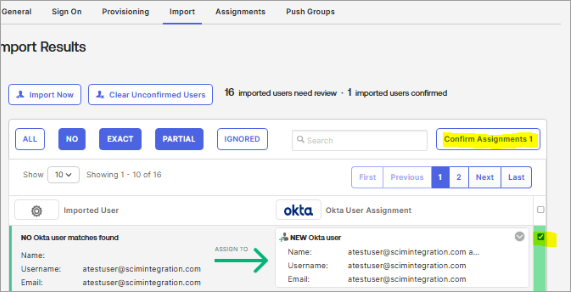
All groups from the Platform are automatically imported into Okta. You don’t need to provide a confirmation for group import.
-
Select Confirm Assignments.
The Confirm Imported User Assignments dialog box shows the number of users that will be created in Okta.
-
Select Confirm.
-
Verify that the users and groups were imported into the Okta directory:
-
To verify the imported users, navigate to Directory → People.
-
To verify the imported groups, navigate to Directory → Groups.
-
Group Provisioning & Membership Questions
-
Why is a group stuck in Pushing status and is never pushed to the Platform?
-
Why doesn't adding a user to a group in Okta sync to the Platform?
-
Why aren't group membership changes reflected in the Platform for inactive users?
Why is a group stuck in Pushing status and is never pushed to the Platform?
The Pushing status means Okta sent the SCIM request but did not receive a successful response back, leaving the push in a Pushing state. This issue can occur due to one of the following causes.
The Okta group push prerequisites are not met
Make sure that the prerequisites for pushing groups from Okta are met.
Push request timeout
Okta enforces a strict 60-second timeout on all SCIM requests.
Break the large group into smaller subgroups (50–100 members each) and push those individually.
SCIM Connector authentication failure
If the OAuth 2.0 token has expired or the SCIM service account credentials changed, the push request will silently fail.
Verify that the service account username and password haven't changed on the Platform side. Check the PlatformSCIM Connector logs (via Datadog or Azure Storage) for any 401 or 403 errors.
Why doesn't adding a user to a group in Okta sync to the Platform?
Group membership synchronization between Okta and Platform requires that the users that you want to add to the group already exist in the Platform. Add the user to the Platform by following the Platform documentation.
Why aren't group membership changes reflected in the Platform for inactive users?
Okta doesn't push inactive users in group membership updates. Users shown as inactive in Okta aren't pushed to the downstream app (that is, the Platform). When a user is deactivated in Okta, Okta stops including them in group membership SCIM requests.
Attribute Mapping & Scale Questions
-
Why do Okta's default attribute mappings cause blank or inconsistent fields in the Platform?
-
Why do timeout errors occur when provisioning large numbers of users or groups?
Why do Okta's default attribute mappings cause blank or inconsistent fields in the Platform?
Check that the attribute mappings for your SAML application are set up correctly. For more information, see (Optional) Step 5: Configure Mandatory Attribute Mappings.
Why do timeout errors occur when provisioning large numbers of users or groups?
Provisioning hundreds or thousands of users or groups causes timeout errors because Okta enforces a strict 60-second timeout on all SCIM requests.
Break bulk provisioning into smaller batches (50–100 users per cycle). Use Okta's scheduled import feature (hourly or daily) instead of a single large manual import. For environments with 10,000+ users, perform the initial sync directly on the Platform and then use Okta SCIM for incremental provisioning.


