Configuring PRA
In the Configurations tab, you can customize the remote desktop experience for your tenant.
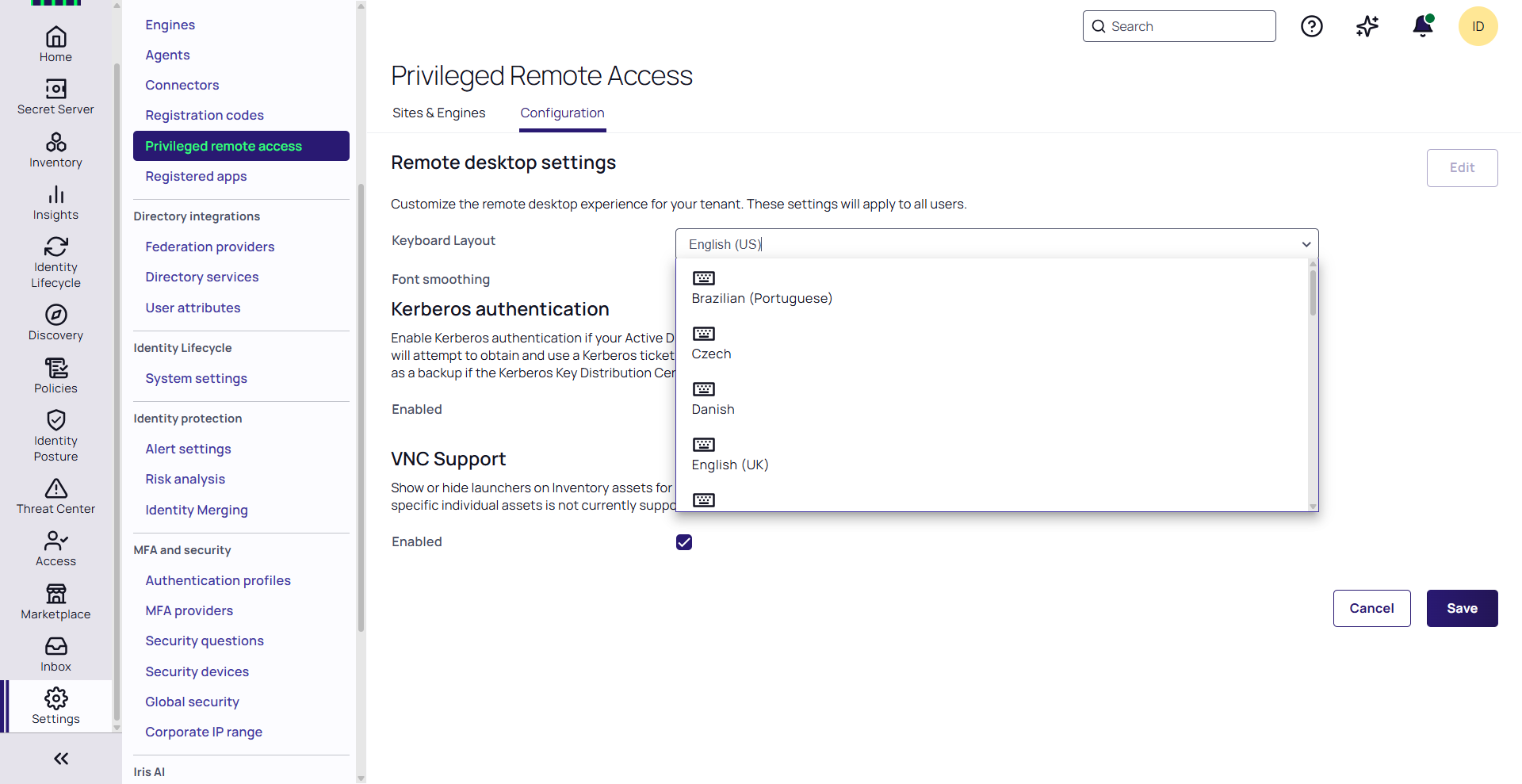
Customizing the Keyboard Layout
Keyboard settings for RDP may be needed when the default keyboard is not US English. This setting will apply to all RDP targets by default, but may be overridden for specific remote targets from the Delinea Menu. (Learn more)
To select a keyboard layout:
-
Click Edit
-
Select the desired keyboard layout from the dropdown menu.
Font Smoothing
Font smoothing is a technique that can improve the appearance of text on a computer display. When disabled, text over RDP will have jagged edges. Disable this setting if you need to improve performance due to limited network bandwidth. To disable font smoothing:
-
Click Edit
-
Check the Font smoothing box
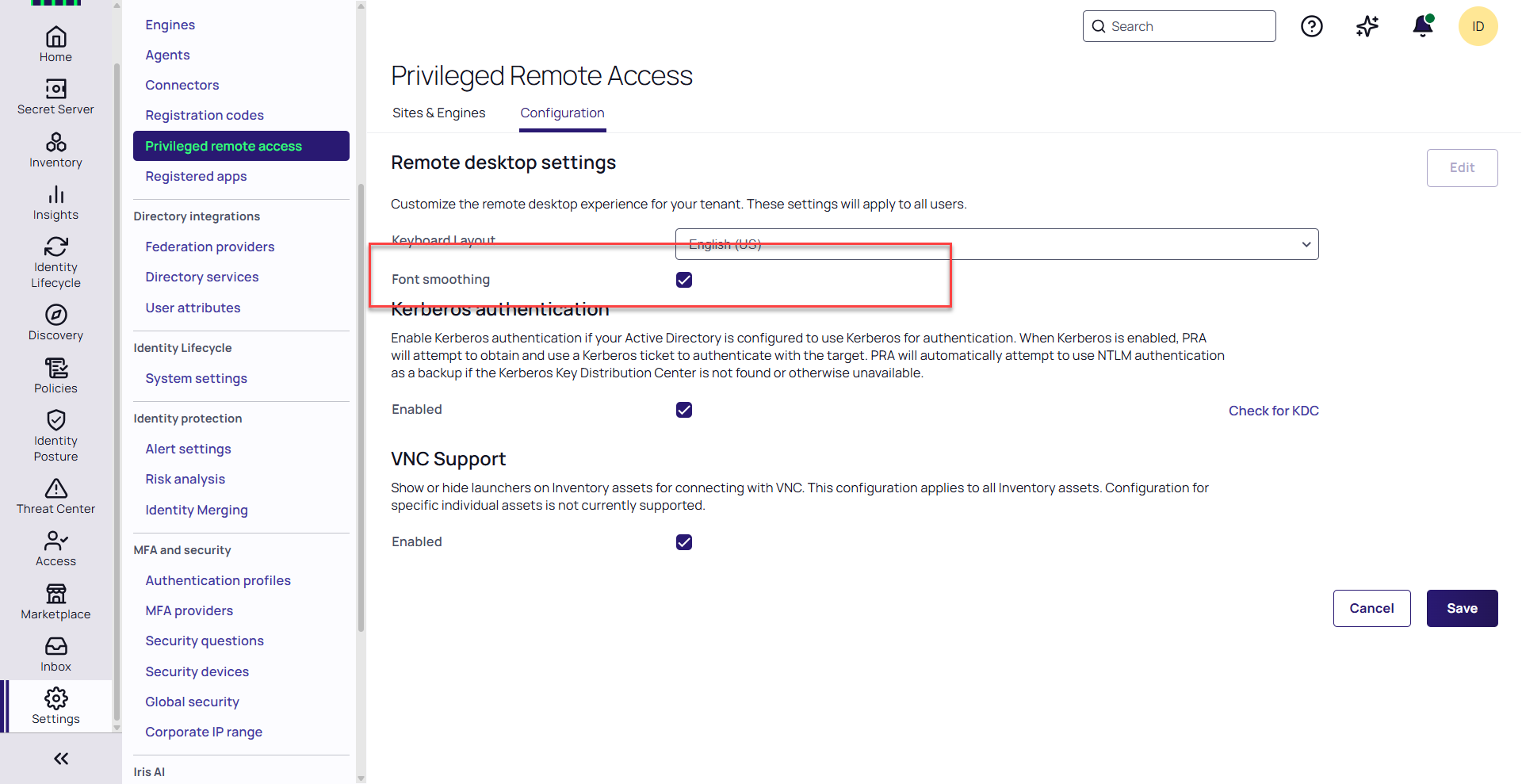
ClearType must also be enabled on the remote target machine to support font-smoothing.
Kerberos Authentication
PRA supports authentication to Windows RDP targets using Kerberos Tickets which is a stronger form of authentication as compared to NTLM. This feature is also required when using Active Directory Protected Users security groups.
When you select Kerberos authentication, PRA will first try to connect to the Windows target using Kerberos. If authentication with Kerberos fails, PRA will attempt to connect with NTLM.
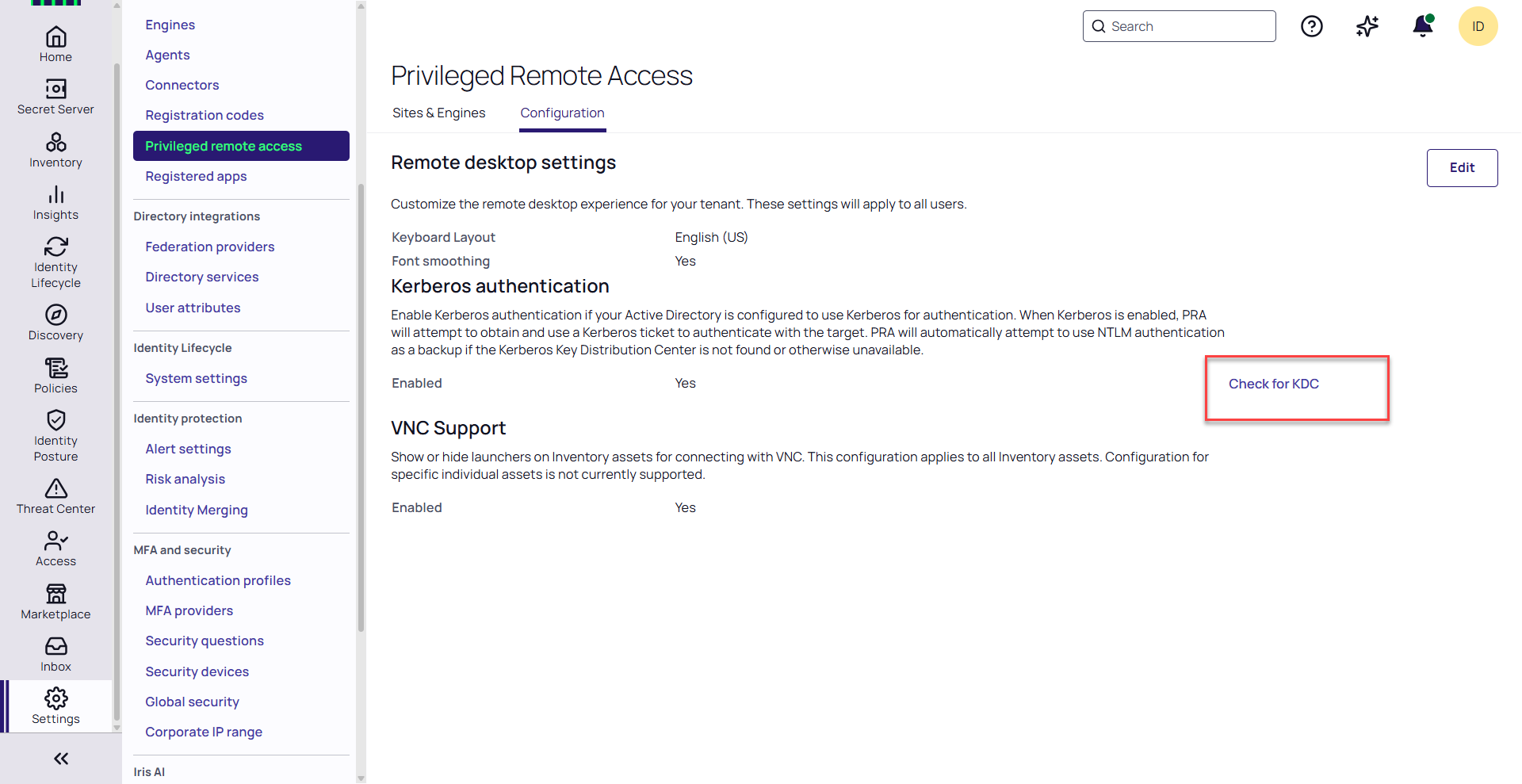
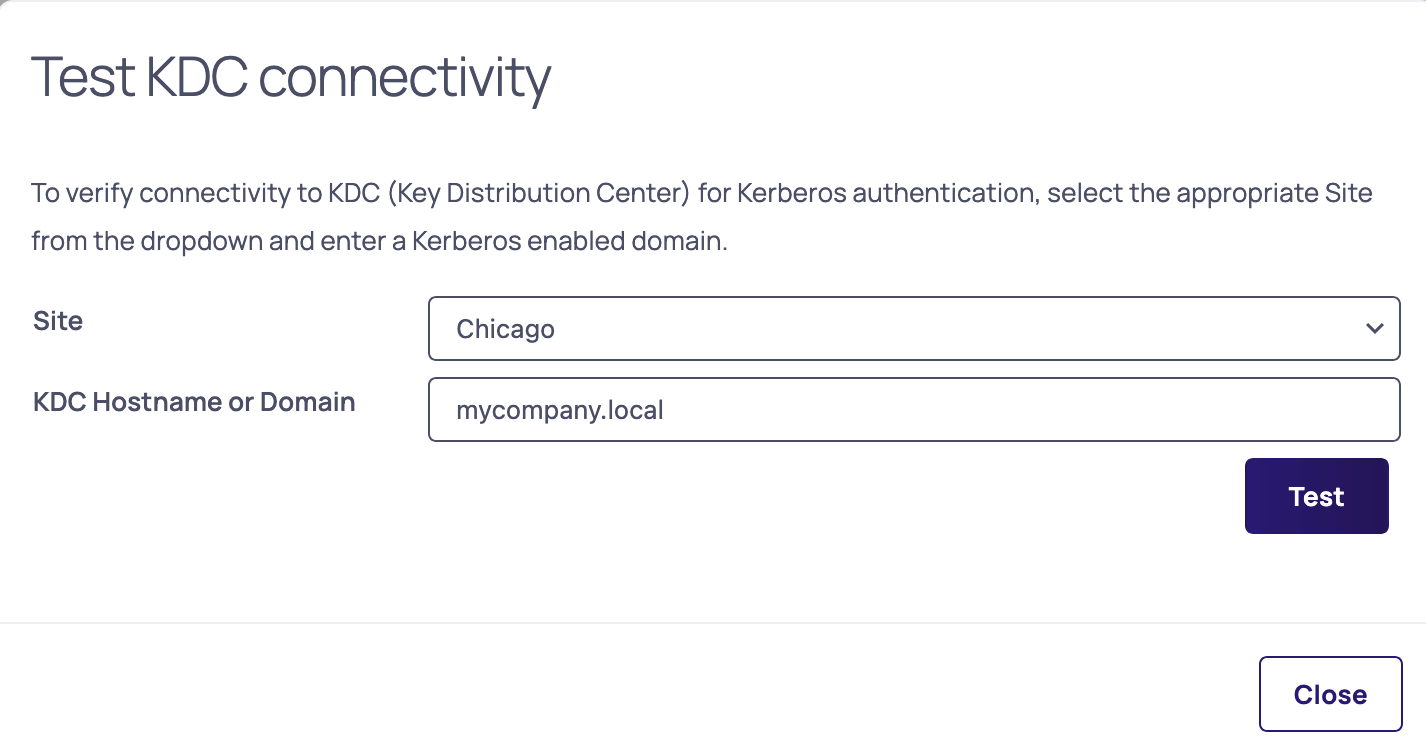
You can test for Kerberos Key Distribution Center (KDC) resolution and connectivity at any time by using the Check for KDC button.
Select the name of an existing site with a PRA workload and enter the domain name associated with the KDC and click Test. The test is independent of whether or not Kerberos has been enabled for PRA.
Secret Template Requirements
Kerberos authentication also depends on the parameters in the secret templates. Below are the requirements for the Windows Account and Active Directory Account templates:
-
For the Windows Account secret template, the Username must be in UPN format. (e.g.
artdecco@mycompany.com) -
For the Windows Account template, Machine field (target) in FQDN format (e.g.
server01.mycompany.com), Username in UPN format (e.g.artdecco@mycompany.com) -
For Active Directory Account template: Domain and Computer(target) fields in FQDN format (e.g.
server01.mycompany.com)
Enabling Kerberos Authentication
To enable Kerberos authentication:
-
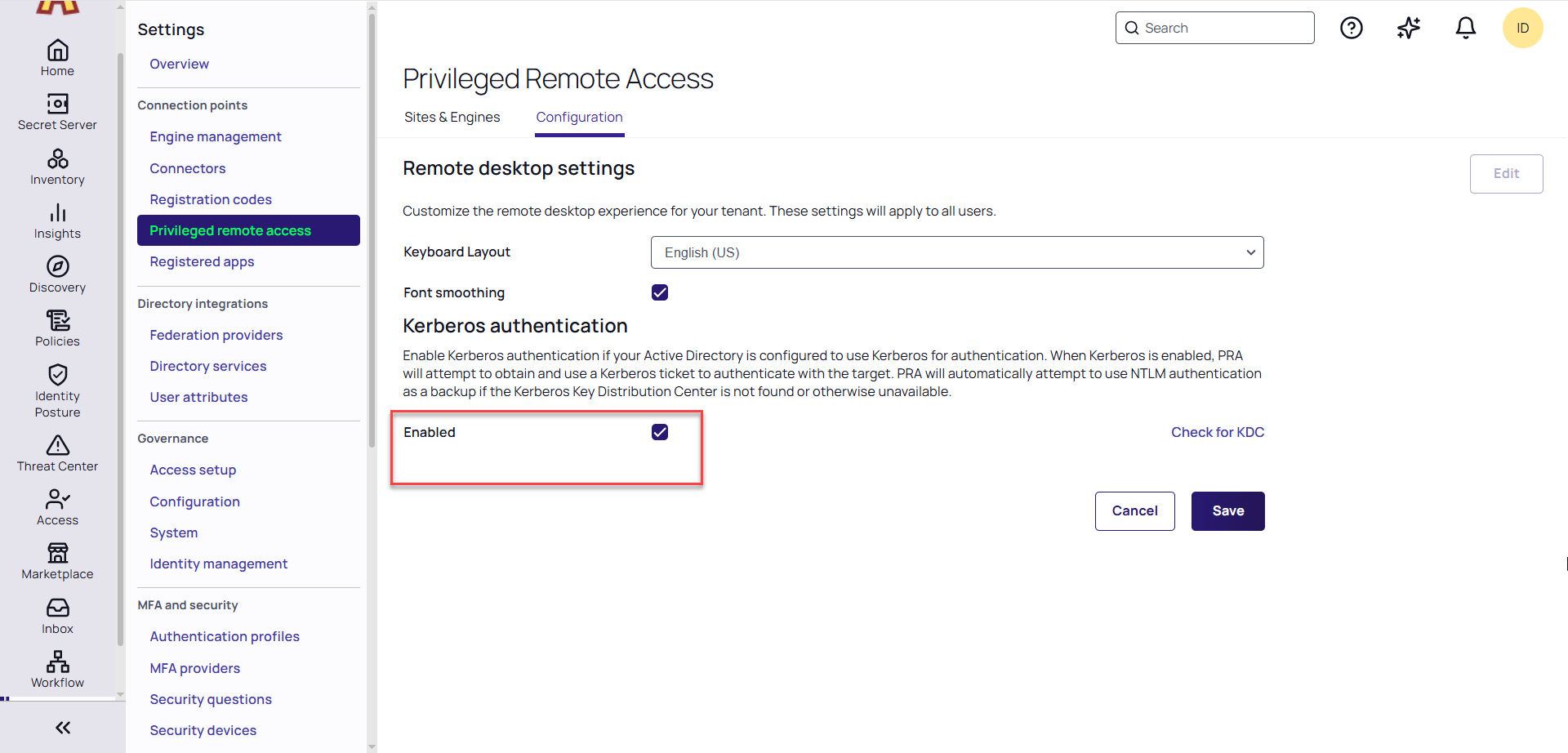
On the Privileged Remote Access Settings page, click on the Configurations tab.
-
Click Edit.
You can test for Kerberos KDC resolution and connectivity at any time by using the Check for KDC button.
-
Check the Enable box under Kerberos authentication.
When a Secret Server RDP proxy is in use, authentication between the proxy and the PRA engine/workload is done with NTLM, even when Kerberos is enabled with PRA.
Enabling VNC Support
VNC support is currently controlled at two levels: a global tenant-level toggle and a per-computer setting on each individual computer asset. Enabling the global VNC configuration causes ALL remote Computer assets to display a Launch with VNC Manual Credential link. To enable VNC only for specific computer assets, disable the global toggle and enable VNC on specific desired computer assets as described in the Per-Computer VNC Configuration section.
The Global toggle is DEPRECATED and will be removed soon.
Global (Tenant-Level) VNC Setting (Deprecated)
The global setting acts as an environment-wide default and enables VNC launcher links on ALL Computer assets in the Inventory.
-
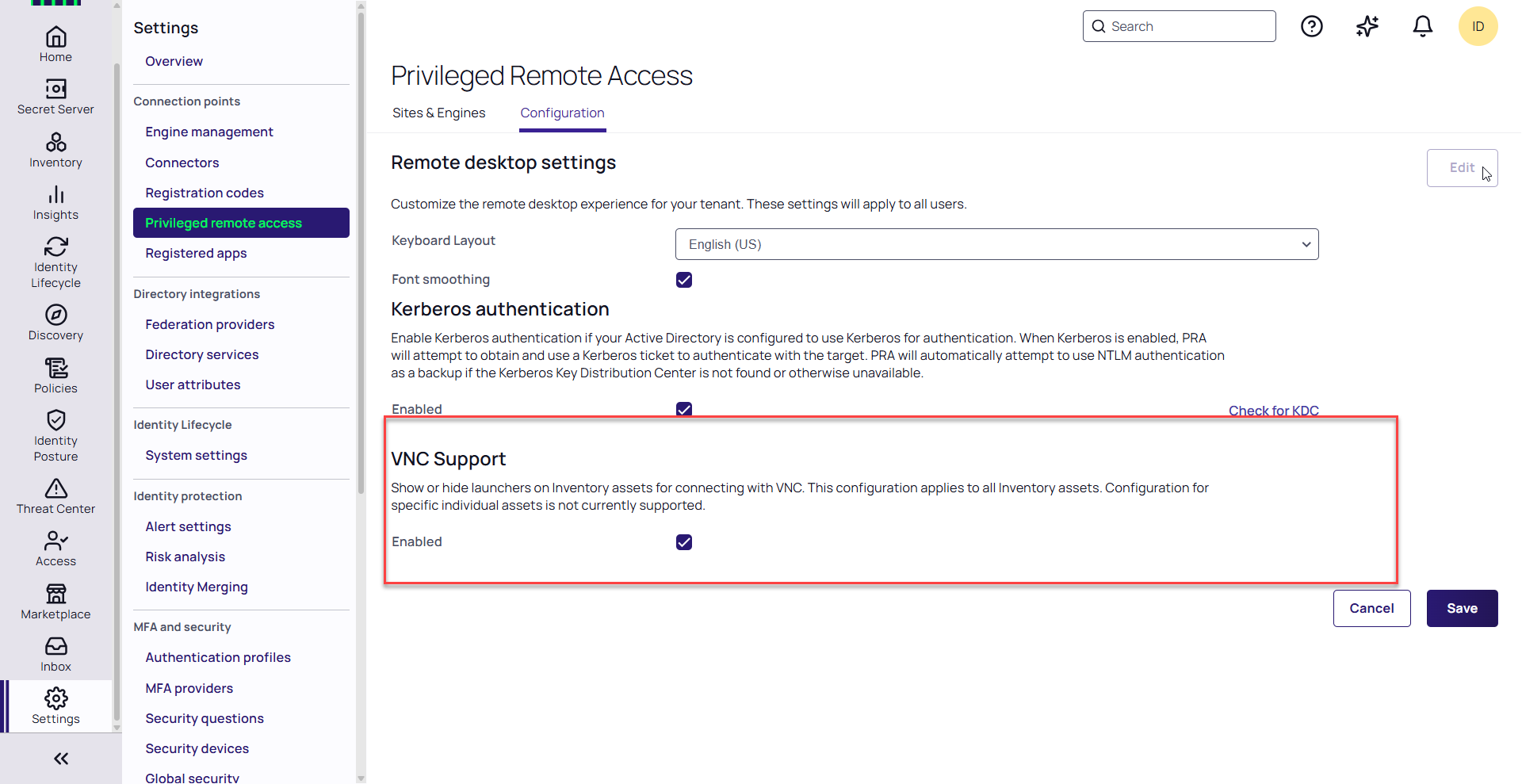
On the Privileged Remote Access page, click the Configuration tab.
-
Click Edit.
-
Check the Enabled box in the VNC Support section.
For more information on launching VNC connections, see Using VNC.
Per-Computer VNC Configuration
Each computer asset in Inventory has its own VNC configuration, allowing administrators to enable VNC and specify the port on a per-machine basis. This lets you selectively enable VNC only on computer assets on where VNC services are installed, as well as configure a custom port, if needed, using the exact port each machine listens on.
The VNC launch flow reads the per-computer configuration and uses the port specified there. If VNC is disabled on the computer asset, the Launch with VNC Manual Credentials option is removed from the launch menu for that computer entirely, regardless of the tenant-level setting.
To configure VNC for a specific computer:
-
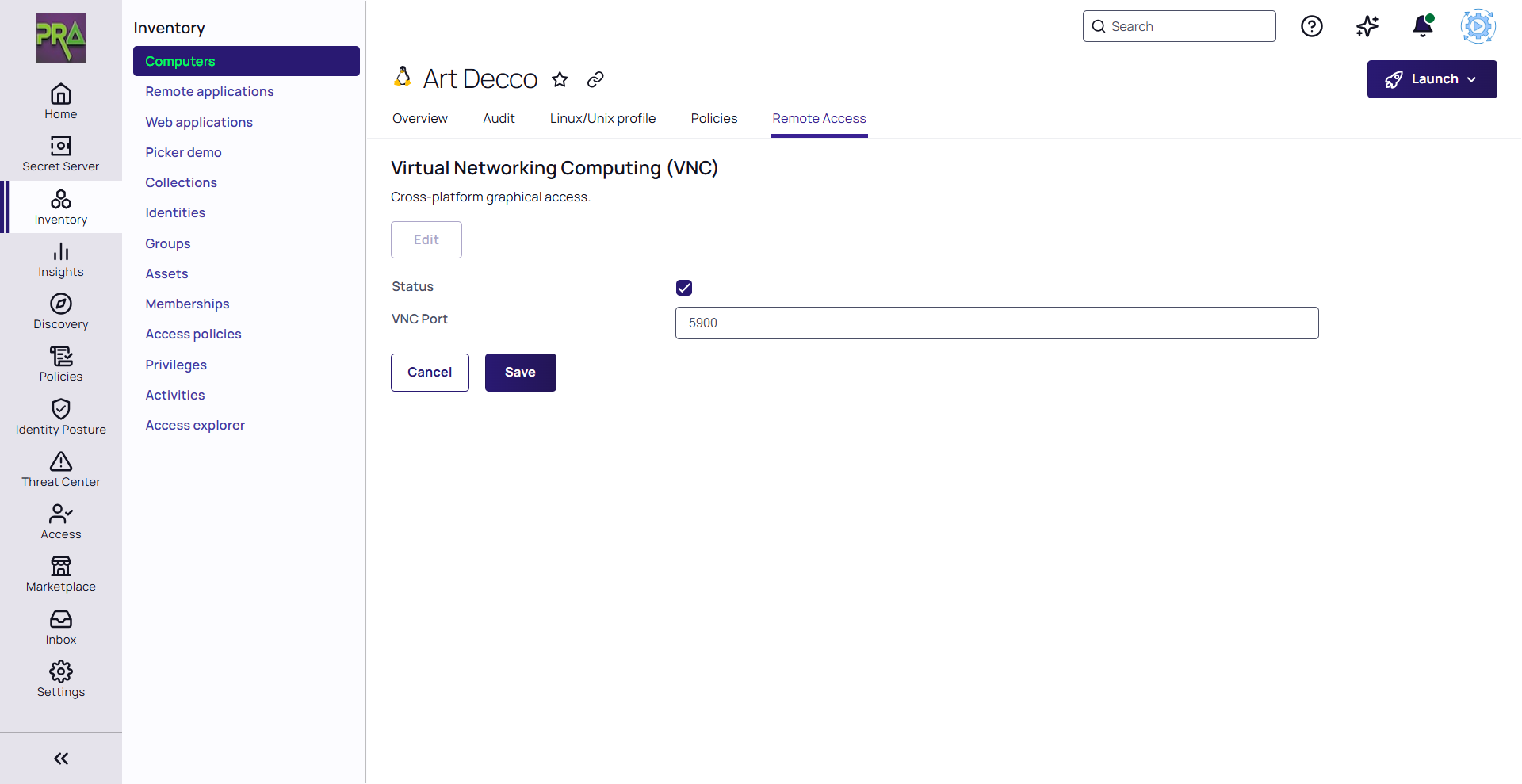
In the Inventory section, open the detail page for the computer you want to configure.
-
Click the Remote Access tab to view the per-computer remote access settings.
-
In the VNC Configuration section, click Edit.
-
Check the Enable VNC box on or off for this computer.
-
Optionally, enter the Port number that the VNC host service on this machine listens on.
-
Click Save.


