Using WPF
Once WPF is set up and you are logged into the Delinea Platform or Secret Server, you can use WPF to log in to websites for which Secrets are managed via the Delinea Platform or Secret Server.
Refer to Creating a Secret for a Website if you need to add new accounts.
Log in to a Website
-
Take a quick look at your WPF button on your browser's button bar. If it is grayed out, you will need to sign into Secret Server and return here.
-
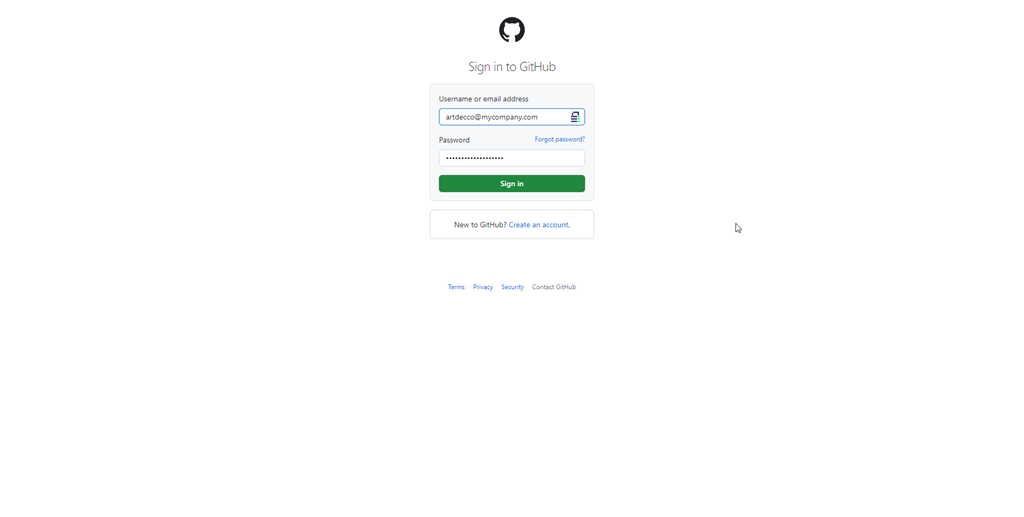
Navigate to the website you want to access. Note there is a purple and green Delinea logo in the site's account name text box:
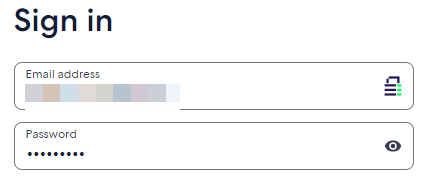
Note: If you are signed into WPF and do not see the purple and green lock in the username text box, please try refreshing the web page to make it appear.
-
Click the Delinea logo. A WPF popup opens and one of two things can happen:
-
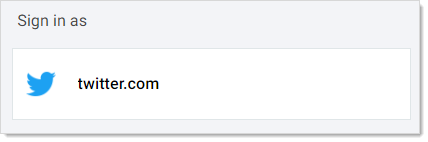
If you have one or multiple existing secrets for a site, a popup will open displaying all of the available secrets available for the site. For instance:
-
If you have no secrets related to the site, then a popup will open to give you the option to add a new secret:
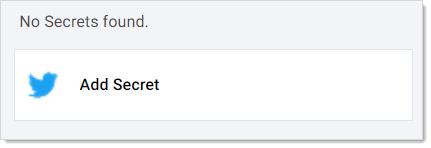
If you see the second possibility, you need to set up a secret for that website. See Creating a Secret for a Website.
-
-
Click the button for the desired secret, and you are signed in.
Accessing Secrets Guarded by MFA
Delinea Platform users can access secrets guarded by MFA through Web Password Filler. When a user attempts to login to a portal guarded by MFA, they will see a popup that they must complete and additional MFA challenge:
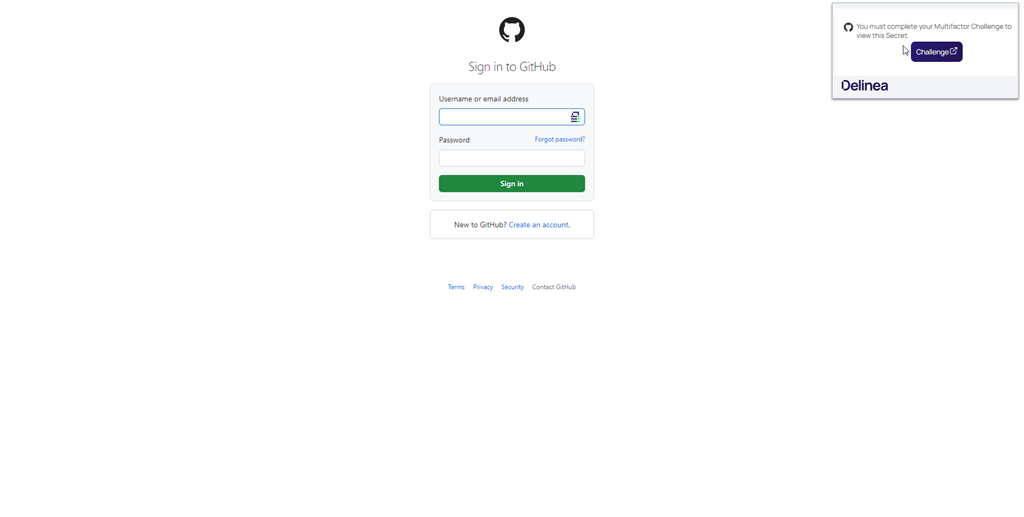
After clicking Challenge, users will be redirected to the Delinea Platform portal to complete the MFA challenge. When the MFA challenge has been successfully completed, users can return back to Web Password Filler to view or launch the secret.