Configuring gMSA Accounts – Application Pools
Configuring gMSA accounts for running Secret Servers application pool is possible by following the steps outlined below. While it may be possible to rotate the account used to run Secret Server's application pool with Secret Server itself, it may be preferable and less impactful to customers on their environment to simply create a gMSA (Group Managed Service) account. When the application pool password is updated with the new password via rotation through controlled by Secret Server, the application itself will restart. While this may be scheduled via Secret Server off-hours, this may impact the application unnecessarily. Having the application pool running as a gMSA would not impact the application in this way. Advantages to gMSAs are:
-
Automatic Password Rotation that can be used on more than one server
-
Minimize impact to application services by not requiring service restarts during password change
-
The accounts cannot be used for interactive login (this makes it more difficult for an attacker to recover these credentials)
-
The account cannot be locked out
For those wanting a GUI, you can use the tool found here.
Below are the steps you can follow for configuring Secret Server to run with a gMSA:
-
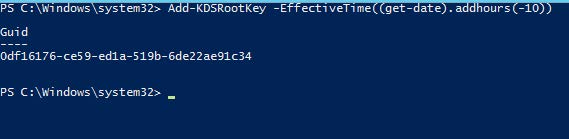
Create the KDS Root Key for the forest in which your Secret Server environment resides in an elevated powershell window. It may be required to perform this command from an elevated account within that forest/from a domain controller.
-
Add-KDSRootKey
-
The -EffectiveImmediately switch doesn’t actually make the account available immediately, there is a built-in 10 hour delay. This ensures AD replication is complete before you can use the accounts. You can alternatively add the switch -EffectiveTime ((get-date).addhours(-10)) to ensure the accounts can be used immediately. We suggest for production environments to simply wait 10 hours.
-
-
-
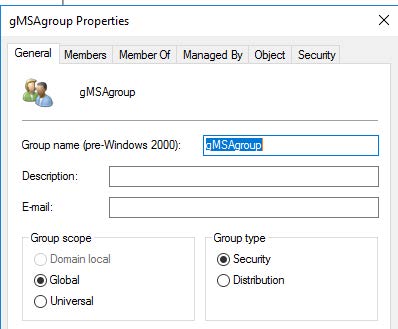
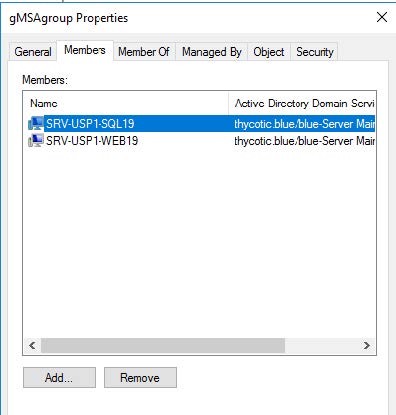
Create a global security group that contains Secret Server web server node(s) and SQL server node(s).
-
Run the PowerShell to create the new gMSA account
New-ADServiceAccount -name gMSA4-web19-iis -DNSHostName gmSA4-iis.pslab.com -PrincipalsAllowedToRetrieveManagedPassword gMSAgroup

By Default this password will change every 30 days. You can change this by using the -ManagedPasswordIntervalInDays flag to specify anything other than 30 days. I.e you could make this change every day if desired. Changes more frequently than once per day are not possible. It’s also important to note that this cannot be adjusted after the command is run, so this is your only time to come up with this rotation schedule for this gMSA account without recreating the account. The password generated is a 120 character randomized password.
You can verify this is set correctly by running the following command:
Get-ADServiceAccount -Identity gMSA4-web19-iis -Properties passwordlastset,managedpasswordintervalindays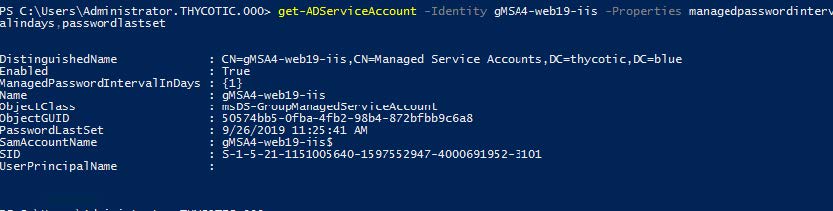
Reboot all systems that belong to the gMSA group after this step is completed.
-
Install Remote Server Administration Tools via Server Manager or PowerShell on all systems belonging to the gMSA group.
Install-WindowsFeature -Name RSAT-AD-PowerShell -
Install the gMSA account on each server belonging to the gMSA group
Install-ADServiceAccount gMSA4-web19-iis
-
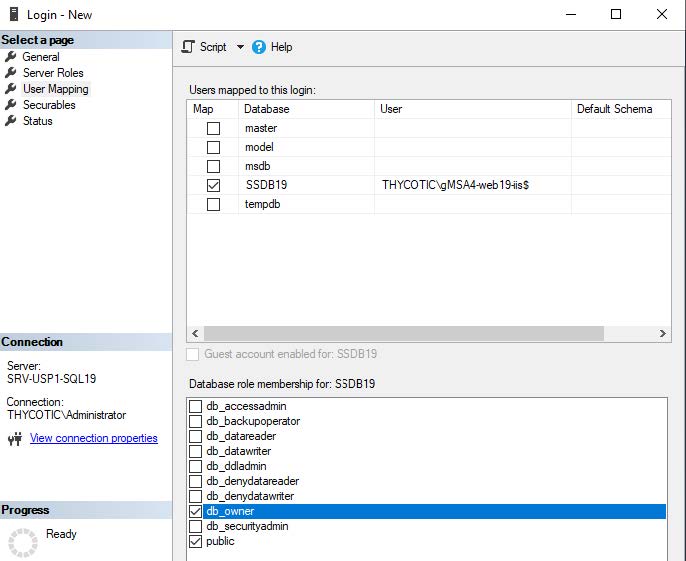
On the Secret Server Database Server, add the gMSA4-web19-iis account to be DBOwner of Secret Server database
-
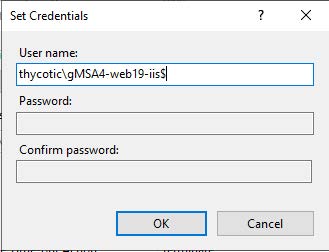
On the Secret Server Web Server, switch the application pool account over to utilize the gMSA. When switching the account over, ensure you append $ to the end of the account name. This will grey out the requirement to supply a password.
-
Verify Secret Server is working and that you can still log in and access the database.
Lastly, there are still significant advantages to using Secret Server for rotating service account passwords within your environment:
-
gMSA audit trail is not as comprehensive as Secret Server
-
gMSA accounts can only have their password rotation schedule determined upon creation, which cannot be altered later. This can be changed as the need arises with Secret Server
-
gMSA passwords are encrypted but also stored in local systems registry and there are scripts that can decrypt/retrieve this password if run in the context of LocalSystem.
We recommend this strategy above of using gMSAs for Secret Server Application Pool service accounts specifically for customers who have hard requirements on rotating the service account attached to the IIS application pool for Secret Server and do not want to cause downtime to the service.
We strongly encourage use of HSM as a best measure for protection of the encryption.config file. If utilizing EFS+DPAPI as a mechanism to protect Secret Server’s encryption.config file, you will need to utilize a separate domain account to enable EFS. You will not be able to enable EFS with the gMSA account. In the context of this document, we would recommend having a separate domain account that is used for logging on to the system and enabling EFS protection on the encryption.config file. Lastly, It’s important to note that this same Application Pool account requires to be provided dbowner access to the database. A skilled attacker would require multiple sets of credentials, an unencrypted encryption.config file, and a copy of the database in order to stand up a replica of the environment and gain access to any additional passwords.


