Enabling and Disabling HSM for Clustered Environments With Licensing Issues
If you are having a license issue with HSM enabled, you will need to disable HSM in order to continue to the Secret Server License page. This guide will also be helpful if you do not have a license issue, but would like to disable an HSM in Secret Server.
-
The first step is to backup your application folder on any of your server nodes and your database. The application folder path in C:\Inetpub\wwroot\SecretServer. This Secret Server folder will be the folder of the node that will not have the application pool stopped. This will be the application folder for the working node. The Secret Server folder will hold the encryption.config file. For backing up your database, you can follow the documentation from Microsoft.
-
Once the backup is completed and stored somewhere safely, please proceed and stop the Application Pools on all server nodes except for one.
If you have only one server node then this step can be skipped. -
After completing step 2, please click Disable HSM which will give you two checkbox options: One asking you to backup the encryption.config key and one asking if you would like to clear your HSM key. Please click on Option 1 as you have completed this by backing up your Secret Server Application Folder.
You can choose Option 2, but this will require you to set up the HSM key again. -
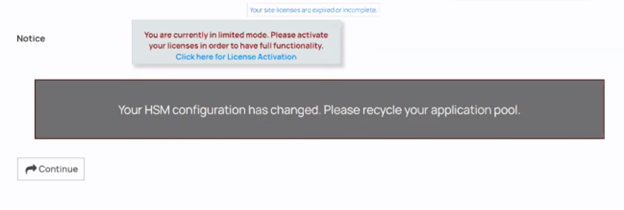
After this has completed you will get a message like in the screenshot below. This will require you to restart your application pool on the current standing node or you can run an iisreset in CMD (Run As Administrator).
-
If you are not experiencing a license issue, please skip to step 8. If you are experiencing a license issue please go to the license page.
-
At the license page, start your application pool on all application servers. If you have a single node then please disregard this step.
-
Add any new licenses to this page and make sure you click license activation to activate across all servers. Please remove any expired licenses to avoid any confusion in the future. Removing expired licenses will not effect your environment.
-
Take the backup encryption file from your working node and copy and paste it to the rest of the Application Server nodes in this file directory C:\\Inetpub\wwroot\SecretServer. You need to copy and replace this. Then, run an iisreset for each server this was replaced on.
-
Please then enable clustering if it was disabled in Administration > Server Nodes.
-
Please take any servers out of maintenance mode if necessary.


