Remote Password Changing for Workday
With Remote Password Changing (RPC), secrets can automatically rotate Workday user credentials on a schedule, at check-in, or when triggered by a user request. Password complexity policies can be tailored to meet organizational security requirements.
Workday is a cloud-based enterprise platform for human capital management (HCM), finance, and payroll. It provides centralized workforce and financial data, role-based access, and secure workflows to support global business operations.
Workday Secrets require a privileged account to perform heartbeats or RPC. See the Password Changer List for a complete catalog of supported password changers.
Prerequisites
Secret Server Prerequisites
-
User credentials to access Secret Server.
-
Heartbeat monitoring and Remote Password Changing enabled in Secret Server.
-
A Distributed Engine from which to make the connection. Engine version 8.4.67 or later is required.
Secret Server On-Premises can connect in two ways: through the site named Local, which uses the web node's IIS worker process, or through a Distributed Engine (DE). A DE is a separate service installed on a Windows Server on any network/VLAN. For Secret Server Cloud, there is no Local site, so a site with a Distributed Engine must be used.
Workday Prerequisites
- Workday Service accounts must have permission to access Worker Data: Workers for heartbeat to function correctly.
-
Domain Access:
-
The user or integration system account must have access to the "Worker” domain.
-
The domain defines which objects and fields the user can read (personal info, employment info, contact info, job data, etc.).
-
-
Functional Permissions - depending on the
Response_Groupelements you request:-
Personal Information →
View Worker Personal Data -
Employment Information →
View Employment Data -
Job Data →
View Job Data -
Contact Information →
View Contact Data
-
-
Integration System User:
If you're using OAuth 2.0 or SOAP integration, you must create an Integration System User (ISU) with access to the Human_Resources → Worker domain.
-
Delinea permissions scoped to the necessary fields (
Personal Data,Employment,Job,Contact). -
Make sure the ISU’s domain security group is assigned in Workday.
-
Configuration for Remote Password Changing
When a password is changed manually, or by the system upon check-in or due to expiration, a Heartbeat is queued to determine if the credentials in the secret are valid. The heartbeat status shows Pending while the process executes. When the heartbeat completes the status will change to either Success or Failure. Success means the credentials in the secret are valid.
Task 1: Configuring the Distributed Engine
-
Log into Secret Server.
-
See Install a Distributed Engine (DE) for key details on how to set up a DE. Make sure to use these as reference points:
-
A site is a network the DE will run on. Conceptually a DE should be installed on each network/VLAN, however, the network engineers of each company will make this decision.
-
The DE must have TCP/IP connectivity to the Secret Server web node and Workday (on the internet).
-
Determining the Site:
-
Create a site or select an existing site. The Default site will be used in this example.
-
The site can be configured by clicking the hyperlink on the site name, however, the defaults are fine for this exercise.
-
The site must have at least one operational Distributed Engine to process requests.
-
-
Installing a DE
-
If the page lists no engines found, an engine must be installed on the site.
-
Select Add Engine.
-
Select the Default site, and download the engine.
-
From the extracted
.zipfile, run setup.exe. -
When the engine runs, it will connect to Secret Server and show up in the site's engine list.
-
Activate the engine.
-
-
Task 2: Creating a Workday ISU/Implementer Account Secret for RPC
-
Navigate to All secrets.
-
Select the Create secret button. The Create new secret popup appears.
-
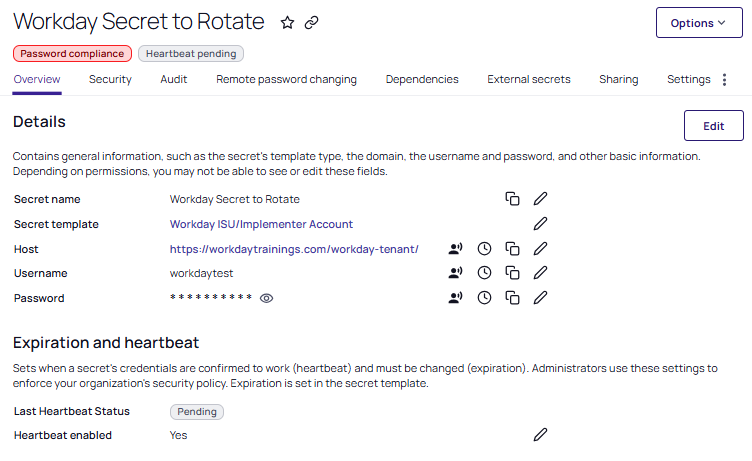
Search for and select the Workday ISU/Implementer Account template. The popup refreshes automatically to reflect the following fields:
-
Secret name: Give the secret an appropriate name.
-
Host: The name of the Workday host. For example:
https://workdaytrainings.com/workday-tenant/ -
Username: The username of the Workday account.
-
Password: The password of the Workday account.
-
Site: Select a site with network connectivity to Workday services. For this exercise, leave it set to Default.
-
Auto Change Enabled: When enabled, this secret will be set to expire on a schedule and change the password. After creation view the RPC tab for details.
-
Click Create Secret to save your changes.
-
-
Your secret automatically loads on the Overview tab.
-
Select the Remote Password Changing tab.
-
You will see a warning below the name of the secret, at the top: A privileged account with Workday Service credentials is required to change or verify the password on this account.
Task 3: Creating the Takeover Secret
-
Navigate to All secrets.
-
Select the Create secret button. The Create new secret popup appears.
-
Search for and select the Workday Service Account template. The popup refreshes automatically to reflect the following fields:
-
Secret name: Give the secret an appropriate name.
-
ServiceAccountUsername: The username of a service account.
-
ServiceAccountPassword: The password of a service account.
-
Tenant: The workday tenant name (e.g.,
mytrial). -
Site: The network where the heartbeat and RPC should originate from, chosen in Task 1.
-
Click Create Secret to save your changes.
-
-
Your secret automatically loads on the Overview tab.
Task 4: Performing Heartbeats and RPC
-
Access the Workday ISU/Implementer Account secret you created in Task 2.
-
Select the Remote Password Changing tab.
-
For the RPC / Autochange section, select Edit.
-
For Change password using set Privileged account credentials.
-
Click no secret selected.
-
Choose the Workday Service Account secret you created in Task 3. RPC will be run as the privileged user listed here.
-
Select Save. The heartbeat will run automatically.
-
On the Overview tab, the Last Heartbeat Status becomes Pending again until the heartbeat completes.
Heartbeat happens on a schedule. To cause an immediate heartbeat, select Settings > Heartbeat Log, and select Run heartbeat now. -
You can now also perform RPC by selecting Change Password Now from the main secret, available on the Overview tab. The takeover secret will be used.
Depending on the size of the UI this option may be stored under Options.-
You can skip the wait time by navigating to Settings > Password Change Log.
-
Select Run RPC Now to launch the process immediately.
When RPC is complete a banner will briefly appear at the bottom of the page indicating success or failure. If you miss it, the result can be seen in the password change log list.
-
Once the RPC completes, a Heartbeat is performed. Success indicates the password has changed and the new password has been validated.
-