Splunk Enterprise Secret Template for RPC
Overview
This document briefly discusses using Secret Server Remote Password Changing (RPC) for a Splunk Enterprise Account. With Remote Password Changing (RPC), secrets can automatically change remote account passwords when a secret expires, either immediately or on a defined schedule. In addition, the new passwords’ strengths and other qualities are completely configurable. See the Password Changer List for a complete list of available password changers.
Splunk Enterprise is a data platform widely used for SIEM, IT operations monitoring, and log analytics. The Splunk Enterprise RPC template in Secret Server supports both Remote Password Changing and Heartbeat for locally managed Splunk user accounts, with password rotation performed through the Splunk REST API on the management port (port 8089 by default).
Supported Account Types
This template rotates passwords for locally managed Splunk accounts, including:
-
Local user accounts — standard users created and authenticated within Splunk’s native authentication.
-
Admin accounts — accounts with the admin role or equivalent privileges.
-
Service accounts — locally managed accounts used for application or system integrations.
Accounts authenticated via LDAP, SAML, or other external identity providers cannot have their passwords rotated through this integration.
Prerequisites
Splunk
The following must be in place on the Splunk Enterprise instance before setup. This section does not cover Splunk Enterprise installation.
Splunk Enterprise instance: A running, on-premises deployment. Splunk Cloud is not supported.
REST API access: The Splunk management port (default 8089, HTTPS) must be enabled and accessible. Enabled by default in Splunk Enterprise.
Admin-level Splunk account: A Splunk account with the admin role or equivalent permissions to change other users’ passwords via the REST API. This account serves as the Privileged Account in Secret Server.
Secret Server
-
Remote Password Changing enabled in your Secret Server instance.
-
Distributed Engine — configured, online, and with HTTPS network access to the Splunk management port at
https://[splunk-host]:8089. -
The Splunk account secret template available in your Secret Server instance.
Configuration
Step 1: Create the Privileged Account Secret
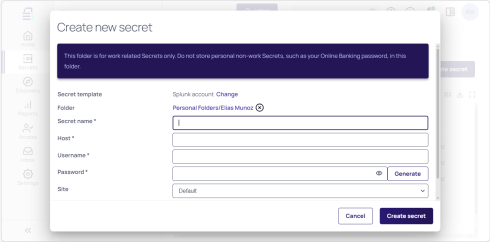
1. Navigate to Secrets > Create Secret.
2. Search for and select the Splunk Account template.
3. Enter a descriptive Secret Name (for example, Splunk Admin - Privileged).
4. In Host, enter the URL of the Splunk tenant.
To get the exact URL for your Splunk tenant, please check with your Splunk administrator or your IT department.
5. Enter the Username and Password of the Splunk admin account.
6. Click Create Secret.
Step 2: Create the Target User Secret
1. Navigate to Secrets > Create Secret.
2. Search for and select the Splunk Account template.
3. Enter a descriptive Secret Name (for example, Splunk - [username]).
4. In Host, enter the URL of the Splunk tenant. (See note in step 4 above).
5. Enter the Username and Password of the target Splunk user account.
6. Click Create Secret.
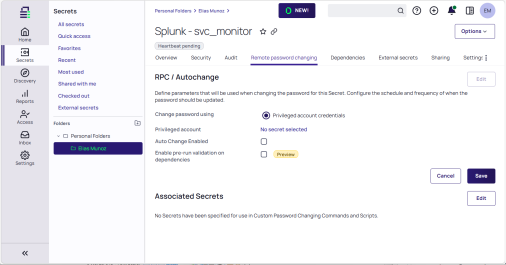
7. Select the Remote password changing tab on the secret.
8. In the RPC / Autochange section, click Edit.
9. For Change Password Using, select Privileged Account Credentials.
10. Click No Secret Selected and search for the privileged account secret you created in Step 1.
11. Click Save.
Step 3: Verify Password Rotation and Heartbeat
1. Trigger a manual password rotation on the target user secret and confirm the operation completes successfully. The secret's password value will update to reflect the new password.
2. Log in to Splunk with the target user account using the new rotated password to confirm the change took effect.
3. On the target user secret's Overview tab, check the Expiration and heartbeat section. Verify that the Last Heartbeat Status shows a successful result.
4. If the heartbeat fails, verify that the credentials stored in the secret match the current password on the Splunk account and that the Distributed Engine can reach the Splunk management port.