Nutanix CVM Account Secret Template for RPC
Overview
This document briefly discusses using Secret Server Remote Password Changing (RPC) for a Nutanix CVM Account. With Remote Password Changing (RPC), secrets can automatically change remote account passwords when a secret expires, either immediately or on a defined schedule. In addition, the new passwords’ strengths and other qualities are completely configurable. See the Password Changer List for a complete list of available password changers.
A Nutanix Controller VM (CVM) runs on every node of a Nutanix cluster and hosts the cluster’s storage and management services. The Nutanix CVM Account RPC template rotates the passwords of the local system accounts on a Nutanix cluster, such as admin and nutanix, through the Nutanix Prism Central API on port 9440. Because these accounts are operating-system accounts on the Controller VM rather than Prism Central users, they cannot authenticate to the Prism Central API themselves. Every password change is therefore performed by a linked privileged Nutanix Prism Central account, and this template does not support Heartbeat.
Supported Account Types
This template rotates passwords for the local system accounts of a Nutanix cluster that is registered to Prism Central, including:
-
Cluster
adminaccount — The local administrative account of the cluster. -
Cluster
nutanixaccount — The local service account on the Controller VM.
Each secret is pinned to one cluster. A Prism Central that manages several clusters is supported, but each cluster’s accounts require their own secrets, identified by the cluster’s ID.
Prism Central user accounts are not supported by this template. Use the Nutanix Prism Central Secret Template for RPC for those accounts.
root account on an AHV hypervisor host is managed by the separate Nutanix CVM AHV secret template, which uses the same fields and the same privileged account requirement as this template.Use Cases
-
Password rotation — The linked privileged Prism Central account changes the password of the target cluster account through the Nutanix Prism Central API. Nutanix applies the change asynchronously; Secret Server waits for Nutanix to confirm that the change was applied before it stores the new password. If the change cannot be confirmed, the previous password is kept.
-
Heartbeat — Not supported. Cluster system accounts cannot log in to the Nutanix Prism Central API, so there is no credential check that Secret Server can perform for them. Heartbeat is disabled on this template; if a heartbeat is run on a Nutanix CVM Account secret, it reports Incompatible Host without contacting Nutanix.
Prerequisites
Nutanix
The following must be in place on the Nutanix environment before setup. This section does not cover Nutanix installation.
-
Nutanix Prism Central instance — A running, accessible Nutanix Prism Central environment on Prism Central pc.2024.3 / AOS 7.0 or later. The password change uses the Nutanix v4 Cluster Management API, which is not available on earlier versions.
-
Registered cluster — The cluster that owns the target account must be registered to the Prism Central instance.
-
Console access (port 9440) — The Nutanix Prism Central console (default
https://[nutanix-host]:9440) must be reachable from the Secret Server Distributed Engine. The host must be the Prism Central URL, not a Prism Element or Controller VM address. -
Privileged user account — A Prism Central user account with permission to list and change the cluster’s system account passwords. This account serves as the Privileged Account in Secret Server.
-
Cluster ID — The ID (UUID) of the cluster that owns the target account, available from the cluster list in Prism Central.
-
Current password of the target account — The Nutanix API requires the account’s current password to change it. The password stored in the secret must match the password on the cluster.
-
SSL certificates — Valid SSL certificates must be installed on the Nutanix Prism Central instance. The certificate chain (server, intermediate, root) must also be imported into the Trusted Root Certification Authorities on the Secret Server or Distributed Engine machine, and the host name in the secret must match the certificate.
Secret Server
-
Remote Password Changing: enabled in your Secret Server instance.
-
Distributed Engine: Configured, online, and with HTTPS network access to the Nutanix Prism Central console at
https://[nutanix-host]:9440. If the Nutanix environment requires VPN access, ensure the Distributed Engine has the necessary VPN connectivity. -
The Nutanix CVM Account and Nutanix Prism Central Account secret templates available in your Secret Server instance.
Configuration
Step 1: Create the Privileged Account Secret
The privileged account secret stores the credentials of the Nutanix Prism Central account that Secret Server uses to rotate the cluster account passwords. This secret uses the Nutanix Prism Central Account template, not the Nutanix CVM Account template.
-
Navigate to Secrets and click Create secret.
-
Select the Nutanix Prism Central Account template.
-
Enter a Secret name (for example,
Nutanix Prism Central Admin). -
In Host, enter the Nutanix Prism Central URL (for example,
https://[nutanix-host]:9440). -
Enter the Username and Password of the Nutanix privileged account.
-
Click Create secret.
For more information on this template, see the Nutanix Prism Central Secret Template for RPC.
Step 2: Create the Target Account Secret
The target account secret stores the credentials of the cluster system account whose password Secret Server will rotate.
-
Navigate to Secrets and click Create secret.
-
Select the Nutanix CVM Account template.
-
Enter a Secret name (for example,
Nutanix CVM - [username]). -
In Host, enter the Nutanix Prism Central URL (for example,
https://[nutanix-host]:9440). -
Enter the Username (for example,
nutanix) and the current Password of the target cluster account. -
In Cluster Id, enter the ID of the cluster that owns the account.
-
Click Create secret.
-
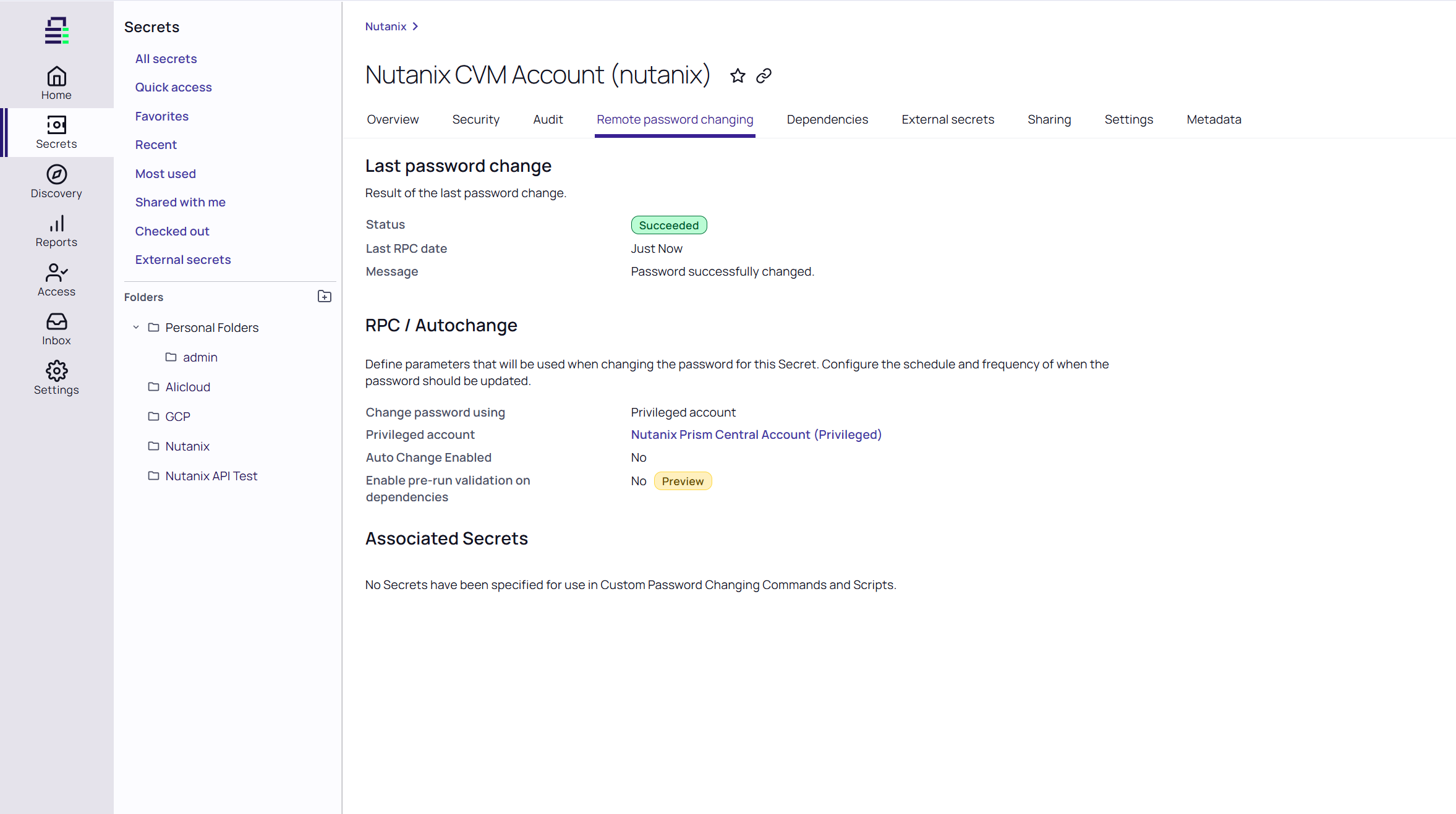
Select the Remote password changing tab.
-
In RPC / Autochange, click Edit.
-
For Change password using, select Privileged account credentials.
-
Click No Secret Selected and search for the privileged account secret created in Step 1.
-
Click Save.
Step 3: Verify Password Rotation
After setting up RPC, verify that password rotation works correctly. This template does not support Heartbeat, so the Last Heartbeat Status on the secret does not indicate whether the stored password is valid.
-
Trigger a manual password rotation on the target account secret. Confirm the operation completes successfully and the secret’s password value updates. Nutanix applies the change asynchronously, so the rotation can take up to two minutes to complete.
-
Log in to the Controller VM with the target account using the new password to confirm the change took effect.


