GCP Console User Secret Template for RPC
Overview
This document briefly discusses using Secret Server Remote Password Changing (RPC) for a GCP Console User. With Remote Password Changing (RPC), secrets can automatically change remote account passwords when a secret expires, either immediately or on a defined schedule. In addition, the new passwords’ strengths and other qualities are completely configurable. See the Password Changer List for a complete list of available password changers.
The GCP Console User RPC template rotates the password of an existing Google Workspace user account through the Google Admin SDK Directory API. Google’s Directory API does not allow a user to change their own password and has no way to validate a password value, so every password change is performed by a linked privileged Google IAM Service Account Key secret, and this template does not support Heartbeat.
Supported Account Types
This template rotates passwords for existing Google Workspace user accounts. The account must already exist in Google Workspace; rotation changes the password on the account and never creates a new user.
Google Cloud service account keys are not rotated by this template. Use the Google IAM Service Account Key Secret Template for RPC for those keys.
Use Cases
-
Password rotation — The linked privileged Google service account changes the password of the target Google Workspace user through the Directory API. Secret Server confirms the target account exists before and after the change, then stores the new password. If the change cannot be confirmed, the previous password is kept.
-
Heartbeat — Not supported. The Google Admin SDK Directory API has no endpoint that validates a password, so there is no credential check that Secret Server can perform. Heartbeat is disabled on this template. If heartbeat is enabled on the template and run on a GCP Console User secret, it reports Incompatible Host without contacting Google.
Prerequisites
Google Cloud and Google Workspace
The following must be in place in the Google environment before setup. This section does not cover Google Workspace or Google Cloud setup.
-
Google Workspace user account — The target user must already be provisioned in Google Workspace.
-
Google Cloud service account with a JSON key — A Google Cloud service account whose JSON private key is stored in a Google IAM Service Account Key secret in Secret Server. This secret serves as the Privileged Account.
-
Workspace admin role on the service account — The service account must be directly assigned a Google Workspace admin role that allows it to manage user passwords. Domain-wide delegation is not used; the service account authenticates as itself. See Assign specific admin roles in the Google Workspace Admin Help.
-
Admin SDK API — Enable the Admin SDK API on the Google Cloud project that owns the service account. The Secret Server Distributed Engine must have HTTPS access to
admin.googleapis.com. -
Google Workspace password policy — Google enforces its password policy (length, reuse history, common-password lists) on the new password. If Google rejects the new password, the rotation fails and Google’s rejection message is shown in the RPC log.
-
“Change password at next sign-in” is cleared on every rotation — Rotation always clears this flag on the target account so that the password stored in Secret Server remains the working password. Do not rely on this flag for accounts managed by this template.
Secret Server
-
Remote Password Changing: enabled in your Secret Server instance.
-
Distributed Engine: Version 8.6.4.0 or later, configured, online, and with HTTPS network access to the Google Admin SDK Directory API. The secret’s Site must contain such an engine; otherwise the password change fails with
Site (<site name>) has no engines with this feature enabled. -
The GCP Console User and Google IAM Service Account Key secret templates available in your Secret Server instance.
Configuration
Step 1: Create the Privileged Account Secret
The privileged account secret stores the JSON key of the Google Cloud service account that Secret Server uses to rotate Google Workspace user passwords. This secret uses the Google IAM Service Account Key template, not the GCP Console User template.
-
Navigate to Secrets and click Create secret.
-
Select the Google IAM Service Account Key template.
-
Enter a Secret name (for example,
Google IAM Service Account Key - [service account]). -
In JSON Private Key, upload the service account’s JSON key file. The Email and Private Key Id fields are optional because the JSON key file contains them.
-
Click Create secret.
For more information on this template, see the Google IAM Service Account Key Secret Template for RPC.
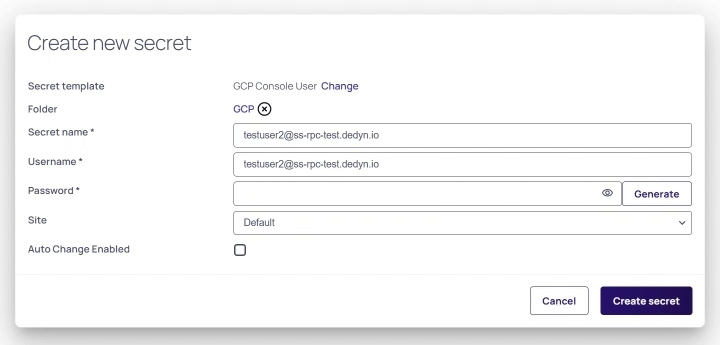
Step 2: Create the Target User Secret
The target user secret stores the credentials of the Google Workspace user whose password Secret Server will rotate.
-
Navigate to Secrets and click Create secret.
-
Select the GCP Console User template.
-
Enter a Secret name (for example,
GCP Console User - [username]). -
Enter the Username as the user’s primary email address (for example,
user@example.com). -
Enter the current Password of the target user.
-
In Site, select a site with a Distributed Engine that supports this password changer.
-
Click Create secret.
-
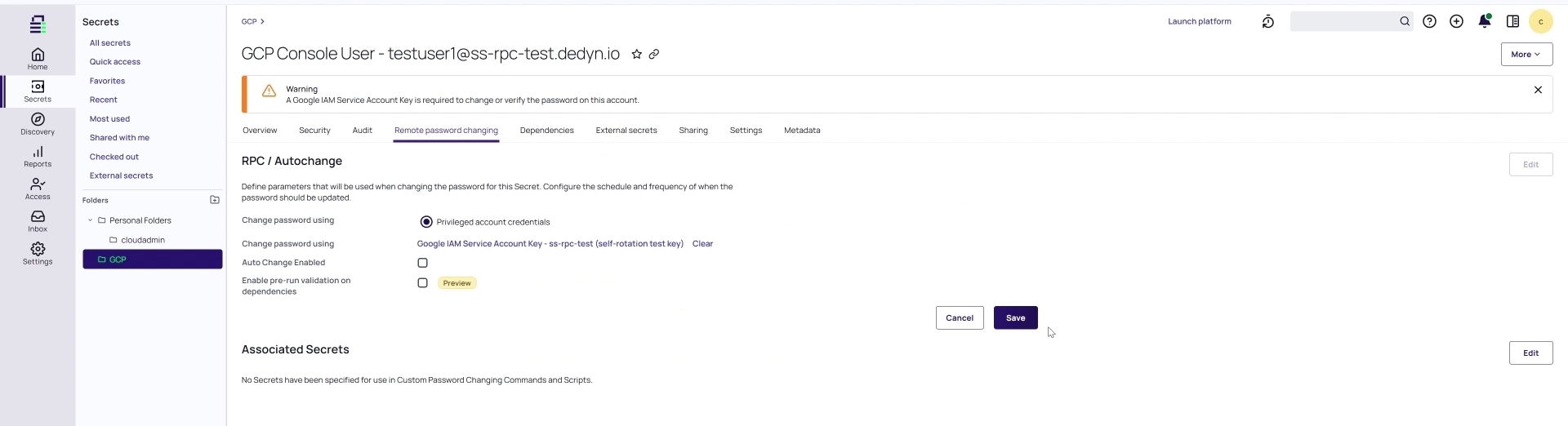
Select the Remote password changing tab.
-
In RPC / Autochange, click Edit.
-
For Change password using, select Privileged account credentials.
-
Click No Secret Selected and search for the privileged account secret created in Step 1.
-
Click Save.
Step 3: Verify Password Rotation
After setting up RPC, verify that password rotation works correctly. This template does not support Heartbeat, so the Last Heartbeat Status on the secret does not indicate whether the stored password is valid.
-
On the target user secret, click Change password now, choose Randomly generated or Manual for Next password, and click Change password. Confirm that Last password change on the Remote password changing tab shows Succeeded and the secret’s password value updates.
-
Sign in to Google Cloud console or Google Workspace with the target user using the new password to confirm the change took effect.


