Azure Application Registration Secret Template for RPC
Overview
This document briefly discusses using Secret Server Remote Password Changing (RPC) for Azure App Registration client secrets. With Remote Password Changing (RPC), secrets can automatically change remote account credentials when a secret expires, either immediately or on a defined schedule. See the Password Changer List for a complete list of available password changers.
An Azure App Registration is an identity in Microsoft Entra ID (Azure AD) that applications use to authenticate to Microsoft Graph and other resources. Each registration can hold one or more client secrets. This template rotates the client secret of an App Registration through the Microsoft Graph API, authenticating as a privileged “rotator” App Registration. Unlike the Entra ID password changer, which rotates Entra ID user account passwords, this template rotates the application credential (client secret) itself.
Supported Account Types
This template rotates client secrets for Azure App Registrations, using two coordinated secret types:
-
Privileged (rotator) account — An App Registration with Microsoft Graph permissions to manage application credentials. It authenticates to Microsoft Graph and performs the rotation on behalf of Secret Server. Stored with the Azure Application Registrations (Privileged Account Client Secret Rotation) template.
-
Target account — The App Registration whose client secret is rotated. Stored with the Azure Application Registrations (Account Client Secret Rotation) template. It rotates through an associated privileged account.
This template rotates application client secrets, not Entra ID user passwords. To rotate Entra ID user account passwords, see the Entra ID Secret Template for RPC.
Use Cases
-
Heartbeat — Secret Server validates that the stored App Registration credentials are still correct by acquiring a Microsoft Graph access token.
-
Client secret rotation — The privileged account rotates the target App Registration’s client secret through the Microsoft Graph API. Microsoft Graph generates the new secret value and Secret Server stores it; the previous secret(s) are removed automatically.
Prerequisites
Azure
The following must be in place in your Azure tenant before setup. This section does not cover Azure App Registration creation in depth. For step-by-step instructions on registering an app and creating a client secret in Azure, see the Entra ID Discovery topic or Task 1 of Configuring an Azure AD or Entra ID Password Changer.
-
Azure tenant — A valid Microsoft Entra ID (Azure AD) tenant.
-
Privileged (rotator) App Registration — A dedicated App Registration that performs rotation. Grant it Microsoft Graph
Application.ReadWrite.All(Application permission) with admin consent. Alternatively, grantApplication.ReadWrite.OwnedByand add the rotator as an Owner of each target App Registration (Azure portal: Microsoft Entra ID > App registrations > [target app] > Owners). When usingApplication.ReadWrite.OwnedBy, the Owners entry is required on every target — if it is missing, rotation fails with an access denied (HTTP 403) error even though the permission is consented. For the rotator to rotate its own client secret, it must holdApplication.ReadWrite.All, or be listed as an Owner of itself when usingApplication.ReadWrite.OwnedBy. -
Target App Registration(s) — One or more App Registrations whose client secrets are rotated.
-
Client secret — Each App Registration must have an active client secret recorded in Secret Server (Azure portal: Manage > Certificates & secrets > New client secret).
-
Authority endpoint — The Microsoft identity authority for your cloud. Default
login.microsoftonline.com; other valid values arelogin.microsoftonline.usandlogin.chinacloudapi.cn. Use the endpoint that matches your tenant’s cloud. -
Network connectivity — The Secret Server Distributed Engine must have outbound HTTPS access to
login.microsoftonline.comandgraph.microsoft.com, negotiating TLS 1.2 or higher.
Secret Server
-
Remote Password Changing: enabled in your Secret Server instance.
-
Distributed Engine: Configured, online, and with HTTPS network access to the Microsoft endpoints above.
-
The Azure Application Registrations (Privileged Account Client Secret Rotation) and Azure Application Registrations (Account Client Secret Rotation) secret templates available in your Secret Server instance.
Configuration
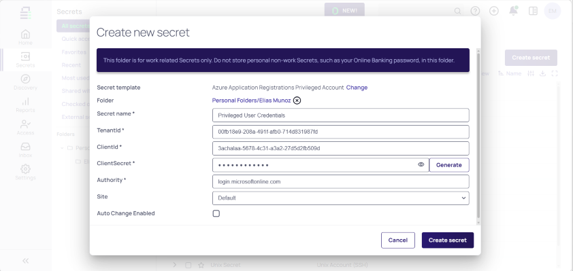
Step 1: Create the Privileged Account Secret
The privileged account secret stores the credentials of the rotator App Registration that Secret Server uses to rotate the client secrets of target App Registrations.
-
Navigate to Secrets and click Create Secret.
-
Select the Azure Application Registrations (Privileged Account Client Secret Rotation) template.
-
Enter a Secret name (for example,
Azure Rotator - Privileged). -
Enter the TenantId (Directory (tenant) ID).
-
Enter the ClientId (Application (client) ID of the rotator app).
-
Enter the ClientSecret (the rotator app’s client secret value).
-
Enter the Authority (
login.microsoftonline.comunless your tenant is in another Microsoft cloud). -
Set the Site to one with a Distributed Engine that can reach
login.microsoftonline.comandgraph.microsoft.com. -
Leave Auto Change Enabled unchecked (or check it to rotate on a schedule), then click Create Secret.
Step 2: Create the Target Account Secret
The target account secret stores the App Registration whose client secret Secret Server rotates and monitors.
-
Navigate to Secrets and click Create Secret.
-
Select the Azure Application Registrations (Account Client Secret Rotation) template.
-
Enter a Secret name (for example,
Azure App - [app name]). -
Enter the ClientId of the target App Registration.
-
Enter the ClientSecret (the current client secret to be rotated).
-
Set the Site to one with a Distributed Engine that can reach
login.microsoftonline.comandgraph.microsoft.com. -
Leave Auto Change Enabled unchecked (or check it to rotate on a schedule), then click Create Secret.
-
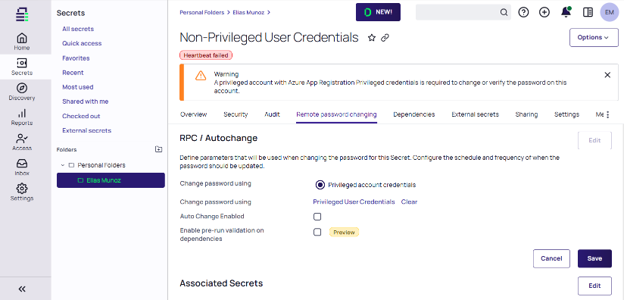
Select the Remote Password Changing tab.
-
In RPC / Autochange, click Edit.
-
For Change Password Using, select Privileged Account Credentials.
-
Click No Secret Selected and search for the privileged account secret created in Step 1.
-
Click Save.
Until a privileged account is associated, heartbeat and password changing on the target secret are unavailable and will fail if run automatically. The secret displays the warning: “A privileged account with Azure App Registration Privileged credentials is required to change or verify the password on this account.”
Step 3: Verify Password Rotation and Heartbeat
After setting up RPC, verify that both Heartbeat and client secret rotation work correctly.
Test Heartbeat
-
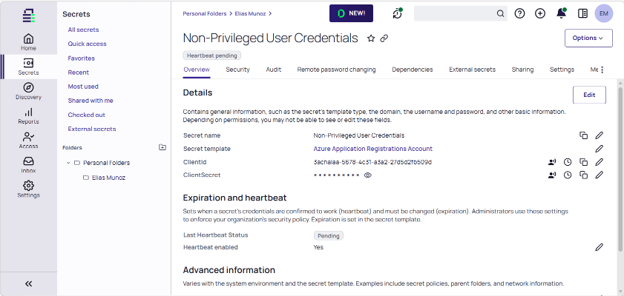
On the target account secret’s Overview tab, locate the Expiration and heartbeat section.
-
Trigger a Heartbeat and verify that Last Heartbeat Status shows a successful result.
Test Password Rotation
-
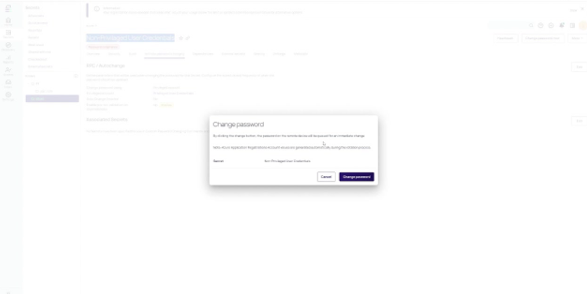
Trigger a manual rotation (Change Password Now) on the target account secret. The change dialog notes that Azure Application Registrations (Account Client Secret Rotation) values are generated automatically during the rotation process.
After creating the new client secret, Secret Server waits for it to replicate across Microsoft Entra ID before removing the old one. A rotation that appears to pause for up to about a minute is normal behavior, not a hang. -
After rotation completes, confirm in the Azure portal under the target App Registration’s Certificates & secrets that a new secret named
SS-Rotated-{timestamp}is present and the previous secret(s) have been removed.If the target App Registration has more than 10 existing client secrets at rotation time, the rotation stops with an error. Common causes are two Secret Server secrets rotating the same App Registration, client secrets added manually in the Azure portal, or a secret left behind by a previously failed rotation. To resolve, trim the target app’s client secrets back to one in the Azure portal (Certificates & secrets), remove any duplicate Secret Server secrets pointing at the same App Registration, and retry the rotation. -
Verify the Heartbeat status remains successful using the new client secret.
To rotate the privileged rotator app’s own client secret, run Change Password Now on the Azure Application Registrations (Privileged Account Client Secret Rotation) secret directly; it self-rotates using its own credentials. Self-rotation requires Application.ReadWrite.All, or Application.ReadWrite.OwnedBy with the app listed as an Owner of itself. Without one of these, heartbeat succeeds (it only acquires a token) but self-rotation fails.


