
Creating Secret Policies
For release dates, end-of-support timelines, and upgrade guidance, see the Secret Server Product Lifecycle page.
A secret policy is a set of rules that you can apply all at once to multiple secrets. For example, a secret policy could include rules about remote password changing or security settings, and you could apply all of the rules as a single policy to multiple secrets, whether the secrets reside in the same folder or different folders.
Follow the procedure below to create a secret policy:
-
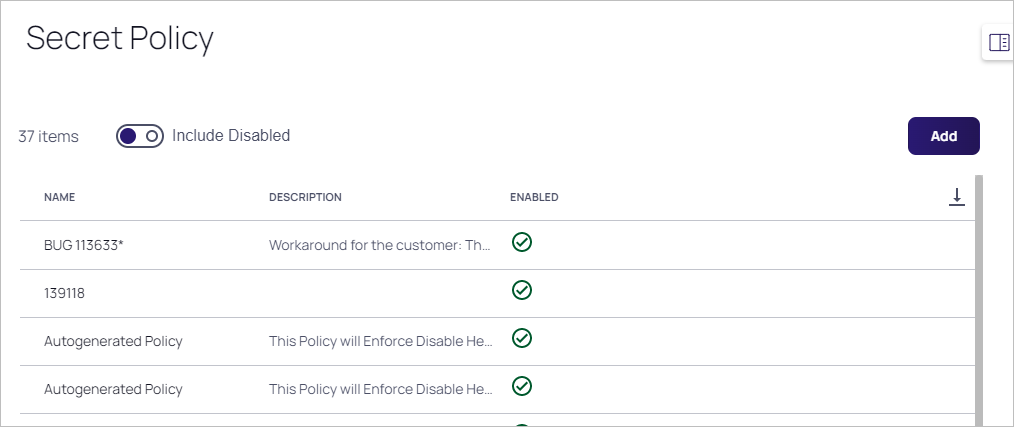
Click Administration > Secret Policies. The Secret Policy page appears:
-
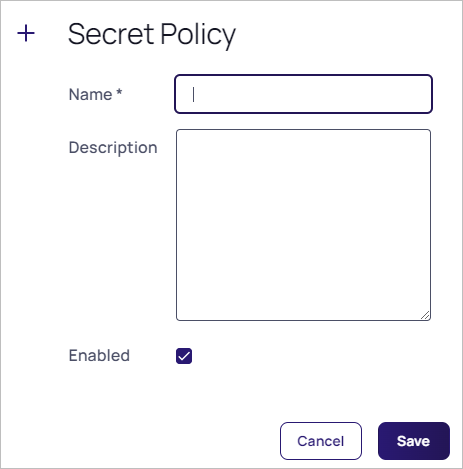
In the Secret Policy window, click the Add button. A popup appears:
-
Type a Secret Policy Name and Description for your new security policy.
-
Click to select the Enabled check box.
-
Click the Save button. The new policy's page appears on the Policy tab and Summary subtab:
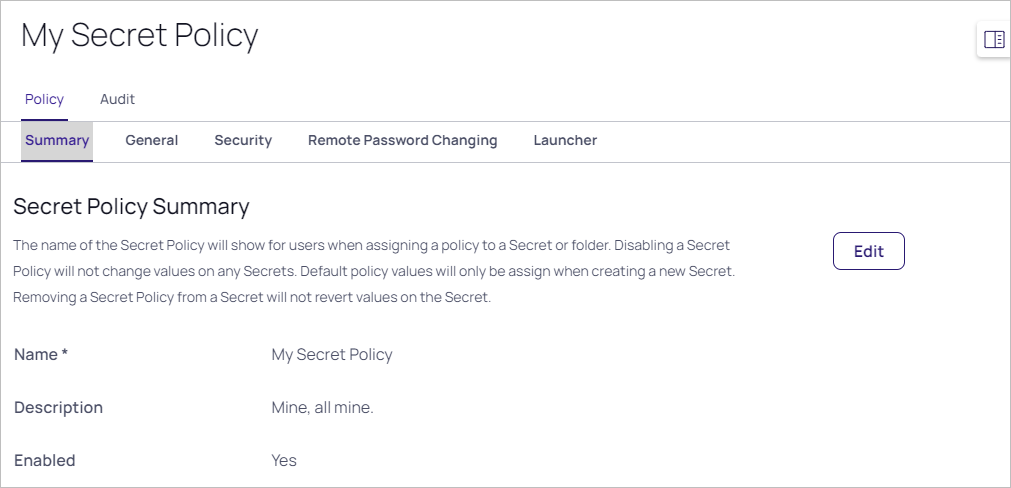
Because you are creating a brand-new secret policy, the value in the setting column for many policy items is (Not Set).
-
Click each subtab in turn and click the Edit button to set which parameters are enforced. See the various topics for specifics about each parameter.


