
Discovery on Non-Domain Joined or Unix Targets
For release dates, end-of-support timelines, and upgrade guidance, see the Secret Server Product Lifecycle page.
Overview
When running discovery on non-domain joined targets or Unix targets, there are two methods of finding local administrator credentials to authenticate to the target, and the methods can be used together.
- Specify a secret with an expected default password, recommended for performing an initial scan if you have a known password or key for a privileged account.
- Specify a secret search filter, recommended when you cannot use a default password because each machine’s account password is unique. A Secret Search Filter dynamically searches for a secret with a name or folder location that corresponds to the target scanned. If a matching secret is found, Secret Server will authenticate to the target using the administrator credentials in the secret.
Setting Credentials on a Discovery Scanner
-
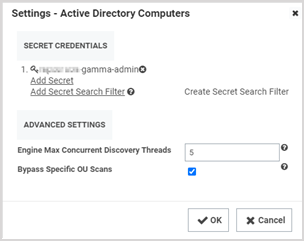
In a discovery source, click the Edit icon on a scanner.
-
In the Settings window, under Secret Credentials, choose among the following options:
- Click Add Secret to specify a default credential.
- Click Add Secret Search Filter to specify an existing secret search filter.
- Click Create Secret Search Filter to create a new secret search filter.
Secret Server will try the secrets and secret search filters in sequence until it finds a match.
Creating a Secret Search Filter
-
In the Secret Credentials section, click Create Secret Search Filter.
-
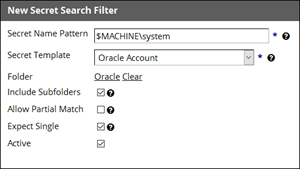
In the New Secret Search Filter window, specify a secret name pattern and settings as described below:
- Secret Name Pattern: Specifies the pattern that Secret Server will search for. The search is dynamic based on the target. In the example depicted in the screen shot, if scanning a machine named
appserver01, Secret Server will also search for a secret namedappserver01\system. - Secret Template: Specifies the template that returned secrets should be based on. In the example depicted in the screen shot, only secrets based on the Oracle Account template will be returned.
- Folder: Specifies the folder to search within.
- Include Subfolders: Specifies that the search should include not only the specified folder, but the subfolders as well.
- Allow Partial Match: Specifies that secret names will be returned if they partially match the pattern. By default the secret name must be an exact match to the secret name pattern.
- Expect Single: Specifies that only one result should be returned. If more than one is returned, Secret Server will log an error to the discovery log.
- Secret Name Pattern: Specifies the pattern that Secret Server will search for. The search is dynamic based on the target. In the example depicted in the screen shot, if scanning a machine named
-
Click OK and go back to your discovery source.
-
Click Add Secret Search Filter and select the filter you just created.
Now, when scanning a machine, Secret Server will try a default credential, and then it will try the secret returned by the search filter.


