
Enabling SQL Server Encryption
You are viewing documentation for a version of Secret Server that is no longer supported. Delinea supports Secret Server for one year after release. This version has passed that window and will no longer receive updates. We strongly recommend upgrading to a supported version. Visit the current version of this page for the latest documentation.
For release dates, end-of-support timelines, and upgrade guidance, see the Secret Server Product Lifecycle page.
You can view the latest version of the Secret Server documentation here.
For release dates, end-of-support timelines, and upgrade guidance, see the Secret Server Product Lifecycle page.
You can view the latest version of the Secret Server documentation here.
Administrators can enable end-to-end encryption with the SQL database by using an Encrypted connection. This is a feature that is built into Microsoft SQL Server and Secret Server supports. To enable encryption:
-
Go to Admin > See All. The admin panel appears.
-
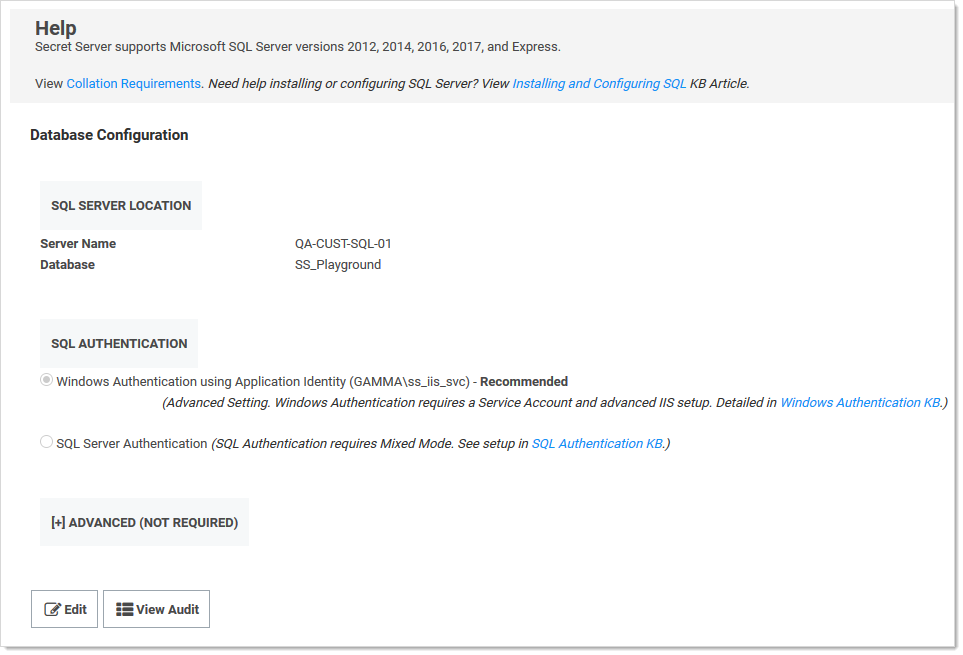
Type Database in the Search text box and select Database. The Database Configuration page appears:
-
Click the Edit button.
-
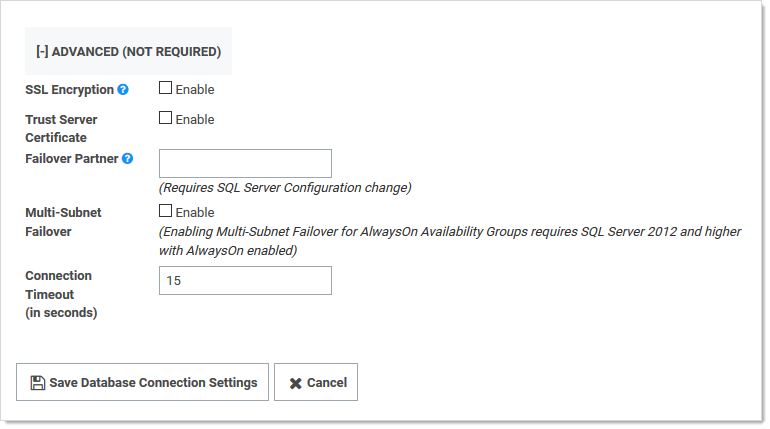
Click the Advanced (Not Required) link. A new section appears:
-
Click to select the SSL Encryption check box.
-
Click the Save Database Connection Settings button.
SQL Server must be pre-configured to support encryption. This Microsoft TechNet article explains how to configure the SQL Server environment for encryption. The SSL encryption used for communicating with SQL Server is either 40 or 128 bit, depending on the Windows operating system used.
Using this setting can adversely affect performance (KBA). See this TechNet article for additional information.


