
Assigning a Password Changer to a Secret Template
For release dates, end-of-support timelines, and upgrade guidance, see the Secret Server Product Lifecycle page.
You can view the latest version of the Secret Server documentation here.
To assign any type of password changer to a Secret template, use the procedure below.
-
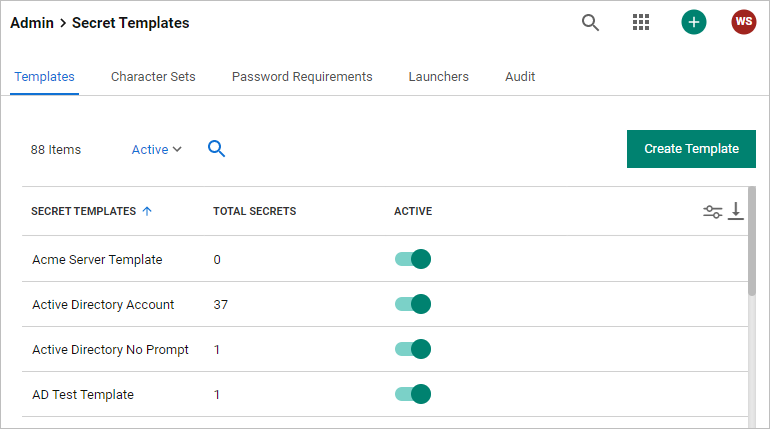
From the Admin menu, select Secret Templates. The Secret Templates page appears:
-
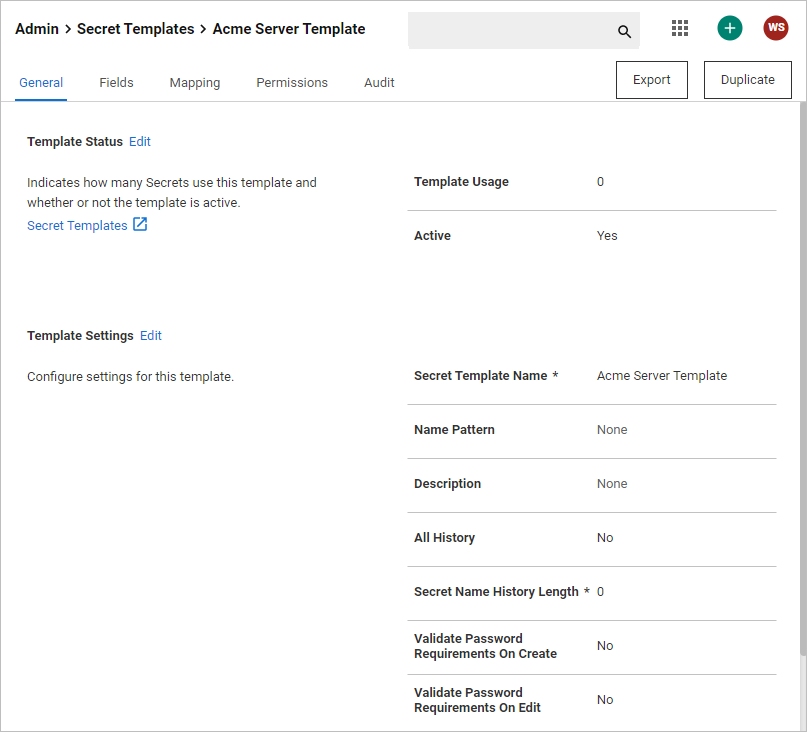
Click the name of the desired template in the list. The page for that template appears:
-
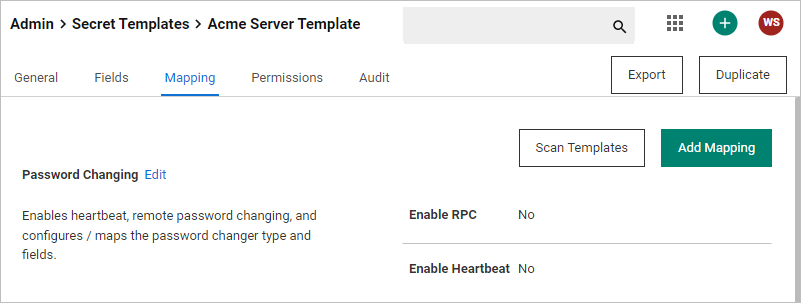
Click the Mapping tab:
-
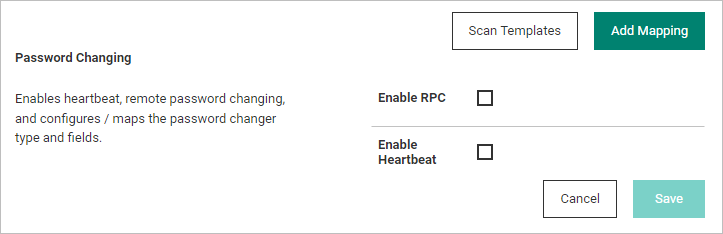
Click the Edit link next to the Password Changing section. The section becomes editable:
-
Click to select the Enable RPC check box. An editable section appears:
This enables the feature, but auto RPC is set through policies or secret settings.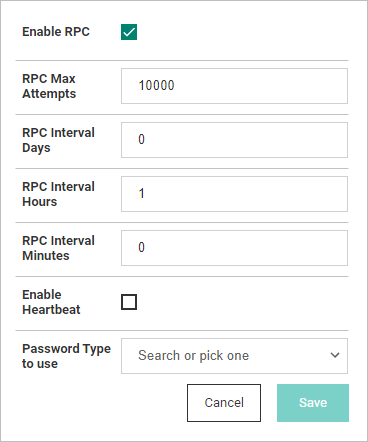
-
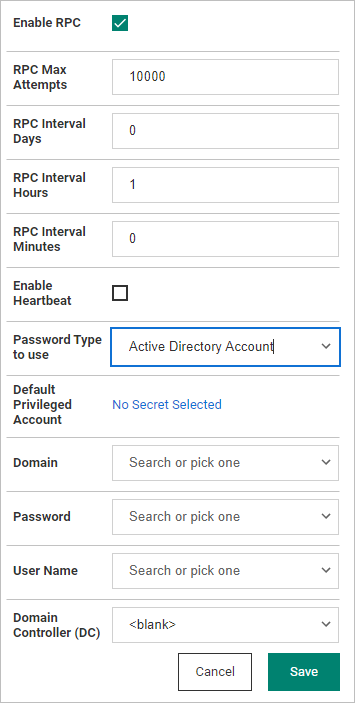
Click the Password Type to Use dropdown list to select the desired type. For this instruction, we chose Active Directory Account. New controls appear for that specific type:
-
Click to select or type text for each item to configure your desired setup. For more on configuring your choice, refer to the applicable configuration in the RPC section for details. For example, for Active Directory, go to Minimum Permissions for Active Directory Remote Password Changing.
-
When finished, click the Save button.


