
Moving Secrets Between Folders
For release dates, end-of-support timelines, and upgrade guidance, see the Secret Server Product Lifecycle page.
You can view the latest version of the Secret Server documentation here.
-
Consider the following before moving a secret between folders:
-
To add or move a secret to a folder, you must have edit permission on that folder (either direct or through inheritance).
-
To move a secret from a folder, you must have edit permission on that secret. If the secret has the "Inherit Permissions from folder" setting enabled, then you must have owner permission to move that secret to a new folder.
-
When a secret is moved to a folder, it automatically gets the "Inherit Permissions from folder" setting even if it had specific permissions before the move.
-
-
Navigate to the folder containing the secret or secrets you want to move.
-
Click to select the check box on the left for all the secret you want to move. The Bulk Actions button appears at the bottom of the page.
-
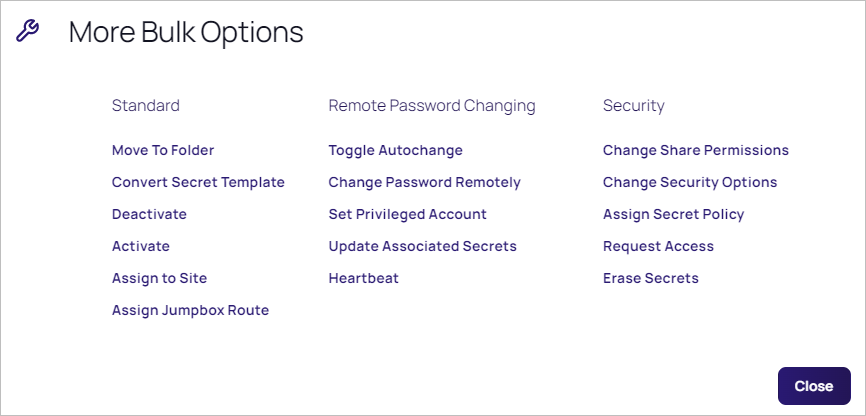
Click the Bulk Actions button. A popup appears:
-
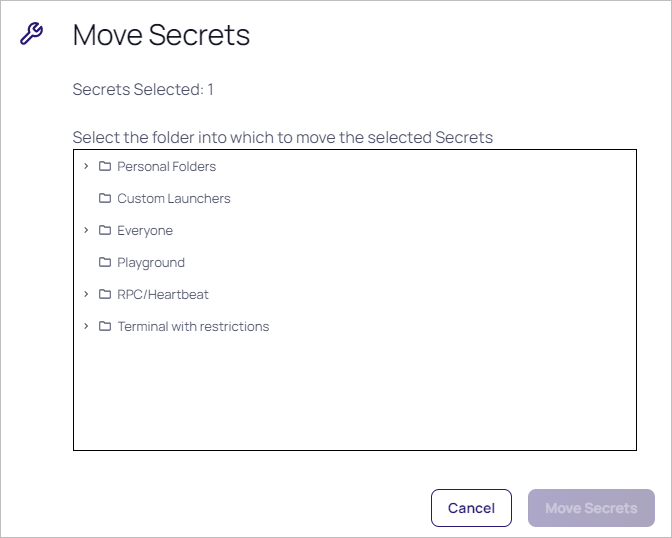
Click the Move to Folder link. The Move Secrets pop-up page appears:
-
Navigate to and select the target folder for the secret or secrets.
-
Click the Move Secrets button. The Bulk Progress popup appears.
-
The secret moves to the selected folder.


