
Enabling a Company Policy Login Banner
For release dates, end-of-support timelines, and upgrade guidance, see the Secret Server Product Lifecycle page.
You can view the latest version of the Secret Server documentation here.
If your company requires the login banner for usage agreements and conditions to be visible when users log into Secret Server:
To enable the login banner, follow the procedure below:
-
Click the Administration menu item and search for and select Configuration.
-
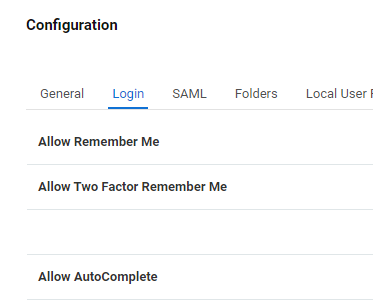
In the Configuration window, select the Login tab.
-
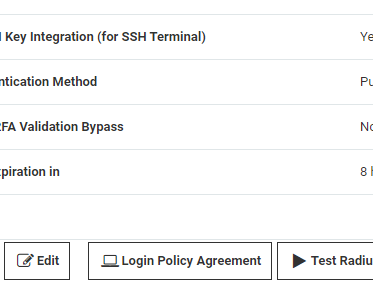
On the Login tab, scroll down to the bottom options and click Login Policy Agreement.
-
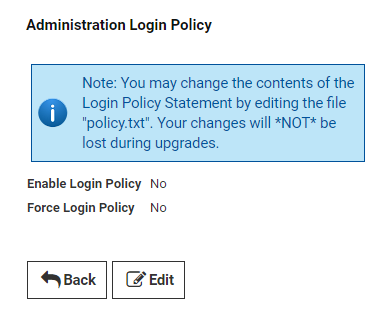
In the Administration Login Policy window, click Edit.
-
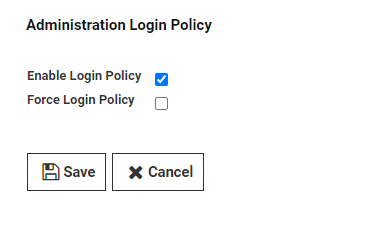
Select the checkbox for Enable Login Policy and click Save.
-
Log out of Secret Server and re-try logging in.
On the Secret Server Login page, users logging into Secret Server will see the default message provided in the login policy box.


