macOS Secure Token
Secure Token is a macOS account attribute, introduced in macOS 10.13 (High Sierra), that serves two critical functions in Apple’s security architecture: enabling FileVault disk encryption for user accounts, and providing the trust chain required for secure password management operations.
Secure Token and FileVault Disk Encryption
On macOS volumes using Apple File System (APFS), FileVault encryption keys are generated during user creation, when a user’s password is first set, or during the user’s first login. Secure Token is the mechanism by which these encryption keys are stored and associated with a user account. Specifically, a Secure Token is a wrapped version of a key encryption key (KEK) protected by the user’s password.
When FileVault is enabled, the startup disk is encrypted. Only user accounts that hold a Secure Token possess the key material necessary to unlock the encrypted volume at boot. An account without a Secure Token may exist on the system and may even have administrator privileges, but it cannot unlock the FileVault-protected disk or be enabled for FileVault access.
Delinea, as a cybersecurity company, recommends enabling FileVault disk encryption across your macOS fleet. Full-disk encryption protects data at rest in the event of device loss or theft, and is a foundational element of endpoint security. Because FileVault requires Secure Token-enabled accounts, enabling Secure Token is a prerequisite for a properly secured macOS environment.
Secure Token and Password Management
In addition to FileVault, Secure Token provides the authentication trust chain that Privilege Manager uses for password rotation on macOS. When a Secure Token Management Credential is configured, the agent authenticates through the Secure Token framework to rotate account passwords without requiring knowledge of the account’s previous password. This is the supported and recommended method for macOS password management in Privilege Manager.
Recommendation
Delinea recommends enabling Secure Token for all managed macOS accounts and configuring the Secure Token Management Credential in your agent configuration. This is the supported and endorsed method for macOS password management in Privilege Manager.
As of macOS 10.13, Apple designates sysadminctl as the recommended command-line tool for managing user accounts, replacing functionality previously provided by dscl. Delinea’s Secure Token implementation aligns with this Apple-endorsed approach.
In macOS 10.13, sysadminctl is Apple’s recommended tool for working with user accounts in the CLI, replacing functionality that has long been provided by dscl.
In order for Privilege Manager to support Secure Token during account creation and for password management, a local account with Secure Token enabled must be created on each macOS workstation. The credentials for this account must be set as the Secure Token Management Credential.
When the Secure Token Management Credential is configured in the macOS agent configuration, Privilege Manager will use this credential to create a local account on each macOS workstation. The resulting managed local account will be used during account provisioning and password management to ensure that managed accounts are Secure Token enabled.
Fallback Behavior (Not Recommended)
If the Secure Token Management Credential is not configured or is removed from the macOS agent configuration, the agent will fall back to a non-Secure Token method of password management using the dscl command. This fallback method is not recommended by Delinea for the following reasons:
-
Apple has superseded dscl for user account management. As of macOS 10.13, Apple’s
sysadminctlman page designatessysadminctlas the recommended replacement for dscl for user account operations. The Apple Platform Deployment Guide does not documentdsclas a viable method for managing Secure Token-enabled accounts. -
Previous password required. The
dsclcommand requires the account’s previous password to set a new one. For newly provisioned accounts or accounts migrated without password history, this command will fail because no previous password is available to the operating system. -
Inconsistent environment state. macOS may silently grant Secure Token to accounts under certain conditions (for example, when a user logs in interactively at the login window). This creates a mixed environment where some accounts have Secure Token and some do not, leading to inconsistent rotation behavior and divergent troubleshooting paths.
-
Cannot manage Secure Token-enabled accounts. Any account that has been granted Secure Token (whether intentionally or by macOS automatically) cannot have its password managed without a Secure Token Management Credential configured. The agent cannot manage the password of a Secure Token-enabled user using the fallback method.
-
Future compatibility risk. Apple continues to expand the role of Secure Token in macOS account security with each OS release. Environments relying on the
dsclfallback may encounter additional compatibility challenges as macOS evolves.
The agent will ignore attempts to manage the service account. This includes provisioning and password management of the service account via LSS. You should not modify the service account, this includes changing its local password. Doing so may invalidate its configuration and cause the agent to fail password management.
Apple Reference
Apple Platform Deployment Guide - Use secure and boodstrap tokens.
Key quote: “A secure token is a wrapped version of a key encryption key (KEK) protected by a user’s password.” This guide exclusively references sysadminctl for Secure Token operations and does not document dscl as a viable method for managing Secure Token-enabled accounts.
Requirements
Secure Token Management Credential
To rotate passwords on Secure Token-enabled macOS accounts, the Secure Token Management Credential must be configured in your agent configuration policy. Without this credential, the agent cannot authenticate to macOS’s security framework and password rotation will fail for any Secure Token-enabled account. This is a requirement of Apple’s macOS security model, not a limitation of Privilege Manager.
Pre-Existing Account
The account specified in the Secure Token Enabled Management Credential must already exist as a local administrator with Secure Token enabled on each macOS endpoint before the agent can use it. The agent does not create this account. If the management credential references an account that does not exist on the endpoint, Secure Token operations and password rotation for managed accounts will fail.
Ensure this account is provisioned on all target endpoints (for example, via your MDM solution or during initial device setup) before configuring the Secure Token Management Credential in Privilege Manager.
Security Considerations for the Management Credential
The Secure Token Management Credential is a privileged account that must have a known, static password in order for Privilege Manager to use it for Secure Token operations. This creates an inherent trade-off between functionality and credential hygiene. Consider:
-
Static password requirement. The management credential’s password must remain consistent between what is configured in Privilege Manager and what is set on each endpoint. If this password is rotated on the endpoint without updating the Privilege Manager configuration (or vice versa), the agent will be unable to perform Secure Token operations.
-
Bootstrapping constraint. While it may be desirable to have Privilege Manager rotate the management credential’s password, this creates a circular dependency: the agent requires the management credential’s current password to perform Secure Token operations, but if the agent rotated that password, it would need the updated password for its next operation. For this reason, the management credential is excluded from automatic password rotation.
-
Recommended practice. Use a strong, long, unique password for the management credential. Because this password must be static, Delinea recommends selecting a password that is sufficiently complex to mitigate the risk of its not being rotated. Organizations should treat this credential as a privileged service account and apply appropriate access controls and monitoring.
Using Multiple Secure Tokens
To Implement multiple Secure Tokens across your macOS estate, you will be required to create a new agent configuration profile within your designated Computer Group.
Using an agent configuration that was created or duplicated using version 11.4.3 or earlier will continue to update the secure token in all agent configurations.
Considerations
-
Agents should only belong to a single Computer Group with an active agent configuration.
-
The primary agent configuration will need to be disabled, otherwise other configurations will be ignored.
-
If an agent is added to more than one Computers Group with an active configuration, the agent may not follow the expected configuration.
Agent Configuration
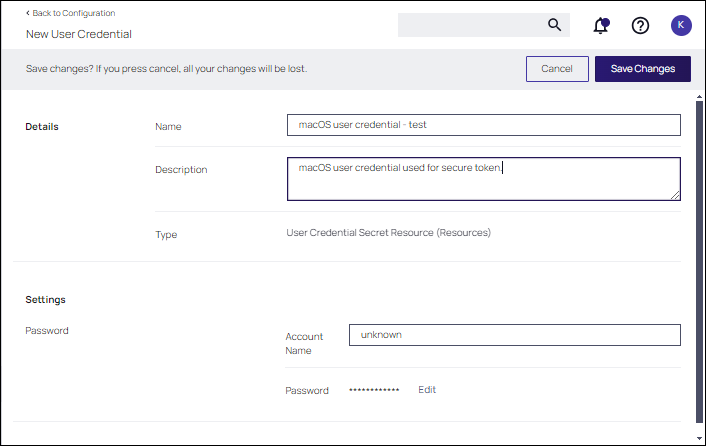
To use the Secure Token with macOS Agents, the user credential needs to be established and linked to the macOS agent configuration.
-
Navigate to Admin | Configuration, select the Credentials tab.
-
Click Create.
-
Under Details enter a Name and Description.
-
Under Settings enter the Account Name and Password for the macOS user account with Secure Token access.
-
Click Save Changes.
-
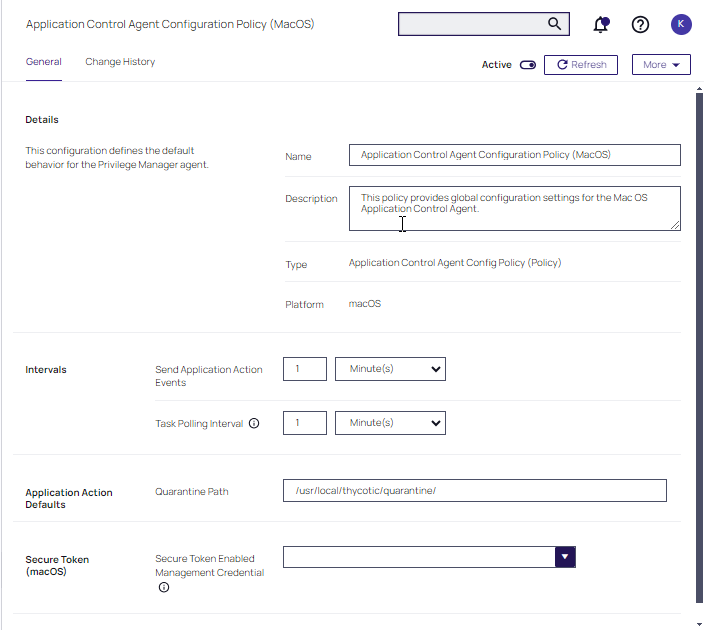
Navigate to your macOS Computer Group and select Agent Configuration.
-
In the Secure Token Enabled Management Credential field, enter the macOS user credential you created in step 2.
-
Click Save Changes.


