Offline Upgrades - Combined
Follow these steps to perform an offline upgrade for Privilege Managerand Secret Server. This topic is ONLY applicable when upgrading from products that are versions 10.2 and higher.
Offline upgrades on multiple servers will need to be done manually. Also refer to the High Availability Setup topic for general best practices.
- Download the zip files for your offline upgrade here. Copy/paste this zip file on your Privilege ManagerWeb server
- Make a backup of the Secret Server and Privilege Managerweb folders (Default path is
C:\inetpub\wwwroot> SecretServer + TMSfolders, copy/paste these into a backup folder) - Make a backup of the Database (In Secret Server navigate to Admin | Backup | Backup Now.)
- On the web server, navigate to
C:\ProgramData\NugetCache\and delete all the files in the folder (*ProgramData folder may be hidden: View > check the Hidden items box to reveal) - Open Secret Server and navigate to:
https://<YourSecretServerURL>/Setup/Upgrade -
On the Secret Server Update page:
-
Select Advanced (not required) to open the advanced options.
-
Select Choose File and navigate to the location of the Privilege ManagerUpdate zip package.
-
Select Upload Upgrade File.
-
When the new version is available select Upgrade.
Check
https://URL/TMS/Setupto see if an install is already in progress (this is usually seen when the TMS Upgrade portion of SS shows successful)
-
- Accept the License. Then allow the Secret Server upgrade to complete. Note that the Upgrade TMS step may say it was successful, or it may say it wasn't. Ignore this message and continue to follow the steps below:
-
Open the
C:\ProgramData\folder:-
Right-click the NugetCache folder and select Properties.
-
Click the Security tab.
-
Click Advanced.
-
Enable the Replace all child object permission entries with inheritable permission entries from this object checkbox
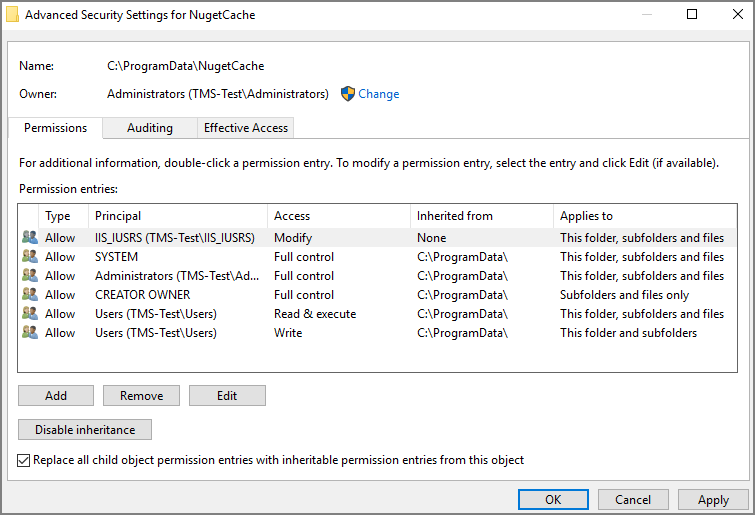
-
Click the OK and Yes.
-
-
Navigate to the TMS web folder (
C:\inetpub\wwwroot\TMS\), right-click and open with, for example, Notepad > Run as Administrator the web.config file.-
Update the "value" field of this item
<add key="nuget:source:SolutionCentre" value="http://tmsnuget.thycotic.com/nuget/" />toC:\ProgramData\NugetCache\, such asCopy<add key="nuget:source:SolutionCentre" value="C:\ProgramData\NugetCache\" /> -
Save the web.config file.
-
Recycle the TMS app pools.
-
- Navigate to
https://<webserver>/TMS/Setup/ProductOptions/ShowProductsThe TMS setup page requires authentication with a Windows account that is a Local Administrator of the Web Server. - You should see new products available in the products list. Click Install/Upgrade Products.
- Select the products you wish to upgrade or install, and follow the steps to finish the installation. If one of the products fails to install, please repeat these last two steps. You may encounter an issue with an error of "Version Store out of Memory" - this is transient and re-starting the upgrade will fix it. If you encounter any additional errors, please contact Delinea Technical Support for assistance.
An upgrade or repair to the product may rewrite the web.config with default settings. Always double-check that the web.config has the correct SolutionCentre path whenever you perform a manual upgrade. Also, the version numbers available should match the highest versions available in the C:\ProgramData\NugetCache\ folder on the web server.
Delinea recommends to create a back-up copy of the Privilege Managerweb application folder after installation or upgrades.


