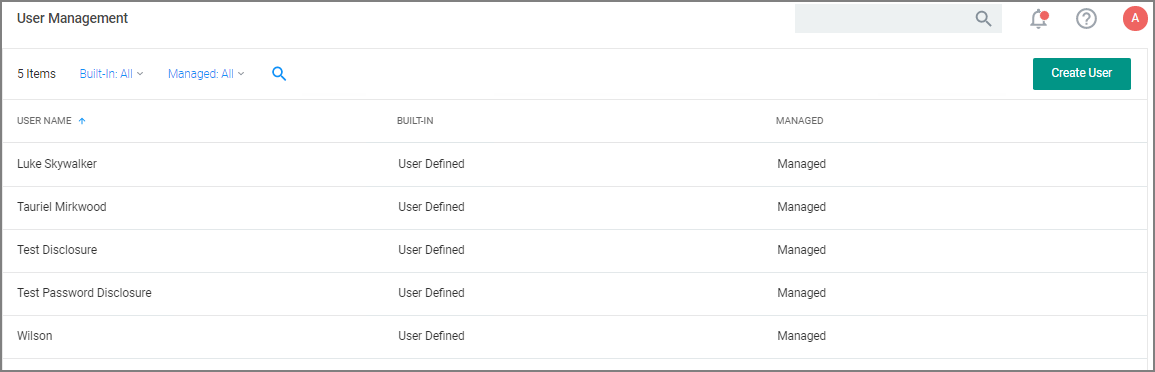
User Management
The Users page listed under your Computer Group shows a list of local users that exist within this Computer Group.
The User Management and Group Management pages have been configured to load faster by showing the list of managed and built-in users and groups only. Inventoried users and groups will no longer appear by default unless there are less than 200 workstations in that computer group. You can still manage any group or user on those workstations by clicking Create User or Create Group available in the top right of their respective tables.
If you need to modify any items within Privilege Manager, duplicate the item and modify the duplicate instead of the built-in item so that an upgrade does not overwrite it.
The information highlighted by the User Management table includes:
- How many groups each user account is a member of
- Whether the user account was built-in or user-defined
- Whether or not the account itself is managed
- Ability to show all inventoried users (Show all inventorized). By default, this toggle will be off and just show built-in users, as well as managed local users.
Local Security allows administrators to manage users and also to manage passwords and password rotation. Managing local users in Local Security means that you are setting a password for the account and can rotate the password as desired.