Creating New Local User Account
To create a new local user,
-
Navigate to your Computer Group for this new user and select User Management.
-
On the User Management page, click Create User.
-
Enter the new User Name.
-
Click Create.
-
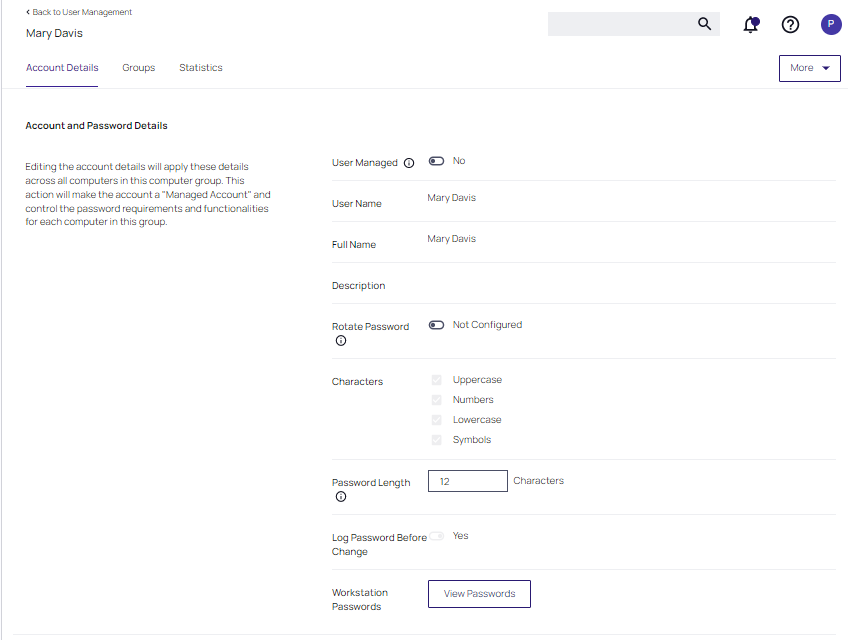
This takes you to the Account Details tab of your new user's account. To create a user through Local Security, it must be a managed user.
-
Set the User Managed switch to Yes.
In Local Security, the most important thing to know about your user accounts is whether or not each is being managed. Managing a local user account means that you are able to rotate the account's password from Local Security's console in Privilege Manager.
If the password is being rotated, the update schedule determines when the new password is applied.
The user does not need to be managed in order to rotate the password on a local account.
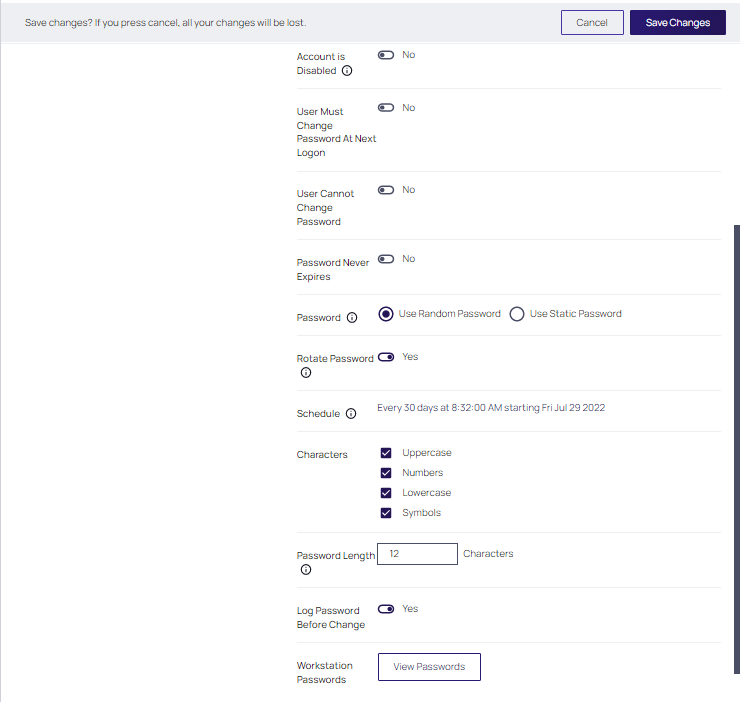
The following settings are all specific to Windows endpoints and will not be displayed for macOS based Computer Groups. For macOS-specific password management guidance, including Secure Token and FileVault requirements.
- Account is Disabled
- User Must Change Password At Next Logon
- User Cannot Change Password
- Password Never Expires
-
Managed user accounts require an initial password when created.
When the agent first receives the instructions for this account, it will create the account if necessary. Next, the agent sets the password to either the fixed password or random password, depending on which option is selected. This occurs regardless of whether the user existed or not. This overwrites any existing password.
If the user account is enabled, disabled, or deleted, it will repeat this initial deployment process.
In an addition to creating a static initial password, an additional option to create a randomized initial password is available.
If Use Static Password is selected, click the Edit link and specify a password, according to the password criteria set. The user will be able to login to any computer defined for the user account using this password. The password becomes effective at the point that the User Management task is updated on the agent endpoint (a message will be returned to the server).
If Use Random Password is selected, a different randomized password will be produced for every agent endpoint workstation that the user is managed on. Random passwords are also based on the password criteria set. The password(s) generated will display when the View Password button is selected, but only after the User Management task is updated on the agent endpoint (a message will be returned to the server).
For example:
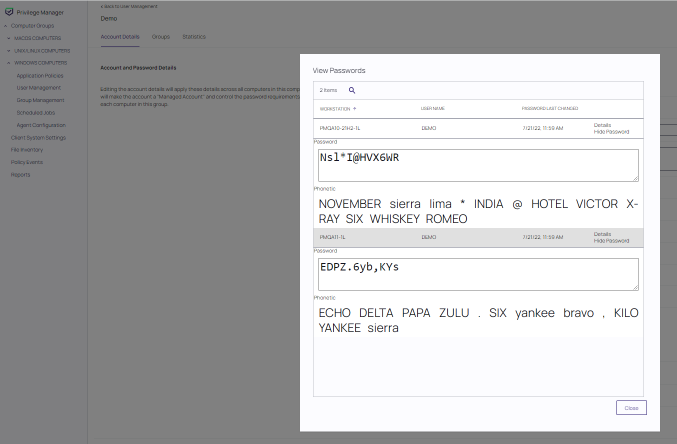
Select the method for password creation (Static or Random), then edit Characters and Password Length settings pertaining to the user's password.
-
Managing users, passwords, and rotation schedules often go hand-in-hand, but not every managed user account also requires password rotation. For example, service accounts are managed, but usually do not have password rotation setup. Password rotation can also be setup for existing users without having to provision user accounts.
Password rotation is an option that is not required for all accounts, especially not for service accounts.
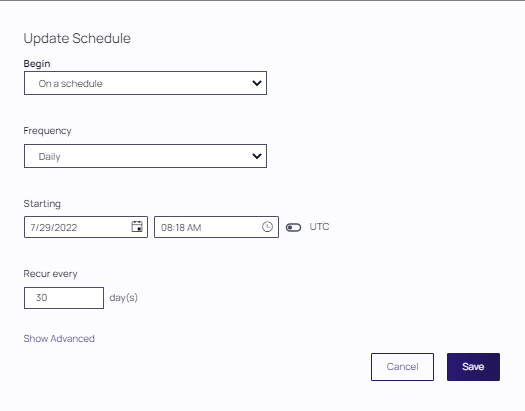
If password rotation is desired, enable Rotate Password. When prompted, click Confirm Manage Password. Click the link provided in the Schedule field and supply values in the Update Schedule dialog box and click Save. The password on this account will be rotated based on the Update Schedule details.
-
When all account settings are satisfactory, click Save Changes.


