Executables File Example
In this example we are creating a policy to deny running .msi files.
Creating the Policy
-
Navigate to Computer Groups | Windows Computers.
-
Select Application Policies.
-
Click Create Policy.
-
In the policy wizard select Controlling, click Next Step.
-
In the policy wizard select Block, click Next Step.
-
In the policy wizard select Notify and Block, click Next Step.
-
In the policy wizard select Installer Packages, click Next Step.
-
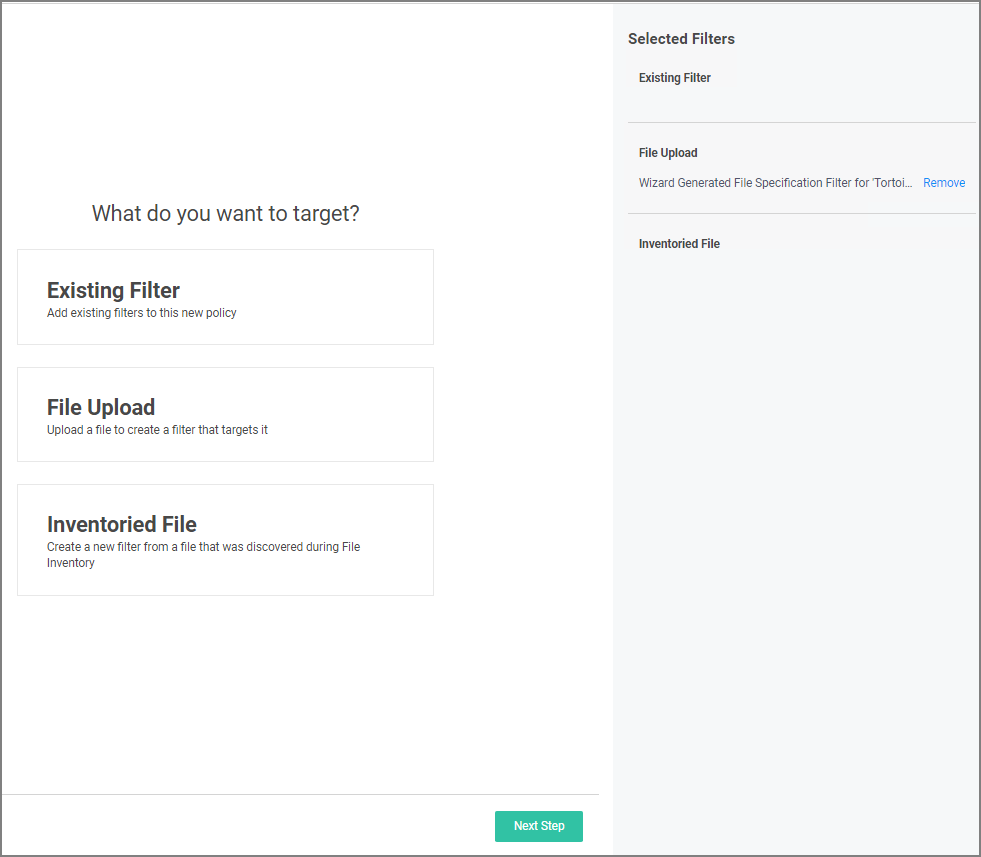
In the policy wizard select File Upload.
-
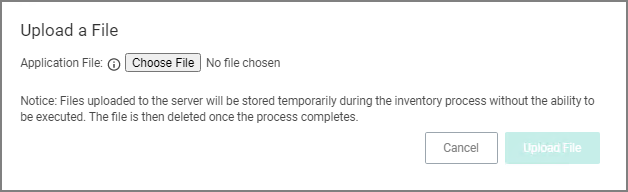
On the Upload a File modal, Click Choose File.
-
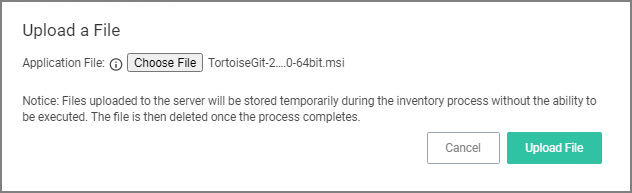
Select the file(s) you wish to be targeted. For this example we are selecting a TortoiseGit installer package.
-
Click Upload File.
-
On the Manage Application dialog, check File Name.
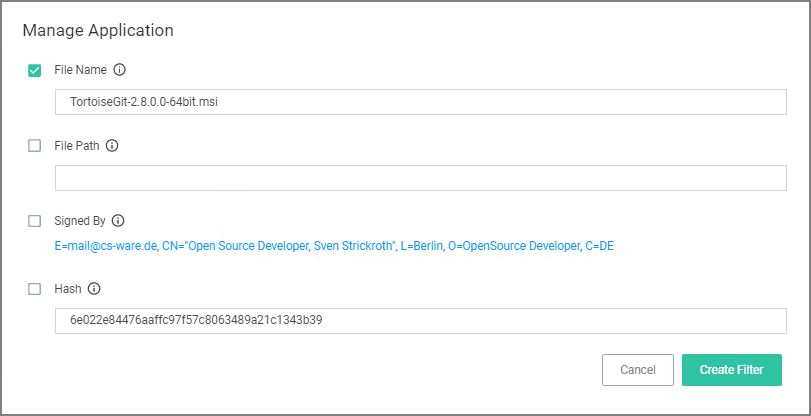
Select more details like the File Path or the Hash, if you want to make this policy more specific.
-
Click Create Filter.
-
Click Next Step.
-
-
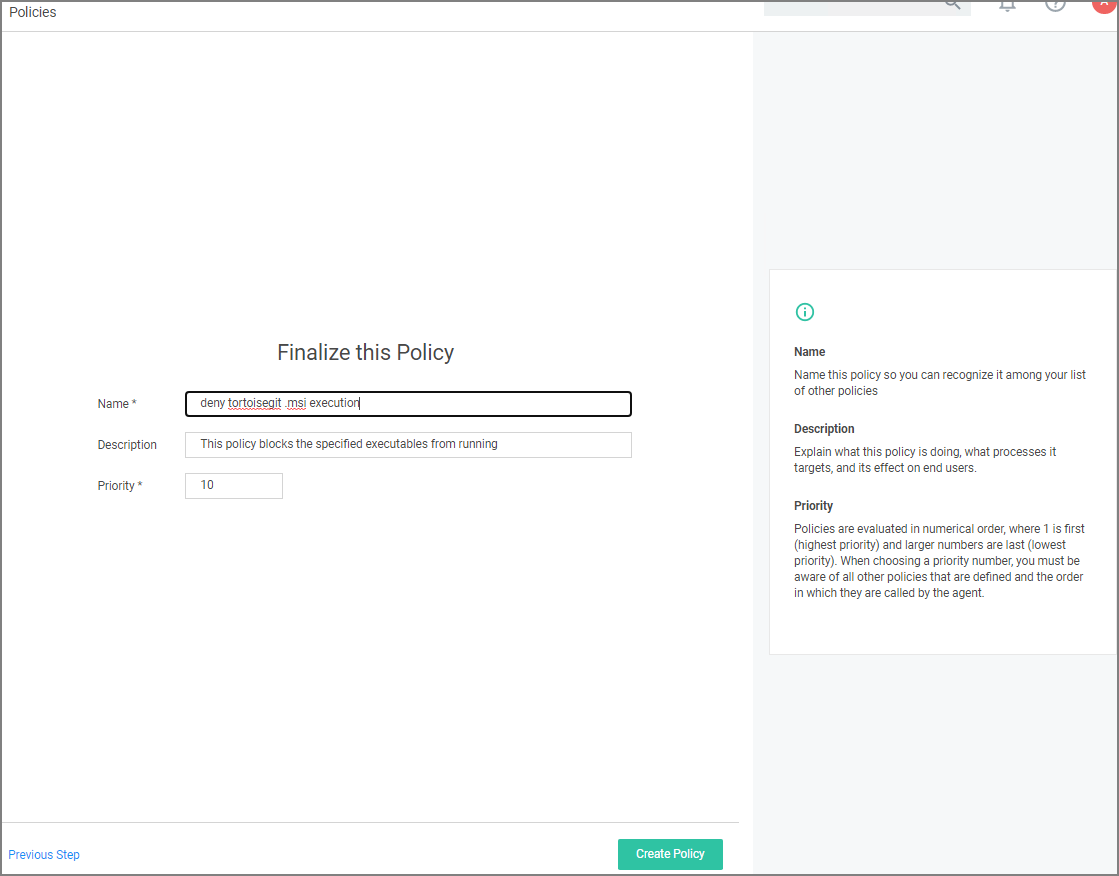
On the Finalize the Policy page, enter a name for your new policy. The policy will be created with a default priority of 10, since it is a deny and notify policy.
-
Click Create Policy.
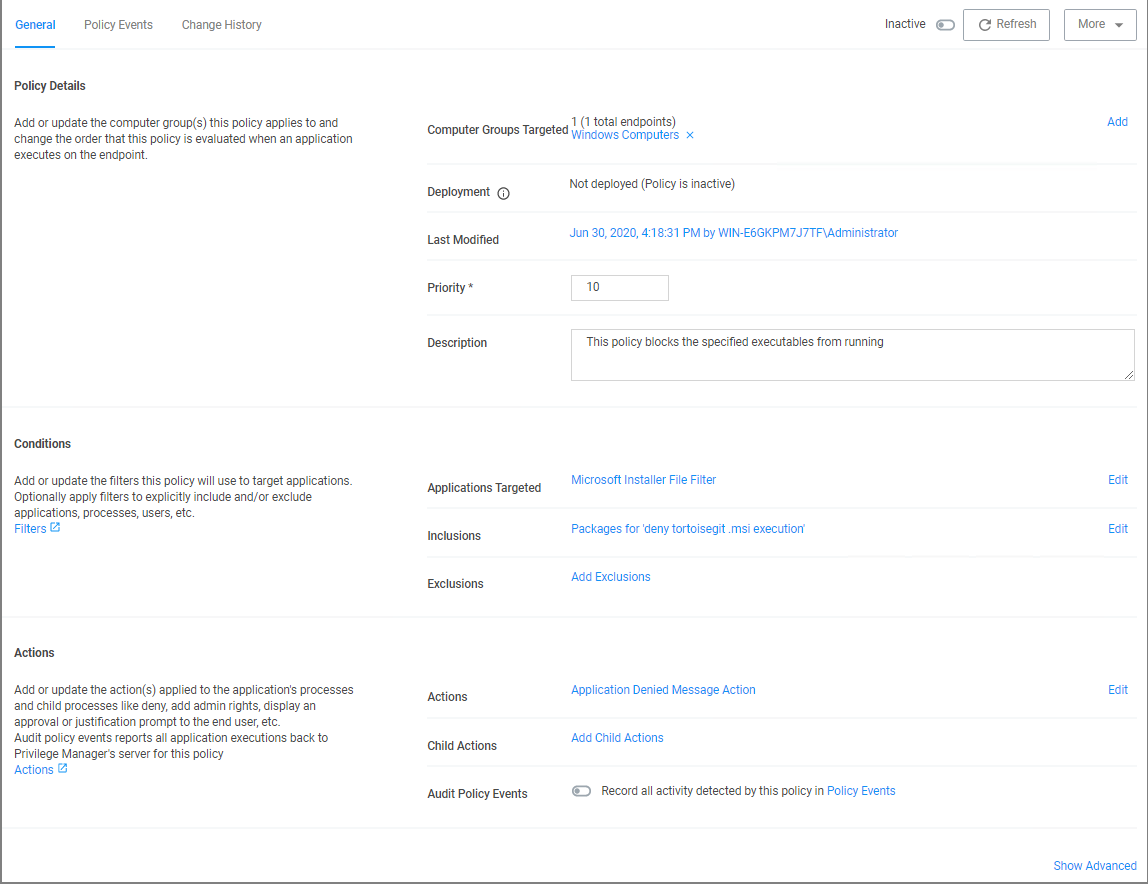
The policy wizard added based on the selected file upload and the file inventory that was executed and application target of Microsoft Installer Files.
A secondary file filter was added under Inclusions, identifying a specific file filter for the tortoisegit.msi execution.


