AuthorizationDB Right Actions
Privilege Manager provides the following default AuthorizationDB Right actions.
Existing AuthorizationDB actions can now contain multiple rights; existing single right actions continue to work unchanged.
| Action | AuthorizationDB Riight |
|---|---|
| Activity Monitor Kill Authorization Right | com.apple.activitymonitor.kill
|
| Activity Monitor Sudo Authorization Right | com.apple.activitymonitor.sudo
|
| Bless Helper Authorization Right | com.apple.ServiceManagement.blesshelper
|
| Install Apple Software Authorization Right | system.install.apple-software
|
| Modify LaunchDaemons Authorization Right | com.apple.ServiceManagement.daemons.modify
|
| Modify System Keychain Authorization Right | system.keychain.modify
|
| Privilege Manager Settings Authorization Right | com.dellinea.preferences.acsagent
|
| Xcode FLE Authorization Right | com.apple.dt.Xcode.LicenseAgreementXPCServiceRights
|
|
|
system.preferences.dateandtime.changetimezone
|
|
|
system.preferences.datetime
|
|
|
system.preferences.network
|
|
|
system.preferences |
| Wi-Fi AuthorizationDB Right Action | com.apple.wifi
|
Creating a Custom AuthorizationDB Right Action
An AuthDB action can now contain more than one Authorization DB right. A single action can grant several rights at once, so you no longer need a separate action for each right. Existing actions that contain a single right continue to work without any changes.
-
Navigate to Admin | Actions.
-
Click Create Action.
-
From the Platform drop-down select MacOS Computers Actions.
-
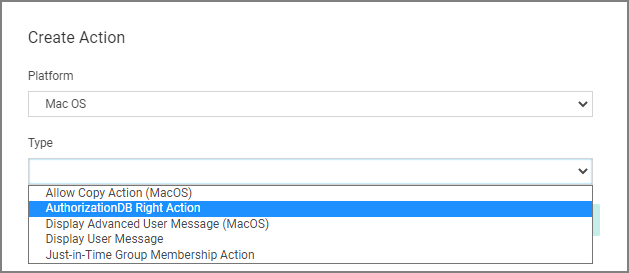
From the Type drop-down select AuthorizationDB Right Action.
-
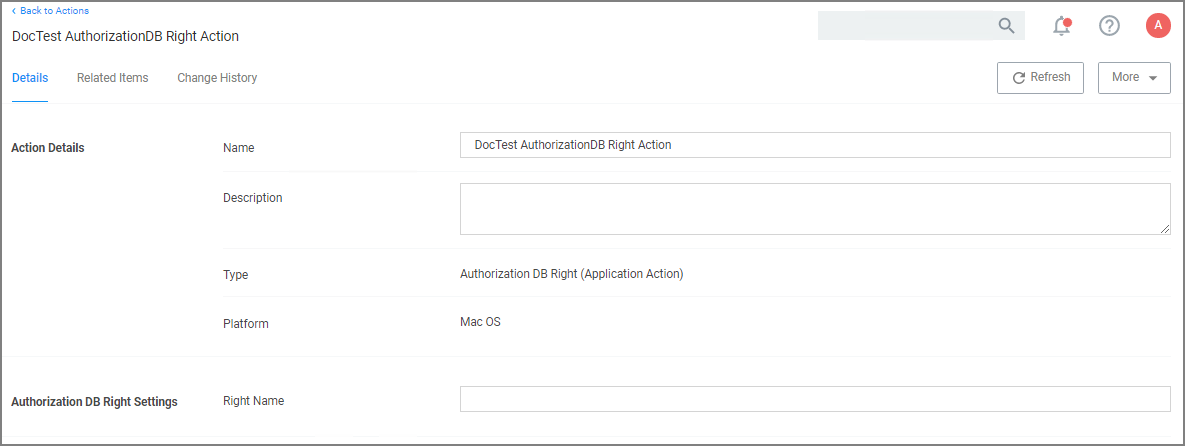
Enter a name, that allows you to easily identify the action for future use.
-
Click Create.
-
Under Authorization DB Right Settings, enter the desired authorization right names. There can be more than one authorization right per action.
-
Click Save Changes.
The action can now be added to existing macOS elevation policies or selected at policy creation following the use of Modify Authorization Right on the final create policy wizard page by selecting it from the Right Name drop-down.
Refer to the following examples:
AuthorizationDB Right Actions for System Settings Panes
Due to macOS limitations, some System Settings panes may prompt for an administrator password regardless of the Authorization DB rights granted. Examples include General | Sharing, Privacy & Security | FileVault, and Users & Groups. The Printers & Scanners screen requires _lpadmin group membership, regardless of Authorization DB rights granted.
System Settings Panes are now elevated using the necessary AuthorizationDB Right Actions instead of the Run as Root action.
The following table lists the rights needed to elevate System Settings Panes. The AuthorizationDB Right Action that Delinea provides is shown in parenthesis beside the action. If there is not a provided policy for a System Settings Pane, Delinea does not ensure that the listed AuthorizationDB Rights are comprehensive.
Refer to the file /System/Library/Security/authorization.plist that includes all rights and what they are used for. (The System Settings section is the dictionary where the first key is system.preferences.)
| System Settings Pane | AuthorizationDB Rights |
|---|---|
| Date & Time |
|
| Energy Saver/Battery |
|
| Lock Screen |
|
| Network (and VPN) |
|
| Privacy & Security |
|
| Time Machine | system.preferences (System Preferences AuthorizationDB Right Action) |
| Wi-Fi |
|
Creating Actions from Discovered Rights
When an application has requested Authorization DB rights, you can create an action for those rights directly from its file inventory detail, without adding each right by hand. Rights are discovered for any application a policy targets; the Authorization DB Rights Monitoring Policy (MacOS) (Sample) is a ready-made way to discover them. SeeRequested Authorization DB Rights (macOS) in File Inventory.
-
A Create Action button appears on the macOS file inventory detail when the application has discovered AuthDB rights.

-
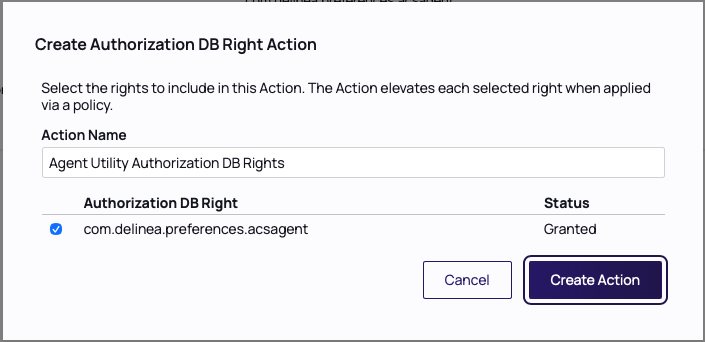
Selecting it opens a wizard with all of the discovered rights pre-selected.
-
Each right shows its Granted or Denied status.
-
You can deselect any right you do not want to include before saving.
-
Saving creates a single AuthDB action containing the rights you selected. You can then assign that action in a policy.


