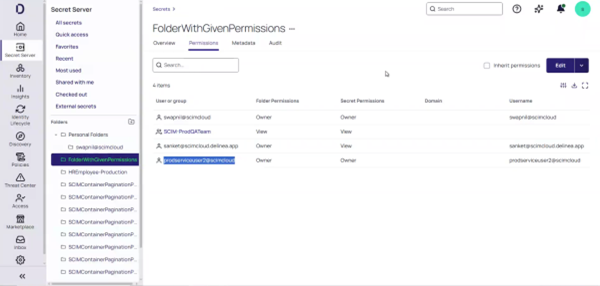
Verification
After completing the configuration steps, you can verify that the integration between SailPoint and the Delinea Platform via SCIM Cloud is functioning correctly.
Verify Permission Assignment Synchronization
Assigning a permission (SCIM Target) to an identity in SailPoint will automatically synchronize that permission to the appropriate folder within the Delinea Platform. This verification confirms that permission assignments made in SailPoint correctly propagate to the Platform through the SCIM connector.
-
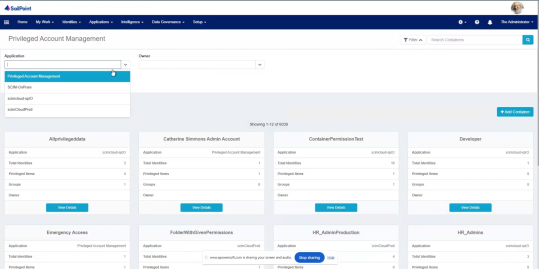
In SailPoint, go to My Work > Manage Access > Privileged Account Management.
-
In the Application dropdown, select your SCIM Cloud app (e.g., scimCloudProd).
-
Click Apply.
-
Identify and select a container or folder assignment group (e.g., HR_AdminProduction).
-
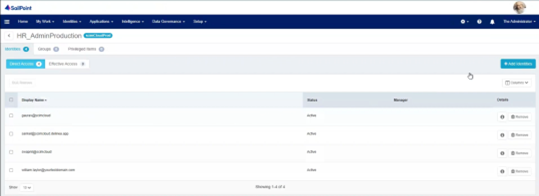
Click View Details and then select Add Identities.
-
Select a SailPoint user and assign permissions.
-
Right-click the Account Aggregation task and select Execute in Background to trigger synchronization immediately. Wait for the task to be successful.
-
Verify aggregated data
-
Confirm that the following data appears correctly in SailPoint:
-
Users: userName, displayName, email, active state
-
Groups: group names and memberships
-
Containers: folder hierarchy and ownership
-
Privileged Data: associated permissions
-
-
Once this data is visible and accurate, the SCIM connection is validated.
-
-
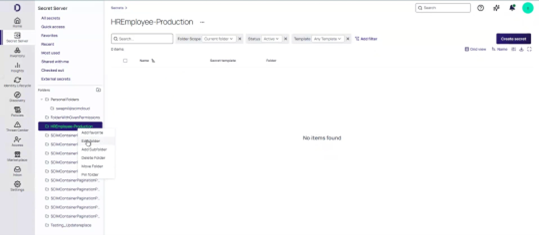
In the Delinea Platform, navigate to Secret Server > Folders, open the corresponding folder (for example, HREmployee-Production).
-
Verify that the same identity now appears with appropriate permissions.