Troubleshooting
How to get SailPoint Logs?
Go to Setup > Tasks > Task Results → Check execution history
How to Review Logs in the Dashboard?
The SailPoint Dashboard displays logs showing task statuses such as Success or Failed. You can click on any row for detailed information about the status of a task.
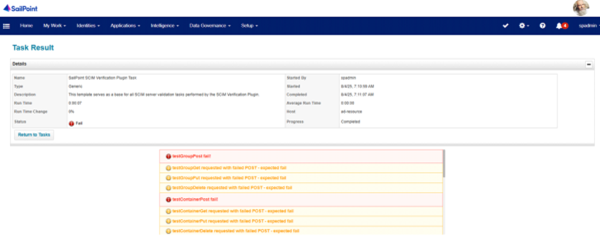
If connection fails:
-
-
Ensure the service account role and permissions are correct
-
Verify the OAuth scope is set to xpmheadless
-
Confirm the SCIM Base URL ends with /scim/v2
-
Common Error Messages from SCIM Cloud
See the SCIM topic Troubleshooting, Monitoring, and Logging for instructions on tracing requests, reviewing logs, and resolving provisioning or sync issues.
“Scope is Required”
-
Add the required scope to the Delinea Platform OAuth client.
-
Add the same scope to the SailPoint SCIM connector configuration.
-
Re-save the configuration on both the
401 Unauthorized
-
Verify that the OAuth client secret or password is correct.
-
Ensure the OAuth client is enabled in Delinea Platform.
-
Confirm the correct Client ID is being used in SailPoint.
404 SCIM Not Found
-
Ensure the SCIM Base URL includes
/v2. -
Verify that the correct tenant URL is configured.
Aggregation Returns 0 Users
-
Confirm required role permissions are assigned.
-
Ensure the service account is assigned to the custom SCIM role.
Timeout Error in SailPoint While Retrieving Data
When retrieving large data from SailPoint, a timeout error may occur because the default page size is set to 5000. You can resolve this issue by reducing the page size to 2000.
To fix this issue, follow these steps:
-
Open SailPoint in debug mode by navigating to
https://<your-sailpoint-tenant-url>/debug. -
When the Object Browser window opens, update two configuration objects:
-
Application – applies to Users and Groups
-
Target Source – applies to Containers, Container Permissions, Privilege Data, and Privilege Data Permissions
-
-
In the Object Browser dropdown, select your SCIM Application. The application XML configuration will open.
-
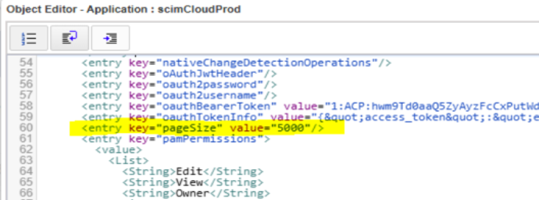
Search for the pageSize attribute in the XML.
-
Change the value of pageSize from 5000 to 2000.
-
Click Save to apply the change.
-
In the Object Browser dropdown, select your SCIM Application Target Source. The target source XML configuration will open.
-
Search for the pageSize attribute again.
-
Change the value of pageSize from 5000 to 2000.
-
Click Save to apply the change.
-
After updating both objects, rerun your aggregation or synchronization job to confirm that the timeout error no longer occurs.
SailPoint Known Issues / Limitations
SailPoint Does Not Handle Delinea Platform Username Changes
When a username is changed in Delinea Platformand synchronizing to SailPoint, SailPoint treats the update as a new account creation under the updated username, while the old username remains as a separate account record without active application linkage. As a result, the new username becomes the active account for provisioning and access, and the old username persists as an orphaned record that does not automatically reconcile.
-
New username → correctly linked to the SCIM application
-
Old username → remains as an orphaned identity in SailPoint with no application linkage. Sailpoint does not provide a function to delete the orphaned account. The recommendation is to refrain from performing username updated directly in the Delinea Platform.
This duplication can lead to inaccurate identity data, potential access issues, and unnecessary clutter in the Identity Warehouse.


