Configuration
To enable the integration between your product and the Delinea Platform, complete the following configuration tasks:
Configuring the Delinea Platform
To configure the integration the Delinea Platform for the integration with Microsoft Entra ID, complete the following Delinea SCIM Connector configuration steps:
-
Step 1: Configuring SCIM for the Delinea Platform.
-
Step 2: Review the recommended SCIM Best Practices to confirm that your configuration follows recommended guidelines for authentication, synchronization, permissions, filters, and connectivity.
-
Step 3: Review the Frequently Asked Questions About SCIM for answers to common questions about SCIM Cloud Connector configuration and troubleshooting.
Configuring Microsoft Entra ID
To enable the integration between Microsoft Entra ID and the Delinea Platform, complete the following steps in the specified order:
Step 1: Creating an Enterprise Application
Complete the following procedure to create an enterprise application for the Delinea Platform in Microsoft Entra ID.
-
Log in to the Azure Portal.
-
Navigate to Entra ID > Enterprise Applications.
-
Select New application and then select Create your own application.
-
Enter a name of the enterprise application, for example, “Delinea SCIM Provisioning.”
-
Select Integrate any other application you don’t find in the gallery and select Create.
Step 2: Configuring SCIM Provisioning
Complete the following procedure to configure automatic SCIM user account and group provisioning in Microsoft Entra ID.
-
Navigate to Entra ID > Enterprise Applications.
-
Open the enterprise application that you created.
-
Select Provisioning.
-
On the Provisioning page, select Provisioning on the left side.
In the Provisioning Mode list, the Automatic provisioning mode is selected by default. For more information about the provisioning modes, see the Microsoft Entra ID documentation.
-
Expand the Admin Credentials option and provide the following settings, as shown.
Microsoft Entra ID will use these settings to retrieve an access token from the Delinea Platform APIs and will use the access token to authenticate with the Delinea Platform.
-
Authentication Method: Select OAuth2 Client Credential Grant.
-
Tenant URL: The URL of your Delinea Platform tenant in the format
https://<your-hostname>.delinea.app/scim/v2. -
Token Endpoint: The endpoint to which a request will be sent to retrieve an access token. Use the format
https://<your-hostname>.delinea.app/identity/api/oauth2/token/xpmplatform?scope=xpmheadless. -
Client Identifier: The username of the service user that you created for this integration in the Delinea Platform.
-
Client Secret: The password of the service user.
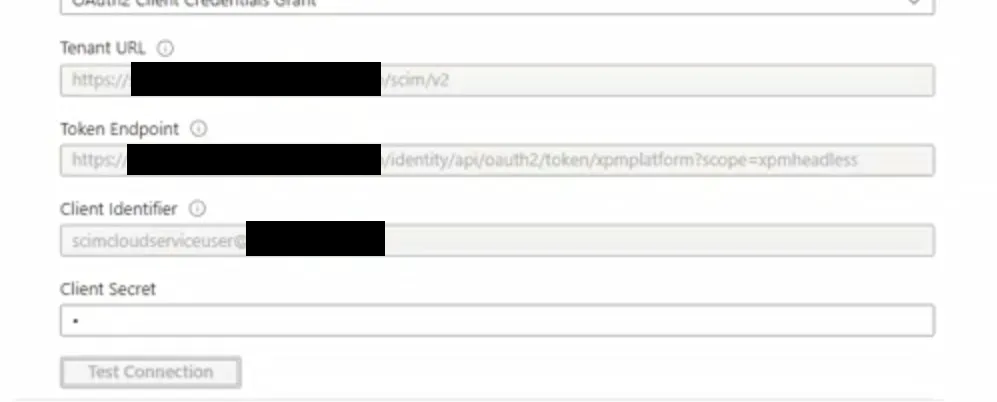
You don’t need to create custom attribute mappings under Mappings. The default attribute mappings work well for this integration.
-
-
-
Under Settings, leave the default values.
-
Change Provisioning Status to On to cause the Microsoft Entra provisioning service to run an initial cycle to automatically start provisioning users and groups.
-
To test the connection to the Delinea Platform, select Test Connection.
If the connection is successful, the Supplied credentials are authorized to enable provisioning message appears in the upper-right corner of the page, as shown above.
-
To save the provisioning settings, select Save.
Step 3: Configuring the Provisioning Scope
You must configure the provisioning scope in Microsoft Entra ID so that only the users that you explicitly assign to the Delinea SCIM Provisioning application will be provisioned.
-
On the Provisioning page for the Delinea SCIM Provisioning application, expand Settings.
-
In the Scope list, select Sync only assigned users and groups.
-
Select Save.
Step 4: Assigning Users and Groups to the Delinea SCIM Provisioning Application
To enable automatic provisioning of users and groups, you must assign those users and groups that to the Delinea SCIM Provisioning application.
-
Open the enterprise application that you created for this integration.
-
In the left pane, select Users and groups.
-
Select Add user/group.
-
On the right side of the Add Assignment pane, select None Selected under Users and groups .
-
Select the checkbox next to each user and group that you want to assign and select Select.
-
Select Assign.
The assigned users and groups will be created in the Delinea Platform after a synchronization process in Microsoft Entra ID is complete (in approximately 40 minutes).


